
1. Sản phẩm hếtview
The Phezer P16-1 is a portable intelligent inkjet printer designed for various coding and marking applications. It features a 4.3-inch LCD capacitive touchscreen and operates independently without requiring external applications or computers.
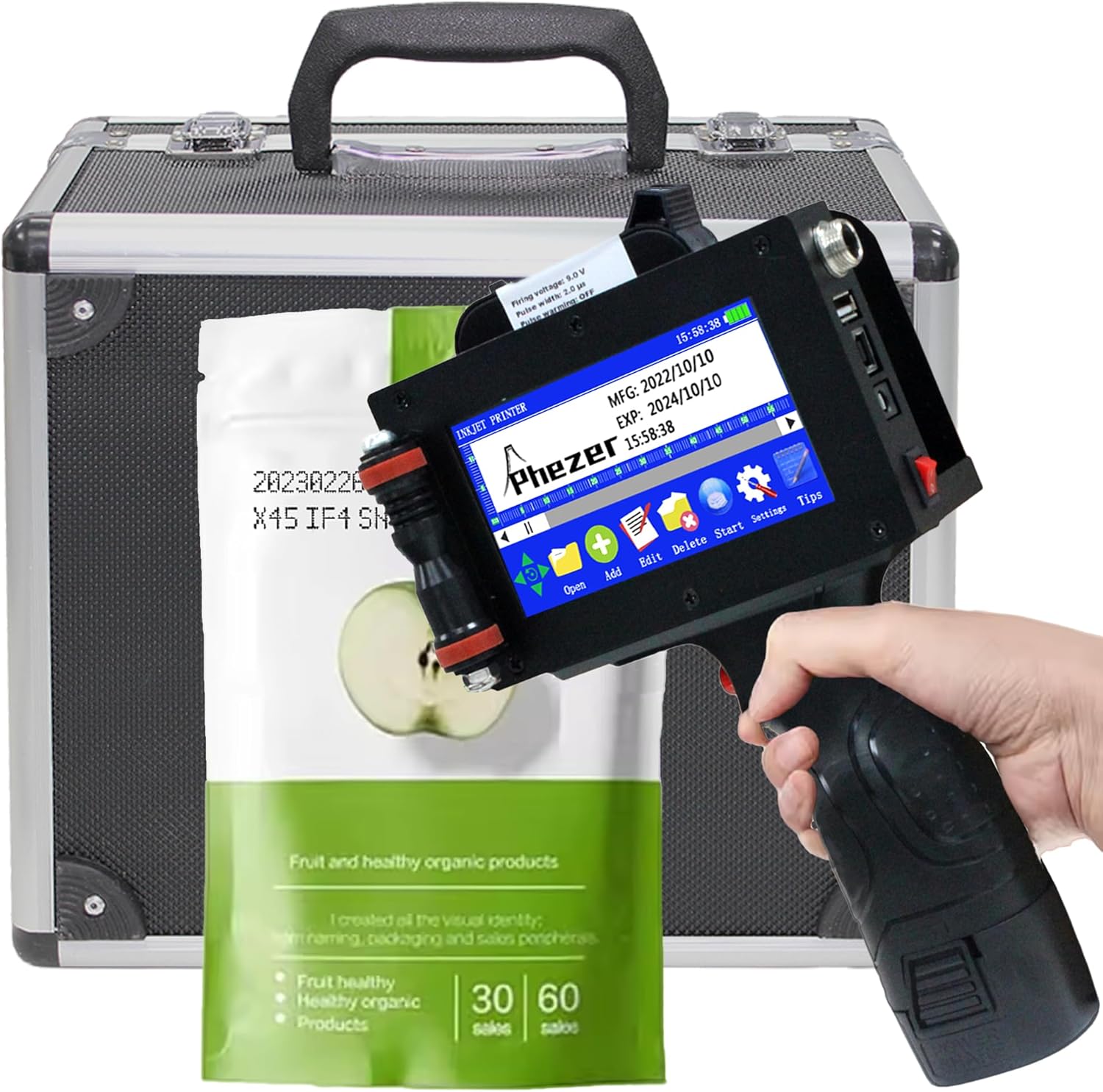
Image 1.1: Phezer P16-1 Handheld Inkjet Printer and accessories.
Các tính năng chính:
- No External Connection Required: Operates with an upgraded Cortex-A9 quad-core CPU and independent system.
- Nhẹ và di động: Weighs 1.54 lbs (0.7 kg) with a built-in 2600mAh rechargeable battery.
- In ấn đa năng: Supports text, labels, digits, QR codes, barcodes, production dates, times, and logos.
- Khả năng tương thích với nhiều bề mặt: Prints on paper, boards, carton, stone, pipe, cable, metal, glass, plastic, and cloth.
- Chiều cao in có thể điều chỉnh: From 2mm to 25.4mm (1 inch), with unlimited length.
- Multi-directional Printing: Supports 360-degree all-round printing.
- Nhiều ngôn ngữ: Có 22 ngôn ngữ để lựa chọn.
- Mực khô nhanh: Includes a 42ml black high-definition solvent ink cartridge. Other ink colors available include white, yellow, red, blue, green, invisible, and UV.
2. Hướng dẫn thiết lập
2.1. Tháo dỡ và kiểm tra ban đầu
Carefully remove all components from the packaging. Verify that all items listed in the product manual are present and undamaged.
2.2. Lắp đặt hộp mực
- Open the ink cartridge compartment on the printer.
- Remove the protective cap from the new ink cartridge.
- Insert the ink cartridge into the compartment, ensuring it is seated correctly.
- Đóng ngăn chắc chắn.
Video 2.1: Demonstrates ink cartridge installation and initial cleaning for clear printing.
2.3. Bật nguồn
Press and hold the power button until the screen illuminates and the system starts. The device is ready for operation once the main interface is displayed.
3. Hướng dẫn vận hành
3.1. Điều hướng giao diện
The printer features a 4.3-inch LCD capacitive touchscreen. Navigate through menus and options using the stylus or your finger.
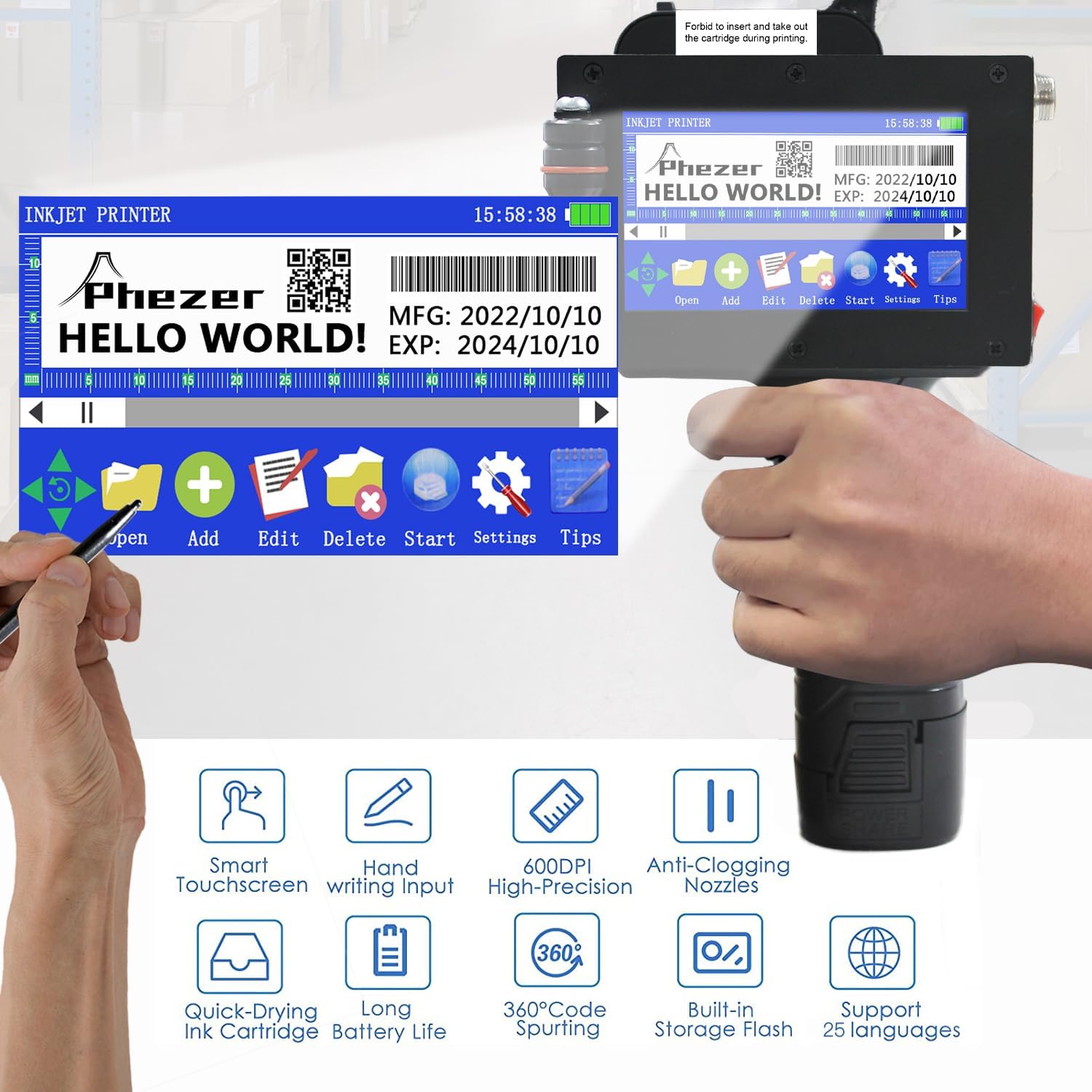
Image 3.1: Main screen interface with editing and settings options.
3.2. Tạo và chỉnh sửa nội dung in ấn
The printer supports various content types including text, date, time, QR codes, barcodes, and logos. You can directly edit font, size, and style on the touchscreen.

Hình ảnh 3.2: Ví dụamples of supported print content types.
3.3. Variable Data Printing (Excel Files)
The printer can print variable data directly from Excel fileS. Thực hiện theo các bước sau:
- Tạo một cái mới file trên máy in.
- Select the 'Table' option to add a table.
- Insert a USB drive containing your Excel file (.xlsx format) into the printer's USB port.
- Exit and re-enter the 'Table' option to refresh the file danh sách.
- Select your desired Excel file từ danh sách.
- Save the changes using the 'OK' button.
- The printer is now ready to print the variable data from the Excel file.
Video 3.3: Guide on how to print Excel files with variable data.
3.4. Printing Procedure
To print, hold the printer firmly and press the print trigger. Gently slide the printer across the desired surface. The print height can be adjusted from 2mm to 25.4mm.

Hình ảnh 3.4: Ví dụamples of multi-purpose usage on different materials.
3.5. 360-Degree Printing
The P16-1 supports 360-degree all-round printing, allowing you to print on curved or irregular surfaces.

Image 3.5: 360-degree coding on cylindrical objects.
3.6. Supported Surfaces
The printer is compatible with a wide range of materials, including paper, boards, carton, stone, pipe, cable, metal, glass, plastic, and cloth.
Video 3.6: Demonstrates printing on various surfaces like plastic and acrylic.
Video 3.7: Demonstrates printing on plastic bags and other flexible packaging.
4. Bảo trì
4.1. Vệ sinh vòi phun
If printing appears unclear or incomplete, the ink cartridge nozzle may need cleaning. Use a cotton fabric sprayed with a moderate amount of alcohol to gently wipe the nozzle once. Then, attempt to print again.
Video 4.1: Instructions for cleaning the nozzle when printing is unclear.
4.2. Preventing Clogs and Leaks
The included 42ml quick-drying ink cartridge is designed to minimize ink-leaking and nozzle-blocking. Always ensure the cartridge is properly seated and the protective cap is replaced when not in use for extended periods.
KHAI THÁC. Xử lý sự cố
5.1. Unclear or Incomplete Printing
If your prints are not clear or complete, refer to the nozzle cleaning instructions in Section 4.1. Ensure the print surface is clean and dry, and that the printer is moved smoothly across the surface during operation.
Video 5.1: Addresses issues with unclear or incomplete printing.
5.2. Double Print Problem
If you experience double printing, adjust the nozzle settings on the printer's interface. Navigate to 'Settings' > 'Nozzle' and ensure the 'Double Print' option is set to 'Off' or adjusted as needed for your specific application.
Video 5.2: Explains how to resolve the double print issue.
6. Thông số kỹ thuật
| Tính năng | Đặc điểm kỹ thuật |
|---|---|
| Tên mẫu | P16-1 |
| Công nghệ in ấn | Máy in phun |
| Độ phân giải in tối đa | 600 dpi (Đen trắng) |
| Chiều cao in | 2-25.4mm (1 inch) |
| Dung lượng hộp mực | 72ml (42ml included) |
| Ắc quy | Pin Lithium Ion 2600mAh (bao gồm) |
| Kết nối | USB |
| Kích thước sản phẩm | 5.51"D x 4.33"W x 8.86"H (14 x 11 x 22.5 cm) |
| Trọng lượng sản phẩm | 2.2 pound (1 kg) |
| Tính năng đặc biệt | Borderless Printing, Display Screen, Internal Memory, Portable, Touch Screen |

Image 6.1: Physical dimensions of the Phezer P16-1 printer.
7. Bảo hành và Hỗ trợ
Phezer is committed to providing professional service and reliable coding solutions. For any inquiries or support needs, please contact Phezer Coding and Marking Solution directly.
7.1. Liên hệ hỗ trợ
If you purchased your product through Amazon, you can contact Phezer Coding and Marking Solution by navigating to the product page, clicking on the 'Sold by' link (usually next to the seller's name), and then selecting 'Ask a question'.