
1. Giới thiệu
This manual provides detailed instructions for the safe and efficient operation of your Xprinter XP-P323B Portable Thermal Printer. Please read this manual thoroughly before using the device to ensure proper functionality and to prevent damage. The XP-P323B is designed for printing receipts and labels, offering portability and high-speed capabilities for various business needs.
2. Thông tin an toàn
- Do not expose the printer to water or excessive moisture.
- Tránh làm rơi máy in hoặc va đập mạnh.
- Chỉ sử dụng bộ chuyển đổi nguồn và phụ kiện được chỉ định.
- Đặt máy in tránh xa các nguồn nhiệt và ánh nắng trực tiếp.
- Không nên tự ý tháo rời hoặc sửa chữa máy in. Hãy liên hệ với nhân viên dịch vụ có chuyên môn.
- Đảm bảo thông gió thích hợp trong quá trình hoạt động.
3. Nội dung gói hàng
Xác minh rằng tất cả các mục đều có trong gói hàng:
- Xprinter XP-P323B Portable Thermal Printer
- Power Adapter (not explicitly listed but standard)
- USB Cable (not explicitly listed but standard)
- Sample Thermal Paper Roll (not explicitly listed but standard)
- Hướng dẫn sử dụng (tài liệu này)
4. Sản phẩm hếtview
The Xprinter XP-P323B is a compact and efficient thermal printer designed for various printing tasks. It supports NV logo download and picture printing (BMP format), along with concentration adjustment for print quality.
4.1. Các thành phần của máy in

Hình 1: Đằng trước view of the Xprinter XP-P323B Portable Thermal Printer, showing the power button, display, and a sample label being printed.
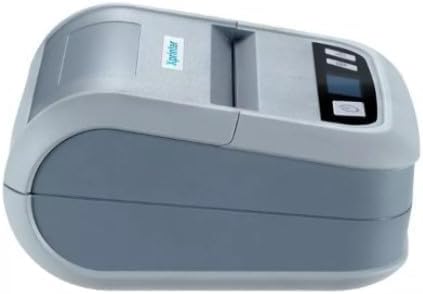
Hình 2: Bên view of the Xprinter XP-P323B, highlighting its compact design and the Xprinter logo.
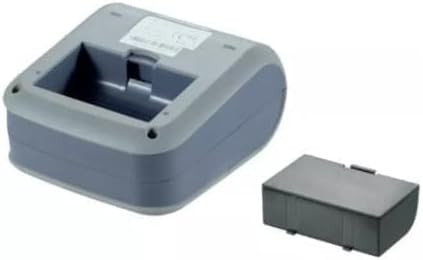
Hình 3: Mặt dưới view of the Xprinter XP-P323B, showing the base and the removable battery compartment.
5. Thiết lập
5.1. Sạc pin
- Connect the power adapter to the printer's charging port.
- Cắm bộ đổi nguồn vào ổ cắm trên tường.
- The charging indicator light will illuminate. Allow the printer to charge fully before first use.
5.2. Loading Thermal Paper/Labels
- Open the paper compartment cover by gently pushing the release latch.
- Insert the thermal paper roll with the printing surface facing the print head. Ensure the roll is seated correctly.
- Kéo một lượng giấy nhỏ ra khỏi đầu in.
- Đóng chặt nắp ngăn đựng giấy cho đến khi nghe tiếng "tách".
5.3. Kết nối với thiết bị
The XP-P323B supports USB and Bluetooth connectivity.
5.3.1. Kết nối USB
- Kết nối máy in với máy tính của bạn bằng cáp USB được cung cấp.
- Install the necessary printer drivers (available from the Xprinter website or included software).
5.3.2. Bluetooth Connection (for Smartphones/iOS)
- Đảm bảo máy in đã được bật nguồn.
- On your smartphone or iOS device, go to Bluetooth settings and enable Bluetooth.
- Tìm kiếm available devices and select 'XP-P323B' (or similar name).
- Enter the pairing PIN if prompted (refer to printer documentation for default PIN, often '0000' or '1234').
- Once paired, you can use a compatible printing application to send print jobs.
6. Vận hành máy in
6.1. In ấn cơ bản
- Ensure the printer is connected to your device and has paper loaded.
- Open the document or image you wish to print on your connected device.
- Select the print option within your application.
- Choose 'XP-P323B' as the printer.
- Adjust print settings as needed (e.g., paper size, print quality).
- Bắt đầu quá trình in.
6.2. NV Logo and Picture Printing
The printer supports downloading and printing NV (Non-Volatile) logos and BMP format pictures. This functionality typically requires specific software or commands. Refer to the advanced programming guide or software documentation for detailed instructions on how to upload and print custom logos or images.
6.3. Adjusting Print Concentration
Print concentration can be adjusted to optimize print quality. This setting is usually accessible through the printer driver software on a computer or within the settings of a compatible mobile printing application. Consult your software's help section for specific steps.
7. Bảo trì
7.1. Vệ sinh máy in
- Bên ngoài: Lau sạch bên ngoài máy in bằng vải mềm,amp vải. Không sử dụng hóa chất mạnh hoặc chất tẩy rửa mài mòn.
- Đầu in: The thermal print head should be cleaned periodically to ensure optimal print quality. Use a cotton swab lightly dampened with isopropyl alcohol. Gently wipe the print head surface. Allow it to dry completely before closing the cover and resuming operation.
- Đường đi trên giấy: Dùng bàn chải mềm hoặc khí nén để loại bỏ bụi giấy hoặc mảnh vụn bám trên đường dẫn giấy.
7.2. Lưu trữ
When not in use for extended periods, store the printer in a cool, dry place, away from direct sunlight and extreme temperatures. Remove the paper roll if storing for a very long time to prevent dust accumulation.
KHAI THÁC. Xử lý sự cố
| Vấn đề | Nguyên nhân có thể | Giải pháp |
|---|---|---|
| Máy in không bật nguồn | Low battery; Power adapter not connected; Faulty power adapter | Charge the battery; Ensure power adapter is securely connected; Try a different power outlet or adapter |
| Không có đầu ra in | No paper; Paper loaded incorrectly; Printer not connected; Driver issue | Load paper correctly; Re-establish connection; Reinstall printer drivers |
| Chất lượng in kém | Dirty print head; Low print concentration; Low battery | Clean the print head; Adjust print concentration in software; Charge the battery |
| Kết nối Bluetooth không thành công | Bluetooth off on device; Incorrect pairing PIN; Printer out of range | Enable Bluetooth; Re-enter correct PIN; Move device closer to printer |
9. Thông số kỹ thuật
| Thương hiệu | Máy in Xprinter |
| Số hiệu mẫu | XP-P323B |
| Kích thước sản phẩm (D x R x C) | 15D x 7W x 10H cm |
| Công nghệ kết nối | USB |
| Công nghệ máy in | Nhiệt |
| Tính năng đặc biệt | Cầm tay |
| Màu sắc | Xám |
| Thiết bị tương thích | Điện thoại thông minh |
| Loại bộ điều khiển | iOS |
| Kích thước phương tiện tối đa | 4 x 6 inch |
| Phương tiện in ấn | Nhãn |
| Kích thước giấy | 4 x 6 inch |
| Đầu ra máy in | Đơn sắc |
| Maximum Print Speed (Black and White) | 40 mm/s (estimated from context) |
| Trọng lượng sản phẩm | 300 gam |
10. Bảo hành và Hỗ trợ
For warranty information and technical support, please refer to the warranty card included with your product or visit the official Xprinter webtrang web. Giữ lại biên lai mua hàng làm bằng chứng mua hàng khi yêu cầu bảo hành.