
Darmoshark TOP75
Hướng dẫn sử dụng bàn phím cơ không dây Darmoshark TOP75
Model: TOP75
Giới thiệu
Thank you for choosing the Darmoshark TOP75 Wireless Mechanical Keyboard. This keyboard is designed for versatility and performance, offering triple-mode connectivity (2.4G, Bluetooth 5.0, and USB-C wired), a compact 75% layout, and hot-swappable switches for customization. With its durable construction and long-lasting battery, the TOP75 is suitable for both gaming and professional use across various operating systems.
Sách hướng dẫn này cung cấp các chỉ dẫn chi tiết về cách thiết lập, vận hành, bảo trì và khắc phục sự cố bàn phím để đảm bảo hiệu suất tối ưu và tuổi thọ lâu dài.

Figure 1: Darmoshark TOP75 Wireless Mechanical Keyboard (White Version)
Nội dung gói
- Darmoshark TOP75 Wireless Mechanical Keyboard
- Cáp USB-C
- Bộ thu không dây 2.4G (dongle)
- Dụng cụ kéo bàn phím
- Công tắc kéo
- Hướng dẫn sử dụng (tài liệu này)
Cài đặt
Sạc bàn phím
Before first use, it is recommended to fully charge the keyboard. Connect the provided USB-C cable to the keyboard's USB-C port and the other end to a USB power source (e.g., computer USB port, wall adapter). The keyboard features a 4000mAh high-capacity battery.
Chế độ kết nối
The TOP75 keyboard supports three connection modes: 2.4G wireless, Bluetooth 5.0, and USB-C wired.

Figure 2: Triple-Mode Wireless Connectivity Overview
1. Chế độ không dây 2.4G
- Locate the 2.4G wireless receiver (dongle) in the receiver storage compartment on the back of the keyboard.
- Cắm bộ thu 2.4G vào cổng USB có sẵn trên máy tính của bạn.
- Switch the mode selector on the keyboard to the "2.4G" position.
- Bàn phím sẽ tự động kết nối. Nếu không, hãy nhấn fn+4 để bắt đầu ghép nối.
2. Chế độ Bluetooth 5.0
- Switch the mode selector on the keyboard to the "BT" (Bluetooth) position.
- Để vào chế độ ghép nối, nhấn và giữ fn+1, fn+2, hoặc fn+3 Trong khoảng 3-5 giây, đèn báo hiệu của kênh đã chọn sẽ nhấp nháy nhanh.
- Trên thiết bị của bạn (máy tính, máy tính bảng, điện thoại thông minh), hãy bật Bluetooth và tìm kiếm thiết bị mới.
- Select "Darmoshark TOP75" from the list of available devices to pair. The indicator light will become solid once connected.
- Bạn có thể ghép nối tối đa ba thiết bị Bluetooth và chuyển đổi giữa chúng bằng cách sử dụng fn+1, fn+2, hoặc fn+3.
3. Chế độ có dây USB-C
- Kết nối cáp USB-C với cổng USB-C trên bàn phím.
- Kết nối đầu còn lại của cáp USB-C với cổng USB trên máy tính của bạn.
- Switch the mode selector on the keyboard to the "USB-C" position.
- The keyboard will be recognized as a standard USB HID device and is ready for use.
Hướng dẫn sử dụng
Các phím chức năng (Tổ hợp phím Fn)
The TOP75 keyboard utilizes an 81-key layout, which is a compact 75% layout. Many functions are accessed via the Fn Khóa được kết hợp với các khóa khác.
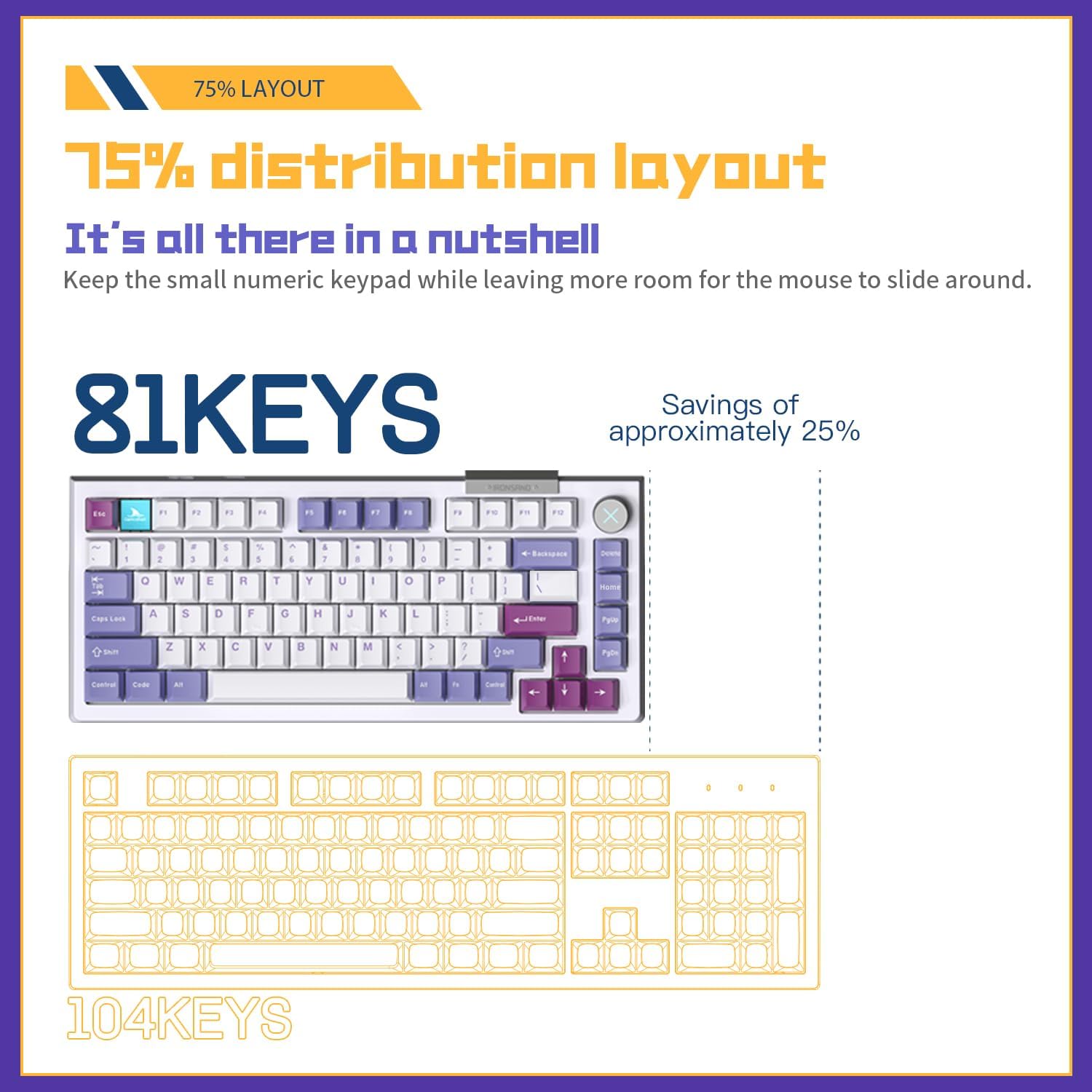
Figure 3: 75% Layout (81 Keys) vs. 104 Keys
| Sự kết hợp | Chức năng |
|---|---|
| Fn + 1/2/3 | Chuyển đổi thiết bị Bluetooth (BT1, BT2, BT3) |
| fn+4 | Activate 2.4G pairing mode |
| Fn + Xóa | Toggle Gaming Mode (low latency) |
| Fn+F1-F12 | Multimedia and system functions (e.g., volume, media control, brightness) |
| Fn + Phím xóa lùi | Chuyển đổi hiệu ứng đèn nền |
| Phím Fn + Phím mũi tên | Điều chỉnh độ sáng và tốc độ đèn nền |
Refer to the keyboard's keycaps for specific Fn key legends for multimedia and lighting controls.
Công tắc có thể hoán đổi nóng
The TOP75 keyboard features a full hot-swappable PCB, allowing you to easily change mechanical switches without soldering. This supports 95% of 3-pin and 5-pin mechanical switches on the market.

Figure 4: Hot-Swappable Switch Functionality
Thay đổi công tắc:
- Sử dụng dụng cụ tháo công tắc được cung cấp, nhẹ nhàng kẹp công tắc từ phía trên và phía dưới.
- Kéo công tắc thẳng lên để tháo nó ra khỏi PCB.
- Căn chỉnh các chân của công tắc mới sao cho khớp với các lỗ trên mạch in. Đảm bảo các chân thẳng hàng.
- Gently press the new switch down until it clicks into place. Do not force it.
- Test the key to ensure it functions correctly.
Ghi chú: Be careful not to bend the switch pins during insertion. If a pin bends, gently straighten it with tweezers before re-inserting.
Đèn nền RGB
The keyboard features customizable RGB backlighting. Use Fn + Phím xóa lùi to cycle through various lighting effects. Use Phím Fn + Phím mũi tên lên/xuống to adjust brightness and Fn + Mũi tên Trái/Phải to adjust effect speed.
Hỗ trợ phần mềm
The Darmoshark TOP75 keyboard supports dedicated software for advanced customization, including key remapping, macro creation, and detailed RGB lighting control. Please visit the official Darmoshark website to download the latest software for your operating system (Windows 10/11 compatible).
BẢO TRÌ
Làm sạch bàn phím
- Vệ sinh chung: Sử dụng một miếng vải mềm, không xơ vải lau nhẹampDùng nước hoặc dung dịch tẩy rửa nhẹ để lau sạch các phím và khung bàn phím. Tránh để bàn phím bị ẩm quá mức.
- Loại bỏ bụi: Sử dụng khí nén để thổi bay bụi và mảnh vụn bám giữa các phím.
- Vệ sinh sâu (Nắp phím): For thorough cleaning, you can remove the keycaps using the provided keycap puller. Wash keycaps with mild soap and water, rinse thoroughly, and ensure they are completely dry before reattaching.
Chăm sóc pin
- Tránh xả hết pin thường xuyên.
- Nếu không sử dụng bàn phím trong thời gian dài, hãy bảo quản ở nơi khô ráo, thoáng mát.
- Chỉ sử dụng cáp USB-C được cung cấp kèm theo hoặc cáp tương đương đã được chứng nhận để sạc.
Xử lý sự cố
| Vấn đề | Nguyên nhân có thể / Giải pháp |
|---|---|
| Bàn phím không phản hồi ở chế độ không dây. |
|
| Phím không nhận hoặc gõ sai. |
|
| Đèn nền không hoạt động hoặc bị kẹt. |
|
| Kết nối Bluetooth không ổn định. |
|
Thông số kỹ thuật
| Tính năng | Chi tiết |
|---|---|
| Người mẫu | ĐẦU TRANG 75 |
| Thương hiệu | Cá mập Darmosark |
| Cách trình bày | 75% (81 phím) |
| Kết nối | Triple Mode: 2.4G Wireless, Bluetooth 5.0, USB-C Wired |
| Công tắc | Hỗ trợ thay thế nóng (hỗ trợ công tắc cơ học 3 chân/5 chân) |
| Dung lượng pin | Ion Lithium 4000mAh |
| Đèn nền | RGB |
| Hỗ trợ hệ điều hành | WinXP/Win7/Win8/Win10/Win11/MacOS |
| Kích thước (Xấp xỉ) | 335mm (Chiều dài) x 146mm (Chiều rộng) |
| Cân nặng | 1.68kg |
| Tính năng đặc biệt | Gasket Frame Design, Low Latency Gaming Mode, Software Support |

Hình 5: Kích thước bàn phím
Bảo hành và Hỗ trợ
Thông tin bảo hành
Darmoshark products come with a Bảo hành 1 năm không lo lắng kể từ ngày mua. Ngoài ra, một Chính sách hoàn tiền trong vòng 30 ngày is offered. This warranty covers manufacturing defects and issues arising from normal use.
Bảo hành không bao gồm thiệt hại gây ra bởi:
- Thiệt hại ngẫu nhiên, lạm dụng, lạm dụng hoặc bỏ bê.
- Sửa chữa hoặc sửa đổi trái phép.
- Operating the product outside of its specified parameters.
Hỗ trợ khách hàng
For technical support, warranty claims, or any inquiries regarding your Darmoshark TOP75 keyboard, please contact Darmoshark customer service through their official website or the retailer where you purchased the product. Please have your proof of purchase and product model information ready when contacting support.
Ask a question about this manual
Ask about setup, troubleshooting, compatibility, parts, safety, or missing instructions. Manuals+ will review the question and use this page’s manual context to help answer it.