
BPXX D465B
Hướng dẫn sử dụng máy in nhãn nhiệt BPXX D465B
Mã sản phẩm: D465B
1. Sản phẩm hếtview
The BPXX D465B is a versatile Bluetooth thermal label printer designed for small businesses, compatible with various e-commerce and shipping platforms. It supports both Bluetooth and USB connectivity for printing from Android, iOS, Windows, Mac OS, Chrome OS, and Linux devices.

Image: The BPXX D465B thermal label printer, shown in white, with a 4x6 inch shipping label being printed. A stack of 500 thermal labels is also visible, indicating the included accessories.
2. Nội dung gói hàng
Khi mở hộp, vui lòng đảm bảo có đầy đủ tất cả các mục sau:
- BPXX D465B Thermal Label Printer
- Bộ đổi nguồn
- Cáp USB
- 500 Thermal Labels (4x6 inches)
- Hướng dẫn bắt đầu nhanh (không bao gồm trong sách hướng dẫn này)
3. Hướng dẫn cài đặt
3.1. Initial Hardware Setup
- Đặt máy in trên một bề mặt phẳng và ổn định.
- Kết nối bộ đổi nguồn với máy in và cắm nó vào ổ cắm điện.
- Open the printer cover to access the label compartment.
- Load the thermal labels into the printer. Ensure the labels are facing up and aligned correctly with the guides. The printer supports fan-fold and roll labels.
- Đóng nắp máy in. Máy in sẽ tự động nhận diện kích thước nhãn.

Image: Illustration of the easy-load and replaceable design, showing how to insert a label roll and replace the printer head. This highlights the user-friendly maintenance aspects.
3.2. Tùy chọn kết nối
The BPXX D465B printer offers flexible connectivity via Bluetooth for mobile devices and USB for computers.

Image: Visual representation of the printer's connectivity options, including Bluetooth for phones and tablets, and USB for Windows, Mac OS, Chrome OS, and Linux systems. No Wi-Fi connection is supported.
- Kết nối Bluetooth: Ideal for wireless printing from Android and iOS smartphones/tablets.
- Kết nối USB: For direct connection to Windows, Mac OS, Chrome OS, and Linux computers.
4. Hướng dẫn vận hành
To print labels, you will need to download the "4Barcode" application on your mobile device or install the appropriate drivers for your computer.
4.1. Printing from Android Devices
Follow these steps to print from your Android smartphone or tablet:
- Download the "4Barcode" app from the Google Play Store.
- Open the PDF label file bạn muốn in.
- Select "More" from the share/open options and choose "4Barcode" to open the file trong ứng dụng.
- In the app, select the "4*6 inch Express list" paper size.
- Click on "Settings" to customize printing options such as orientation, paper mode, and command type (ZPL command is recommended for optimal compatibility).
- Adjust print density (Thin, Medium, Dense) and paper offset as needed.
- Confirm print settings and select "Bluetooth Connection".
- Allow the app to discover and connect to nearby devices.
- Choose your printer's Bluetooth name (e.g., "4B-2054N-C36D").
- Enter the password "0000" (if prompted) to connect.
- Once connected, click "Confirm Print".
Video: A detailed guide on how to install and use the BPXX D465B Thermal Printer with iOS and Android devices, covering app installation, file opening, settings configuration, and Bluetooth connection steps.
4.2. Printing from iOS Devices
Follow these steps to print from your iOS smartphone or tablet:
- Open the PDF label file trong trình duyệt của bạn.
- Click the Share button.
- Scroll down and tap on "More".
- Scroll down further and tap on "4Barcode" to open the file trong ứng dụng.
- Choose the "4x6 inch express sheet" and click on the Settings button.
- Set the printing orientation, paper mode, and other options as needed. If you choose the ZPL command mode, the task will be sent directly to the printer.
- Tap on "Print" to proceed.
- Select "Bluetooth" as the connection type.
- Choose the printer's Bluetooth name, which should be listed as "4B-2504N" (or similar).
- The app will confirm successful Bluetooth connection.
- The printing process will commence.
Video: A detailed guide on how to install and use the BPXX D465B Thermal Printer with iOS and Android devices, covering app installation, file opening, settings configuration, and Bluetooth connection steps.
5. Bảo trì
5.1. Loading and Replacing Labels
The printer features an easy-load design for quick label replacement. Simply open the top cover, place the new roll or fan-fold labels, and ensure they are properly aligned before closing the cover. The printer will automatically calibrate.
5.2. Replacing the Printer Head
The BPXX D465B is equipped with a robust aluminum alloy print head designed for extended durability. In the rare event of needing replacement, the print head is user-replaceable. Refer to the detailed instructions provided with the replacement part or consult the manufacturer's support for guidance.
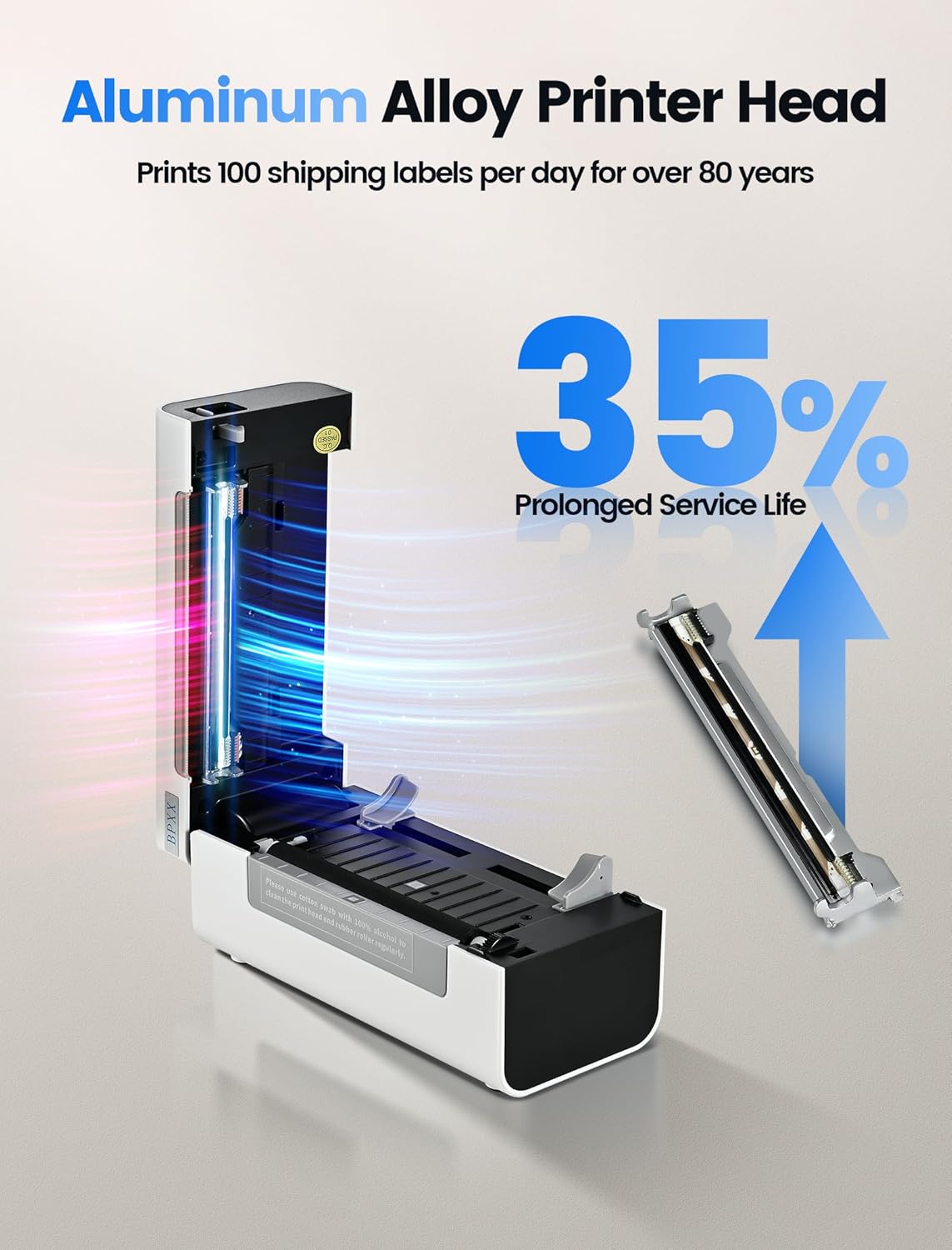
Image: This image emphasizes the durable aluminum alloy print head, which contributes to a 35% prolonged service life and the capability to print 100 shipping labels per day for over 80 years.
5.3. Vệ sinh máy in
Regular cleaning helps maintain print quality and extends the life of your printer. Use a soft, lint-free cloth slightly dampened with isopropyl alcohol to gently wipe the print head and the platen roller. Ensure the printer is turned off and unplugged before cleaning. Allow all components to dry completely before resuming operation.
KHAI THÁC. Xử lý sự cố
| Vấn đề | Nguyên nhân có thể | Giải pháp |
|---|---|---|
| Máy in không kết nối được qua Bluetooth. | Bluetooth is off on device, printer is out of range, incorrect pairing password, or app permissions. | Ensure Bluetooth is enabled on your device. Move the device closer to the printer. Verify the pairing password (usually "0000"). Check app permissions for Bluetooth and location access. Restart both the printer and your device. |
| Chất lượng in kém (mờ, nhòe). | Print head is dirty, incorrect print density setting, or low-quality labels. | Clean the print head (refer to Maintenance section). Adjust the print density setting in the 4Barcode app to "Dense" or "Dark". Use high-quality thermal labels. |
| Nhãn không được cấp đúng cách. | Labels improperly loaded, or label sensor issue. | Ensure labels are loaded correctly and aligned with the guides. Recalibrate the printer by turning it off and on with labels loaded. |
| Máy in không phản hồi. | Printer is off, disconnected, or in an error state. | Check power connection and ensure the printer is on. Verify USB or Bluetooth connection. Restart the printer. |
7. Thông số kỹ thuật
| Tính năng | Chi tiết |
|---|---|
| Thương hiệu | BPXX |
| Công nghệ kết nối | Bluetooth, USB |
| Công nghệ in ấn | Nhiệt |
| Đầu ra máy in | Đơn sắc |
| Loại bộ điều khiển | Android, iOS |
| Phương tiện in ấn | Nhãn |
| Thiết bị tương thích | Smartphones, Windows, Mac OS, Chrome OS, Linux |
| Nghị quyết | 203 x 203 DPI |
| Phương pháp kiểm soát | Ứng dụng |
| Tốc độ in | Up to 6 IPS (72 pcs 4"x6" labels/min) |
| Max. Printing Width | 4.1 inch |

Image: This graphic illustrates the printer's speed and resolution, capable of printing 72 4x6 inch labels per minute at 203 DPI, and 354 2x1 inch labels per minute.

Image: A visual guide to the maximum 4.1-inch label width supported by the printer, showcasing various label types such as shipping labels, stickers, document labels, barcode labels, and QR codes.
8. Khả năng tương thích
The BPXX D465B thermal label printer is designed to be highly compatible with a wide range of e-commerce and shipping platforms, making it an ideal partner for small businesses.

Image: This graphic highlights the printer's compatibility with major e-commerce and shipping platforms such as Amazon, Shopify, Shopee, Etsy, PayPal, Poshmark, ORDORO, Endicia, Kerry, Ninjavan, USPS, UPS, J&T Express, Stamps.com, ShipWorks, ShipStation, ShippingEasy, Flash, Easyship, Easypost, Shipwire, and Shippo.
9. Bảo hành và Hỗ trợ
For warranty information and technical support, please refer to the documentation included with your product or visit the official BPXX webđịa điểm. Giữ biên lai mua hàng của bạn để yêu cầu bảo hành.
Ask a question about this manual
Ask about setup, troubleshooting, compatibility, parts, safety, or missing instructions. Manuals+ will review the question and use this page’s manual context to help answer it.