
1. Giới thiệu
This manual provides essential information for the installation, operation, maintenance, and troubleshooting of your AMD EPYC 9004 9124 Hexadeca-core Processor. The AMD EPYC 9004 series processors are designed for high-performance server and data center environments, offering advanced computing capabilities and efficiency.
2. Thông tin an toàn
Please read and understand all safety precautions before handling or installing the processor. Failure to follow these guidelines may result in damage to the processor, motherboard, or other components, and could void your warranty.
- Bảo vệ chống phóng tĩnh điện (ESD): Always wear an anti-static wrist strap and work on an anti-static mat when handling the processor. ESD can severely damage electronic components.
- Xử lý cẩn thận: Avoid touching the gold contacts or pins on the processor. Hold the processor by its edges.
- Các cạnh sắc nét: Be aware of potentially sharp edges on the heatsink or motherboard components during installation.
- Tắt nguồn: Ensure the system is completely powered off and unplugged from the power source before installing or removing any components.
3. Nội dung gói hàng
Xác minh rằng tất cả các mặt hàng đều có sẵn và trong tình trạng tốt khi mở gói hàng:
- 1 x AMD EPYC 9004 9124 Processor (Model: 100-000000802)
Note: A CPU cooler, thermal paste, and motherboard are sold separately and are required for operation.
4. Thiết lập và Cài đặt
Follow these steps carefully to install your AMD EPYC 9004 9124 Processor into a compatible Socket SP5 motherboard.
4.1 Danh sách kiểm tra cài đặt trước
- Compatible Socket SP5 Motherboard (ensure BIOS/UEFI is updated to support EPYC 9004 series).
- Compatible CPU Cooler for Socket SP5 (e.g., server-grade heatsink and fan or liquid cooling solution).
- Thermal Paste.
- Anti-static wrist strap and mat.
- Screwdriver (if required for cooler installation).
4.2 Các bước cài đặt bộ xử lý
- Chuẩn bị bo mạch chủ: Place the motherboard on an anti-static surface. Locate the Socket SP5 CPU socket.
- Mở ổ cắm: Carefully open the CPU socket retention mechanism according to your motherboard's manual. This typically involves lifting a lever or releasing a frame.
- Orient the Processor: Align the triangular or gold arrow indicator on the corner of the processor with the corresponding mark on the CPU socket. Ensure the processor is correctly oriented before attempting to place it.
- Chèn Bộ xử lý: Gently lower the processor straight down into the socket. Do not force it. If it does not seat easily, re-check the orientation.
- Bảo mật Bộ xử lý: Close the CPU socket retention mechanism, ensuring the processor is firmly seated and locked into place.
- Bôi keo tản nhiệt: Apply a small amount of high-quality thermal paste to the center of the CPU's integrated heat spreader (IHS). Refer to the thermal paste manufacturer's instructions for the recommended application method.
- Cài đặt bộ làm mát CPU: Mount the CPU cooler onto the motherboard, ensuring it makes firm and even contact with the processor's IHS. Follow the cooler manufacturer's instructions for proper installation and fan connection.
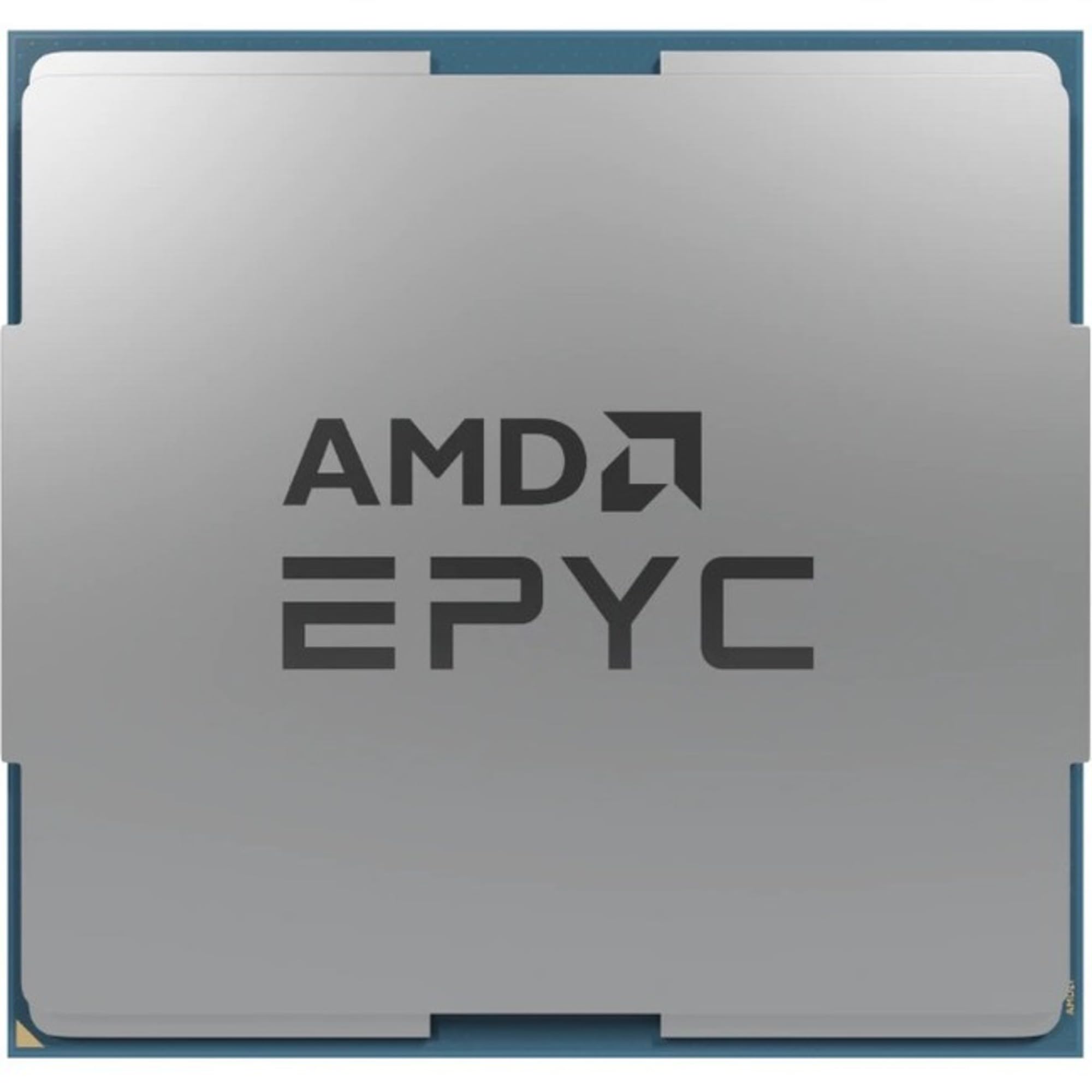
Figure 1: AMD EPYC 9004 9124 Processor. This image shows the top view of the processor, highlighting its square shape and the integrated heat spreader (IHS) on its surface.
5. Vận hành bộ xử lý
Once the processor is physically installed, further steps are required to ensure proper system operation.
5.1 Cấu hình BIOS/UEFI
- Truy cập BIOS/UEFI: Power on your system and press the designated key (e.g., Del, F2, F10) to enter the BIOS/UEFI setup utility.
- Verify CPU Recognition: Confirm that the BIOS/UEFI correctly identifies the AMD EPYC 9124 processor.
- Cấu hình bộ nhớ: Ensure that the installed RAM is recognized and configured correctly, especially for multi-channel setups.
- Enable Virtualization (Optional): If you plan to use virtualization technologies (e.g., VMware, Hyper-V), enable AMD-V (SVM Mode) in the BIOS/UEFI settings.
- Lưu và thoát: Lưu các thay đổi và thoát khỏi BIOS/UEFI. Hệ thống sẽ khởi động lại.
5.2 Operating System Recognition and Drivers
- Cài đặt hệ điều hành: Install your preferred server operating system (e.g., Windows Server, Linux distribution).
- Trình điều khiển Chipset: After OS installation, install the latest chipset drivers for your motherboard from the motherboard manufacturer's website. These drivers are crucial for optimal CPU performance and system stability.
- Giám sát hệ thống: Use system monitoring tools to verify CPU temperature, clock speeds, and core utilization to ensure stable operation.
6. Bảo trì
Proper maintenance ensures the longevity and optimal performance of your AMD EPYC processor.
- Loại bỏ bụi: Regularly clean dust from the CPU cooler and system fans using compressed air. Dust accumulation can impede airflow and lead to overheating.
- Keo tản nhiệt: Over time, thermal paste can dry out and lose effectiveness. Consider reapplying thermal paste every 2-3 years, or if you notice increased CPU temperatures. This requires removing the CPU cooler.
- Theo dõi nhiệt độ: Use software utilities to monitor CPU temperatures, especially under heavy load. Ensure temperatures remain within safe operating limits as specified by AMD.
- Cập nhật BIOS/UEFI: Keep your motherboard's BIOS/UEFI updated to the latest version. Updates often include performance improvements, bug fixes, and support for new features.
KHAI THÁC. Xử lý sự cố
This section addresses common issues you might encounter with your AMD EPYC 9124 processor.
7.1 No Power On Self-Test (POST) / No Display
- Kiểm tra kết nối nguồn điện: Ensure all power cables (24-pin ATX, 8-pin EPS/CPU power) are securely connected to the motherboard and power supply.
- Lắp lại các thành phần: Carefully reseat the CPU, RAM modules, and any expansion cards (e.g., GPU).
- Xóa CMOS: Refer to your motherboard manual to clear the CMOS settings. This can resolve incorrect BIOS configurations.
- Cấu hình tối thiểu: Try booting with only the essential components: CPU, one RAM stick, and the graphics card (if no integrated graphics).
7.2 Vấn đề quá nhiệt
- Kiểm tra việc lắp đặt bộ làm mát: Ensure the CPU cooler is properly seated and making good contact with the CPU. Check that all mounting screws are tightened evenly.
- Ứng dụng dán nhiệt: Confirm that thermal paste was applied correctly and adequately. Reapply if necessary.
- Hoạt động của quạt: Check that the CPU cooler fan(s) are spinning correctly and connected to the appropriate fan headers on the motherboard.
- Lưu lượng khí trong hộp: Ensure your server chassis has adequate airflow with properly configured intake and exhaust fans.
7.3 Sự cố/Sụp đổ hệ thống
- Kiểm tra RAM: Run memory diagnostic tools (e.g., MemTest86) to check for faulty RAM modules.
- Cập nhật trình điều khiển: Đảm bảo tất cả trình điều khiển hệ thống, đặc biệt là trình điều khiển chipset, đều được cập nhật.
- Nguồn điện: Hãy kiểm tra xem bộ nguồn (PSU) của bạn có đủ công suất hay không.tage và đang hoạt động chính xác.
- Các vấn đề về hệ điều hành: Perform a clean installation of the operating system if software corruption is suspected.
8. Thông số kỹ thuật
Detailed technical specifications for the AMD EPYC 9004 9124 Processor:
| Tính năng | Đặc điểm kỹ thuật |
|---|---|
| Thương hiệu | Bộ xử lý AMD |
| Số hiệu mẫu | 100-000000802 |
| Nhà sản xuất CPU | Bộ xử lý AMD |
| Tốc độ CPU | 3 GHz |
| Ổ cắm CPU | Ổ cắm SP5 |
| Cái gì?tage | 3.7 watts (Note: This value might refer to a specific power state or a misinterpretation; typical TDP for EPYC processors is significantly higher. Refer to official AMD documentation for actual TDP.) |
| Cache Memory Installed Size | 16 MB (L3 Cache is typically much larger for EPYC processors; this might refer to L2 cache or a partial specification. Refer to official AMD documentation for full cache details.) |
| Processor Count (Cores) | 16 |
| Processor Number of Concurrent Threads | 32 |
| Nền tảng | Không phải máy cụ thể |
| Trọng lượng sản phẩm | 0.2kg |
9. Bảo hành và Hỗ trợ
According to the product information, this AMD EPYC 9004 9124 Processor is sold with Không bảo hành. Please verify warranty terms with your point of purchase or AMD directly for the most accurate and up-to-date information.
For technical support, driver downloads, and additional product information, please visit the official AMD support webđịa điểm: