
1. Sản phẩm hếtview
The BPXX D463B is a versatile Bluetooth thermal label printer designed for small businesses, supporting both wireless and wired connections. It is compatible with Android, iPhone, and Windows devices, and comes with 500 thermal labels and a label holder. This printer is engineered for durability and efficient label printing for various e-commerce and shipping platforms.
2. Nội dung gói hàng
- BPXX D463B Bluetooth Thermal Label Printer
- 500 Thermal Labels (4 x 6 inches)
- Thermal Labels Holder
- Cáp USB
- Bộ đổi nguồn
- Hướng dẫn sử dụng
3. Hướng dẫn cài đặt
3.1 Thiết lập vật lý
Unpack all components from the box. Place the printer on a stable, flat surface. Connect the power adapter to the printer and plug it into a power outlet. Connect the USB cable to the printer and your computer if you plan to use a wired connection.
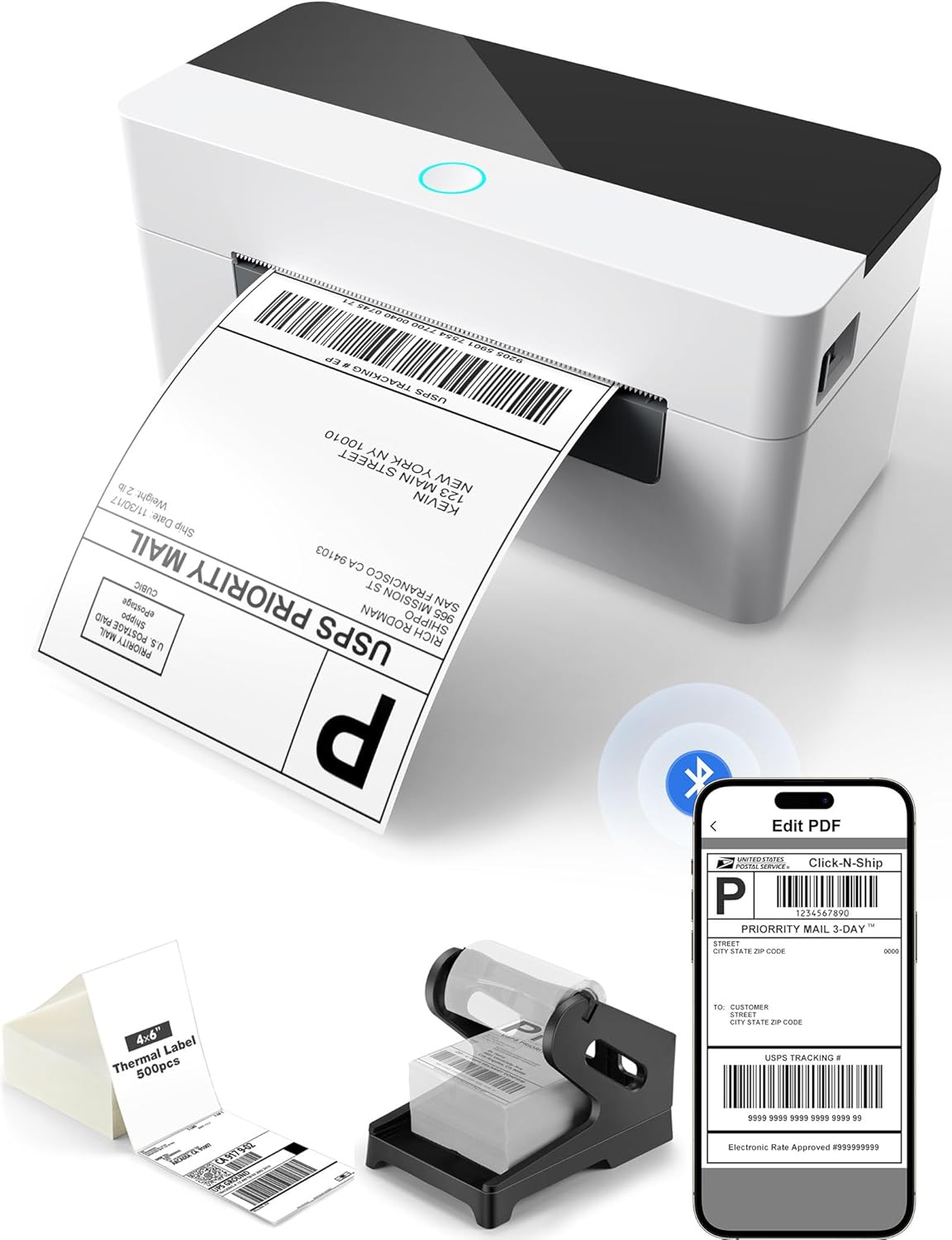
Image: The BPXX D463B printer shown with included labels and label holder, demonstrating its compact design and readiness for use.
3.2 Tải nhãn
Open the printer's top cover. Adjust the label guides to match the width of your labels. Insert the labels into the feeder, ensuring the print side is facing up. Feed the labels forward past the print head until they are properly aligned. Close the top cover. The printer will automatically detect and calibrate the label size.

Image: A shipping label being printed from the BPXX D463B printer, with a smartphone displaying the 'Edit PDF' interface for label preparation.
3.3 Kết nối
The D463B printer supports both Bluetooth and USB connections.
- Kết nối Bluetooth: For Android/iPhone/Windows, download the '4Barcode' app. Enable Bluetooth on your device and pair with the printer.
- Kết nối USB: Connect the printer to your Windows, Mac OS, Chrome OS, or Linux computer using the provided USB cable. Install the necessary drivers as instructed in the included documentation.

Image: Visual representation of the printer's connectivity options, including Bluetooth for phones/tablets and USB for various operating systems (Windows, Chrome OS, Mac, Linux).
4. Hướng dẫn vận hành
4.1 In nhãn
Once connected and labels are loaded, you can begin printing. For mobile devices, use the '4Barcode' app to select and print your labels. For computers, ensure the printer is selected in your print settings. Download labels from your e-commerce or shipping platform, then upload them to the app or print directly from your computer's software.
4.2 Khả năng tương thích nhãn
The printer supports a maximum label width of 4.33 inches. It is optimized for 4x6 inch shipping labels but can accommodate various other thermal label sizes, including 3x2, 2x1, 3x3, and circular labels. The printer features automatic label size detection for ease of use.

Image: The printer demonstrating its compatibility with various label sizes, including 4x6 inch shipping labels and smaller custom labels.
4.3 Khả năng tương thích nền tảng
This thermal label printer is compatible with most major shipping and e-commerce platforms, including but not limited to Amazon, eBay, Shopify, Etsy, UPS, USPS, and FedEx.

Image: Logos of various e-commerce and shipping platforms, indicating the printer's wide compatibility.
5. Bảo trì
5.1 Print Head Durability
The BPXX D463B features a robust aluminum alloy print head designed for extended durability and a prolonged service life. It is capable of printing up to 300 miles of labels, ensuring reliable performance for long-term business needs.
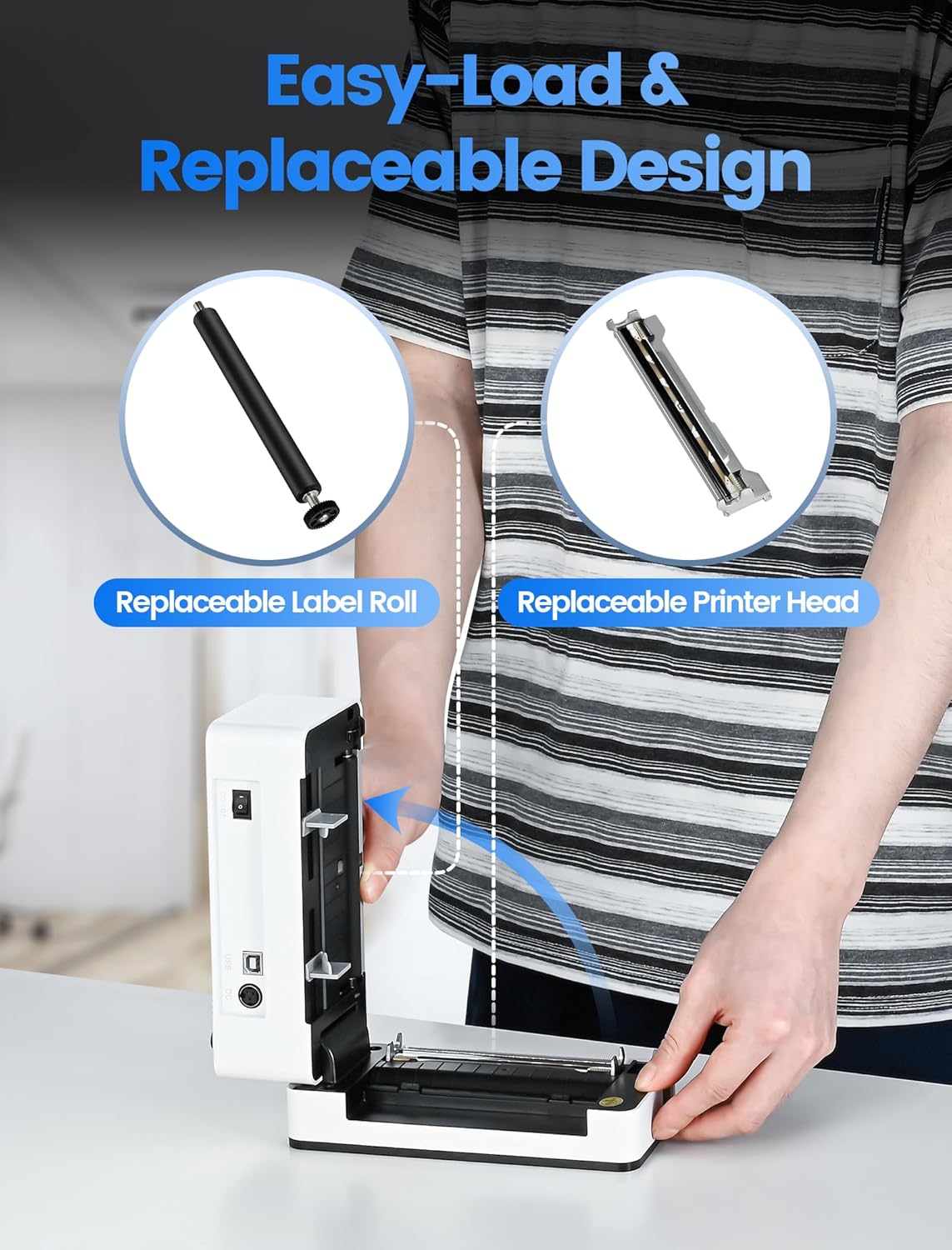
Hình ảnh: Một nội bộ view of the printer highlighting its durable aluminum alloy print head, emphasizing its long-lasting design.
5.2 Vệ sinh
Regularly clean the print head with an alcohol wipe to maintain print quality. Ensure the printer is turned off and unplugged before cleaning. Refer to the detailed cleaning instructions in the full user manual (PDF) for best practices.
KHAI THÁC. Xử lý sự cố
- Máy in không phản hồi: Ensure the printer is powered on and properly connected via Bluetooth or USB. Restart both the printer and your device.
- Nhãn không được nạp đúng cách: Verify that labels are loaded correctly and the label guides are adjusted to the label width. Perform a test print by holding down the feed button until the light turns purple (approximately 20 seconds) to ensure proper calibration.
- Chất lượng in kém: Clean the print head as described in the Maintenance section. Ensure you are using direct thermal labels, as this printer is not compatible with laser or inkjet labels.
- Sự cố kết nối Bluetooth: Ensure the '4Barcode' app is installed and updated. Check your device's Bluetooth settings and ensure the printer is discoverable.
7. Thông số kỹ thuật
| Tính năng | Chi tiết |
|---|---|
| Thương hiệu | BPXX |
| Công nghệ kết nối | Bluetooth, USB |
| Công nghệ in ấn | Nhiệt |
| Tính năng đặc biệt | Mạng đã sẵn sàng |
| Đầu ra máy in | Đơn sắc |
| Loại bộ điều khiển | Android, iOS |
| Phương tiện in ấn | Nhãn |
| Thiết bị tương thích | Smartphones, Windows, Mac OS, Chrome OS, Linux |
| Phương pháp kiểm soát | Ứng dụng |
| Chiều rộng nhãn tối đa | 4.33 inch |
| Print Head Material | Hợp kim nhôm |
| Tuổi thọ đầu in | Up to 300 miles of labels |
8. Bảo hành và Hỗ trợ
For detailed warranty information and further technical support, please refer to the official documentation provided with your product or visit the BPXX support website. Additional resources, including a comprehensive User Manual and Installation Manual, are available in PDF format: