
1. Giới thiệu
The Intelbras GX 3000 is a multifunction wireless mesh router designed to provide high-speed internet connectivity via 5G/4G networks and Wi-Fi 6. This device integrates advanced Qualcomm technology for both its 5G modem and Wi-Fi 6 solution, ensuring high performance and reliability. It supports up to 128 devices simultaneously on the Wi-Fi network and offers wired connectivity options. The GX 3000 is suitable for various environments, from home to office, providing robust network performance.
This manual provides instructions for setting up, operating, and maintaining your Intelbras GX 3000 router. Please read it carefully before use.
2. Package Contents & Device Overview
2.1. Nội dung gói hàng
- Intelbras GX 3000 Wireless Mesh Router
- Bộ đổi nguồn
- Cáp mạng
- Hướng dẫn bắt đầu nhanh (không bao gồm trong sách hướng dẫn này)
2.2. Hết thiết bịview
Hình 1: Mặt trước View of the GX 3000 Router
This image displays the front of the Intelbras GX 3000 router, showing its sleek white design and LED indicators for 5G, 4G, call status, Wi-Fi, and WPS button.

Figure 2: GX 3000 Router with Highlighted Indicators and Ports
This image provides a closer look at the router, emphasizing the LED indicators on the front (5G, 4G, Call, Wi-Fi, WPS) and the various ports located on the rear panel, including LAN, WAN, and TEL ports.
2.2.1. Các cổng ở mặt sau

Figure 3: Rear Panel of the GX 3000 Router
This image shows the rear panel of the router, clearly displaying the LAN, WAN, and TEL ports for wired connections.
- Cổng LAN: For connecting wired devices such as computers, smart TVs, or gaming consoles.
- Cổng WAN: For connecting to an external modem or internet source (if not using 5G/4G).
- Cổng ĐT: For voice services (if supported by your service provider).
- Công suất đầu vào: Kết nối với bộ đổi nguồn đi kèm.
2.2.2. Bottom Panel Features

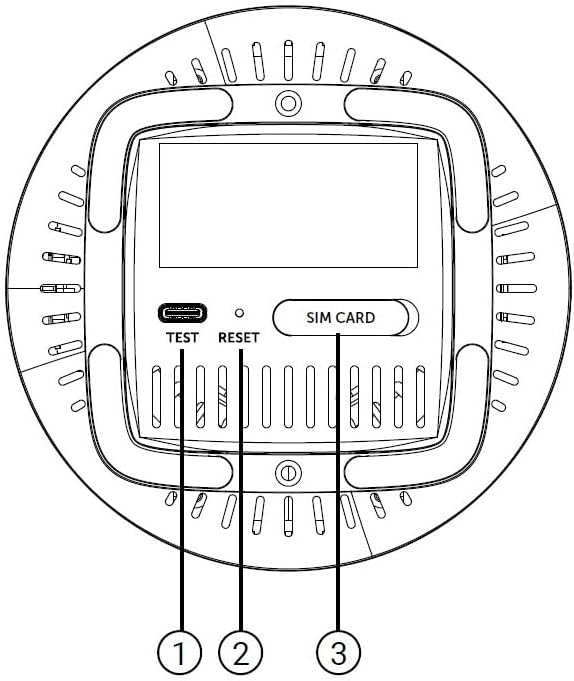
Figure 4: Bottom Panel Features of the GX 3000 Router
This diagram illustrates the bottom panel of the router, highlighting the TEST port, RESET button, and SIM CARD slot.
- TEST Port: Nhằm mục đích chẩn đoán.
- Nút reset: Dùng để khôi phục cài đặt mặc định của nhà sản xuất. Nhấn và giữ trong 10 giây khi thiết bị đang bật nguồn.
- SIM CARD Slot: Insert your 5G/4G SIM card here for mobile broadband connectivity.
3. Thiết lập
3.1. Vị trí ban đầu
Place the router in a central location within your desired coverage area, away from obstructions, metal objects, and other electronic devices that may cause interference. Ensure good ventilation around the device.
3.2. Lắp thẻ SIM
- Đảm bảo đã tắt nguồn bộ định tuyến.
- Locate the SIM CARD slot on the bottom panel of the router (refer to Figure 4).
- Insert your activated 5G/4G SIM card into the slot with the gold contacts facing down and the notched corner oriented correctly. Push until it clicks into place.
- To remove, gently push the SIM card in again until it springs out.
3.3. Kết nối nguồn
- Connect one end of the power adapter to the Power Input port on the rear of the router.
- Cắm đầu còn lại của bộ chuyển đổi nguồn vào ổ cắm điện thông thường.
- The router will power on automatically. Wait for the LED indicators to stabilize.
3.4. Kết nối có dây (Tùy chọn)
If you wish to connect devices via Ethernet:
- Connect one end of the provided network cable to a LAN port on the rear of the router.
- Connect the other end of the network cable to the Ethernet port of your computer, smart TV, or other wired device.
3.5. Kết nối Wi-Fi ban đầu
The default Wi-Fi network name (SSID) and password are usually printed on a label on the bottom of the router. Follow these steps to connect:
- On your wireless device (smartphone, laptop, tablet), open the Wi-Fi settings.
- Scan for available networks and select the SSID corresponding to your GX 3000 router.
- Enter the default Wi-Fi password when prompted.
- Once connected, you can access the router's web Giao diện để tùy chỉnh cài đặt.
4. Hướng dẫn vận hành
4.1. Đèn báo LED
Đèn LED ở mặt trước cung cấp thông tin trạng thái:
- Đèn LED 5G: Hiển thị trạng thái mạng 5G.
- Đèn LED 4G: Hiển thị trạng thái mạng 4G.
- Call LED: Chỉ ra trạng thái dịch vụ thoại.
- Đèn LED WiFi: Chỉ ra hoạt động của mạng Wi-Fi.
- Đèn LED WPS: Chỉ ra trạng thái chức năng WPS.
Refer to the full user manual (if provided separately) for detailed LED behavior (e.g., solid, blinking, color) and their meanings.
4.2. truy cập vào Web Giao diện quản lý
To configure advanced settings, manage your network, or change Wi-Fi credentials, access the router's web giao diện:
- Ensure your device is connected to the GX 3000's Wi-Fi network or via an Ethernet cable.
- Mở một web trình duyệt (ví dụ: Chrome, Firefox, Edge).
- Trong thanh địa chỉ, nhập địa chỉ IP mặc định của bộ định tuyến (thường là...)
192.168.1.1or192.168.0.1) and press Enter. This information is usually on the label on the bottom of the router. - Enter the default username and password (also found on the router label).
- You will now be in the router's management interface, where you can customize settings such as Wi-Fi name, password, security protocols, and more.
4.3. Thiết lập bảo mật Wi-Fi (WPS)
WPS allows you to connect Wi-Fi devices without entering the password manually:
- Press the WPS button on the front of the GX 3000 router (refer to Figure 1). The WPS LED will start blinking.
- Within two minutes, press the WPS button on your client device (e.g., Wi-Fi adapter, printer).
- Các thiết bị sẽ tự động kết nối.
Note: WPS is a convenient feature but may be less secure than manual password entry.
4.4. Mesh Network Expansion
The GX 3000 supports mesh networking to expand Wi-Fi coverage. You can add other compatible Intelbras Qi5 line products to create a seamless mesh network. Each additional Wi-Fi 6 router can extend coverage by up to 300 m². It is recommended to use up to 6 routers in the same mesh network for optimal performance.
Refer to the specific instructions provided with additional mesh units for pairing and configuration.
5. Bảo trì
5.1. Vệ sinh thiết bị
- Đảm bảo bộ định tuyến đã tắt nguồn và rút phích cắm trước khi vệ sinh.
- Dùng vải mềm, khô để lau bên ngoài thiết bị.
- Do not use liquid cleaners, aerosols, or solvents, as they may damage the casing hoặc các thành phần bên trong.
- Giữ cho các lỗ thông gió sạch bụi và mảnh vụn.
5.2. Cập nhật chương trình cơ sở
Periodically check the Intelbras official webTrang web này cung cấp các bản cập nhật phần mềm. Việc cập nhật phần mềm có thể cải thiện hiệu năng, bổ sung các tính năng mới và tăng cường bảo mật. Hãy làm theo hướng dẫn được cung cấp trong gói cập nhật phần mềm một cách cẩn thận.
5.3. Khôi phục cài đặt gốc
If you encounter persistent issues or forget your login credentials, you can reset the router to its factory default settings:
- With the router powered on, locate the RESET button on the bottom panel (refer to Figure 4).
- Using a paperclip or a similar pointed object, press and hold the RESET button for approximately 10 seconds.
- Release the button. The router will restart with all settings restored to their original factory defaults.
- You will need to reconfigure your Wi-Fi settings and any other custom configurations after a factory reset.
KHAI THÁC. Xử lý sự cố
| Vấn đề | Nguyên nhân có thể | Giải pháp |
|---|---|---|
| No power / Router not turning on | Bộ chuyển đổi nguồn không được kết nối hoặc bị lỗi; Ổ cắm điện không hoạt động. |
|
| No internet connection (5G/4G) | SIM card not inserted correctly; SIM card not activated; No 5G/4G signal; Service provider issue. |
|
| Không thể kết nối với Wi-Fi | Incorrect Wi-Fi password; Wi-Fi disabled; Device too far from router. |
|
| Tốc độ internet chậm | Network congestion; Poor signal strength; Interference; Outdated firmware. |
|
| Quên web mật khẩu giao diện | Password forgotten or changed. |
|
7. Thông số kỹ thuật
| Tính năng | Chi tiết |
|---|---|
| Thương hiệu | Intelbras |
| Người mẫu | GX3000 |
| Công nghệ kết nối | 5G, 4G, Wi-Fi 6 (802.11a/b/g/n/ac/ax) |
| Lớp băng tần | Băng tần kép |
| Tiêu chuẩn giao tiếp không dây | 802.11a |
| Tốc độ truyền dữ liệu | Lên đến 900 Megabit mỗi giây |
| Băng thông cổng LAN | 1000 Mbps (Gigabit Ethernet) |
| Loại Ăng-ten | Nội bộ |
| Thiết bị tương thích | Computer, Notebook, Tablet, Smart TV |
| Tính năng đặc biệt | Remote Access, Mesh Wi-Fi capability |
| Màu sắc | Trắng |
| Trọng lượng sản phẩm | 1000 gam |
| Các thành phần bao gồm | Power supply, Network cable |
| Anatel Homologation Number | 13571-22-00180 |
8. Bảo hành & Hỗ trợ
8.1. Thông tin bảo hành
Intelbras products are covered by a limited warranty. For specific warranty terms and conditions, please refer to the warranty card included with your product or visit the official Intelbras webtrang web. Giữ lại bằng chứng mua hàng để yêu cầu bảo hành.
8.2. Hỗ trợ kỹ thuật
If you require technical assistance or have questions not covered in this manual, please contact Intelbras customer support. You can find contact information (phone numbers, email, support portal) on the official Intelbras webđịa điểm:
Intelbras Official Webđịa điểm: www.intelbras.com.br
When contacting support, please have your product model (GX 3000) and serial number ready.