
1. Giới thiệu
This manual provides essential information for the setup, operation, and maintenance of your JLab Go Cam USB HD Webcam. The Go Cam is designed to deliver high-definition video and clear audio for various communication needs, including video conferencing, live streaming, and online meetings.
Các tính năng chính bao gồm:
- Full 1080p video resolution at 30 frames per second (FPS).
- 2.1 Megapixel sensor for clear image capture.
- Built-in omni-directional microphone for natural sound.
- Optimized for various lighting conditions.
- Plug-and-play compatibility with PC, Mac, and Chromebook devices.
2. Bắt đầu
2.1 Mở hộp
Xác minh rằng gói hàng của bạn có bao gồm những mục sau:
- Camera JLab Go Cam USB HD Webcam
- Hướng dẫn bắt đầu nhanh
2.2 Yêu cầu hệ thống
The JLab Go Cam is compatible with the following operating systems:
- Windows (Máy tính)
- macOS (Mac)
- Chrome OS (Chromebook)
No additional software or drivers are typically required for basic functionality.
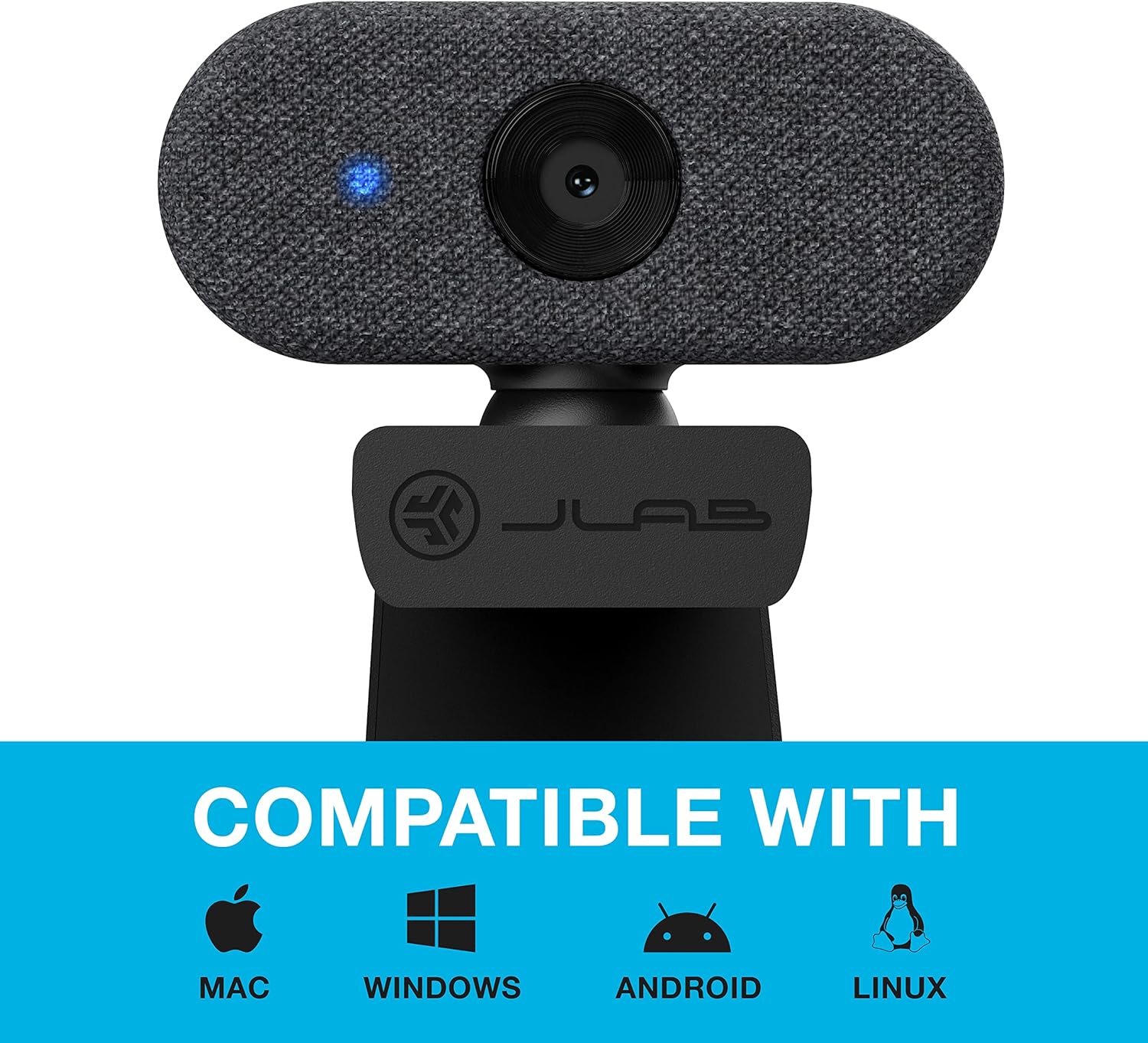
Image: The JLab Go Cam is compatible with Mac, Windows, Android, and Linux operating systems.
2.3 Thiết lập vật lý
The JLab Go Cam features a versatile clip-on design for easy mounting.
- Mounting on a Monitor/Laptop: Mở webcam's integrated clip and place it securely on top of your monitor or laptop screen. Adjust the angle to ensure the webCamera ổn định và hướng về phía bạn.
- Vị trí máy tính để bàn: The clip can also serve as a stand for placing the webcam on a flat surface, such as a desk.

Image: The JLab Go Cam webcam showing its adjustable clip for mounting.
3. Hoạt động
3.1 Kết nối Webcam
The JLab Go Cam is a plug-and-play device. Simply connect the integrated USB cable from the webcam to an available USB port on your computer. The operating system should automatically detect and install the necessary drivers.
3.2 Sử dụng với các ứng dụng
Sau khi kết nối, webcam can be selected as your video and audio input device in most video conferencing, streaming, and recording applications (e.g., Zoom, Google Meet, Microsoft Teams, Skype, OBS Studio).
- Mở ứng dụng bạn muốn sử dụng.
- Navigate to the application's settings or preferences, typically found under 'Audio & Video' or 'Devices'.
- Select 'JLab Go Cam' as your camera device.
- Select 'JLab Go Cam' or a similar entry as your microphone device.
- A blue indicator light on the webcam will illuminate when the camera is active and in use.
3.3 Chất lượng video và âm thanh
The Go Cam provides 1080p Full HD video at 30 frames per second, ensuring clear and detailed visuals. The built-in omni-directional microphone captures sound from all directions, making conversations sound natural.

Image: The JLab Go Cam provides high-definition video for clear communication.

Image: The omni-directional microphone ensures clear audio capture.
3.4 Low Light Performance
Các webcam is designed to perform effectively in various lighting conditions, including low-light environments, to maintain image clarity.

Image: The JLab Go Cam adapts to different lighting conditions.
4. Bảo trì
To ensure the longevity and optimal performance of your JLab Go Cam, follow these simple maintenance guidelines:
- Vệ sinh ống kính: Gently wipe the camera lens with a soft, lint-free cloth. Avoid abrasive materials or harsh cleaning chemicals.
- Làm sạch cơ thể: Sử dụng một khô hoặc hơi damp vải để lau sạch webcam's exterior.
- Kho: Khi không sử dụng, cất giữ webĐặt máy ảnh ở nơi sạch sẽ, khô ráo, tránh nhiệt độ quá cao hoặc quá thấp.
- Chăm sóc cáp: Tránh uốn cong hoặc xoắn cáp USB quá mức để tránh làm hỏng.
KHAI THÁC. Xử lý sự cố
If you encounter issues with your JLab Go Cam, refer to the following troubleshooting steps:
5.1 Webcam Not Detected or No Image/Sound
- Kiểm tra kết nối USB: Đảm bảo webcam's USB cable is securely plugged into a functioning USB port on your computer. Try a different USB port.
- Khởi động lại máy tính: Đôi khi, việc khởi động lại đơn giản có thể giải quyết các vấn đề về nhận diện.
- Verify Application Settings: Confirm that 'JLab Go Cam' is selected as both the video and audio input device within your video conferencing or recording application's settings.
- Kiểm tra Trình quản lý thiết bị (Windows) / Thông tin hệ thống (Mac): Xác minh rằng webcam is recognized by your operating system.
5.2 Poor Image Quality (Dark, Pixelated, or Unclear)
- Điều kiện ánh sáng: Ensure adequate lighting in your environment. Position yourself facing a light source rather than having a bright light behind you.
- Làm sạch ống kính: Nhẹ nhàng làm sạch webLau ống kính máy ảnh bằng vải mềm, không xơ.
- Application Resolution: Check if your application's video settings are configured for 1080p resolution.
- No Dedicated Software: Please note that the JLab Go Cam does not come with proprietary software for advanced image adjustments (e.g., brightness, contrast, white balance). Adjustments may need to be made through your operating system's camera settings or the specific application you are using.
5.3 Chất lượng âm thanh kém
- Lựa chọn micrô: Ensure 'JLab Go Cam' is selected as the microphone input in your application's audio settings.
- Âm lượng micrô: Check the microphone input level in your computer's sound settings and within the application.
- Tiếng ồn môi trường: Minimize background noise for clearer audio.
5.4 Blue Indicator Light
The blue light on the front of the webcam indicates that the camera is actively in use by an application.
6. Thông số kỹ thuật
| Thương hiệu | JLab |
| Số hiệu mẫu | WGOCAMRBLK124 |
| Độ phân giải quay video | 1080p (Full HD) |
| Khung hình trên giây (FPS) | 30 khung hình/giây |
| Megapixel | 2.1 Megapixel |
| Loại micrô | Đa hướng |
| Công nghệ kết nối | USB |
| Tính năng đặc biệt | Hiệu suất ánh sáng yếu |
| Trọng lượng sản phẩm | 4.2 ounce |
| Kích thước sản phẩm | 1.9 x 2.75 x 1.9 inch |
7. Bảo hành và Hỗ trợ
7.1 Thông tin bảo hành
The JLab Go Cam USB HD Webcamera đi kèm với JLab Two-Year Warranty. Please refer to the official JLab webXem trang web hoặc tài liệu mua hàng của bạn để biết đầy đủ các điều khoản và điều kiện bảo hành.
7.2 Hỗ trợ khách hàng
Để được hỗ trợ thêm, hỗ trợ kỹ thuật hoặc yêu cầu bảo hành, vui lòng truy cập trang hỗ trợ chính thức của JLab. webhoặc liên hệ với bộ phận chăm sóc khách hàng của họ. Thông tin liên hệ thường có thể tìm thấy trên trang web của JLab. webBạn có thể tìm thấy thông tin trên trang web hoặc trong Hướng dẫn Bắt đầu Nhanh đi kèm với sản phẩm của mình.