
beeprt BY-480BT
Hướng dẫn sử dụng máy in nhãn vận chuyển Bluetooth BEEPRT BY-480BT
Model: BY-480BT | Brand: beeprt
Giới thiệu
This manual provides comprehensive instructions for setting up, operating, and maintaining your BEEPRT BY-480BT Bluetooth Shipping Label Printer. Designed for efficiency and ease of use, this thermal label printer is compatible with various e-commerce platforms and operating systems, making it an ideal solution for shipping packages and managing labels for small businesses.
Có gì trong hộp
Upon unboxing your BEEPRT BY-480BT printer, please ensure all the following components are present:
- Máy in nhãn nhiệt BEEPRT BY-480BT
- Cáp USB
- Bộ đổi nguồn
- Chủ nhãn
- Hướng dẫn bắt đầu nhanh / Hướng dẫn sử dụng
- Sample Thermal Labels
- USB-A to USB-C Adapter (for Mac users)
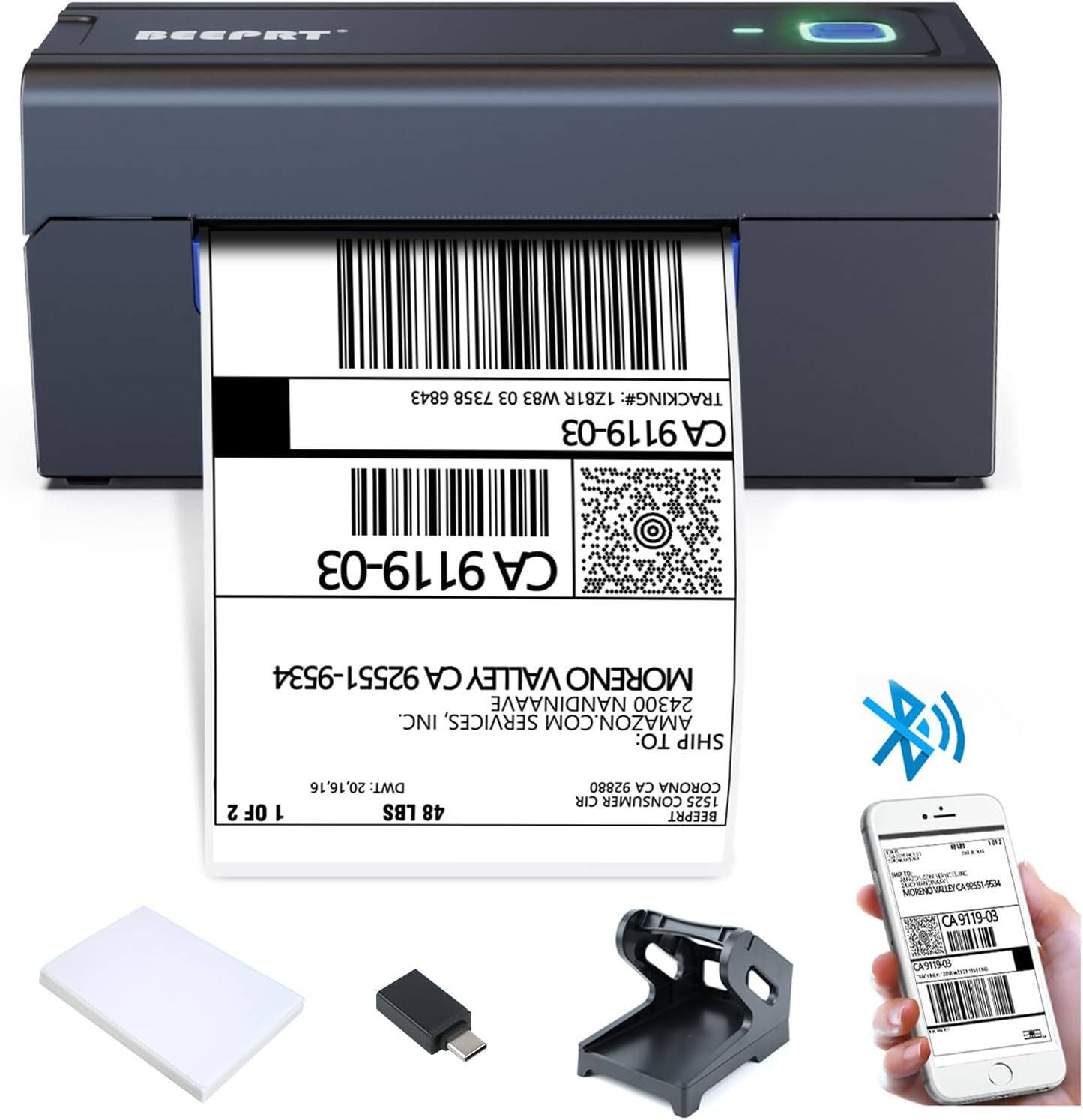
The BEEPRT BY-480BT printer shown with its essential accessories, including the label holder, USB cable, and sampnhãn le.

Một kết thúc hoàn chỉnhview of all items included in the BEEPRT BY-480BT printer package, neatly arranged.
Hướng dẫn thiết lập
1. Tải nhãn
The BEEPRT BY-480BT printer supports various thermal label sizes, from 1.57" to 4.3" wide. Ensure you are using direct thermal labels, as this printer does not require ink.
- Open the printer lid by pressing the release latches on the sides.
- Place the thermal labels into the label compartment. Ensure the print side (usually the smoother, brighter side) is facing upwards.
- Adjust the movable guides to fit the width of your labels snugly, without creasing chúng.
- Close the printer lid securely. The printer will automatically detect the label size and calibrate.

Properly loading thermal labels into the BEEPRT BY-480BT printer for optimal printing.
This video demonstrates the process of loading labels into the BEEPRT BY-480BT printer, showing how the paper feeds and aligns automatically.
2. Kết nối máy in
Your BEEPRT BY-480BT printer offers multiple connectivity options:
USB Connection (Windows, Mac OS, Chrome OS)
- Kết nối máy in với máy tính của bạn bằng cáp USB được cung cấp.
- Turn on the printer using the power switch located at the back.
- Install the printer driver from the included USB drive or download it from the official BEEPRT webđịa điểm.
- Làm theo hướng dẫn trên màn hình để hoàn tất cài đặt trình điều khiển.

The printer connected to a laptop via USB, highlighting its broad operating system compatibility.
This video provides a step-by-step guide on how to set up the BEEPRT BY-480BT printer for Chromebook via USB connection, including extension installation.
This video demonstrates the installation process for the BEEPRT printer driver on Mac OS, guiding users through the necessary steps for successful setup.
Bluetooth Connection (Windows, iOS, Android)
For wireless printing, ensure your device has Bluetooth enabled.
- Turn on the printer. The Bluetooth indicator light should be blinking or solid blue.
- On your device (smartphone or PC), go to Bluetooth settings and search for available devices.
- Select "BY-480BT" or a similar name from the list. You may be prompted to enter a PIN (usually "0000").
- For iOS/Android, download the "Shipping Printer Pro" app from your app store. This app is required for printing via Bluetooth on mobile devices.
- For Windows, after pairing, you may need to check the COM port settings in Printer Properties to ensure it matches the Bluetooth port.

The printer connected wirelessly to both a laptop and a smartphone, demonstrating Bluetooth printing capabilities.
This video illustrates how to connect the BEEPRT BY-480BT printer via Bluetooth on a Windows computer, including pairing and port configuration.
Video này cung cấp một cái nhìn tổng quátview of the BEEPRT Bluetooth label printer, showcasing its features and ease of use for various label printing needs.
Hướng dẫn sử dụng
In nhãn
Once your printer is connected and labels are loaded, you can begin printing:
- Mở tài liệu hoặc nhãn file you wish to print (e.g., PDF, image).
- Chọn "In" từ menu của ứng dụng.
- Choose "BEEPRT BY-480BT" as your printer.
- In the print settings, ensure the paper size is set to match your labels (e.g., 4x6 inches). For optimal quality, select "Actual Size" or "100% Scale" to prevent scaling issues.
- Adjust print density and speed if necessary (higher density for darker prints, lower speed for better quality).
- Click "Print". The label will feed out automatically.

Examples of different label sizes and types compatible with the BEEPRT BY-480BT printer, showcasing tính linh hoạt của nó.
This video demonstrates the printer in action, showing how it feeds and prints labels quickly and efficiently.
BẢO TRÌ
Regular maintenance ensures optimal performance and extends the lifespan of your printer:
- Làm sạch đầu in: Use an alcohol wipe or a specialized print head cleaning pen to gently wipe the print head surface. Do this regularly to prevent residue buildup and ensure clear prints.
- Vệ sinh con lăn: Periodically clean the rubber rollers with a damp, lint-free cloth to remove dust or adhesive residue that might affect paper feeding.
- Loại bỏ bụi: Keep the printer free from dust and debris. Use compressed air to clean hard-to-reach areas.
- Bảo quản đúng cách: Khi không sử dụng, hãy bảo quản máy in ở nơi sạch sẽ, khô ráo, tránh ánh nắng trực tiếp và nhiệt độ quá cao hoặc quá thấp.
Xử lý sự cố
Sau đây là giải pháp cho những vấn đề phổ biến mà bạn có thể gặp phải:
| Vấn đề | Nguyên nhân có thể | Giải pháp |
|---|---|---|
| Máy in không phản hồi | Power off, loose cable, driver issue, Bluetooth not connected. | Ensure printer is on and connected. Reinstall driver. Re-pair Bluetooth. |
| Blank labels / Faint prints | Labels loaded incorrectly, low print density, dirty print head. | Reload labels with print side up. Increase print density in settings. Clean print head. |
| kẹt giấy | Misaligned labels, foreign object. | Open lid, remove jammed labels carefully. Ensure guides are properly set. |
| Nhãn không được nạp đúng cách | Labels not thermal, misaligned guides, dirty rollers. | Use direct thermal labels. Adjust guides. Clean rollers. |
| Bluetooth connection issues on Mac/iPhone | Incorrect app usage, security settings. | Ensure "Shipping Printer Pro" app is used for mobile. Check System Preferences > Security & Privacy for driver installation. |
For more detailed troubleshooting, refer to the official user manual PDF available on the product page or contact BEEPRT support.
Thông số kỹ thuật
| Tính năng | Chi tiết |
|---|---|
| Thương hiệu | beeprt |
| Tên mẫu | BY-480BT |
| Công nghệ kết nối | USB, Bluetooth |
| Công nghệ in ấn | Nhiệt |
| Phương tiện in ấn | Nhãn |
| Công suất tờ đầu vào tối đa | 72 |
| Thiết bị tương thích | Điện thoại thông minh, máy tính cá nhân |
| Kích thước tờ | 4x6 inches (supports 1.57" - 4.3" wide) |
| Độ phân giải in đen trắng tối đa | 203dpi |
| Trọng lượng sản phẩm | 4 Bảng Anh |
| Kích thước sản phẩm | 6 x 9 x 6.5 inch |
| Các thành phần bao gồm | Máy in, Cáp USB |
Bảo hành và Hỗ trợ
The BEEPRT BY-480BT printer comes with a limited warranty. For specific warranty terms and conditions, please refer to the documentation included with your product or contact the manufacturer directly.
Hỗ trợ khách hàng
If you encounter any issues or have questions not covered in this manual, please reach out to BEEPRT customer support. You can often find support contact information on the manufacturer's official website or through the seller's contact details on the platform where you purchased the product.
- Nhà sản xuất: BÍP
- Người bán: BEEPRT-US
- Hướng dẫn sử dụng (PDF): Tải xuống Hướng dẫn sử dụng PDF
Ask a question about this manual
Ask about setup, troubleshooting, compatibility, parts, safety, or missing instructions. Manuals+ will review the question and use this page’s manual context to help answer it.