
Giới thiệu
This manual provides detailed instructions for the setup, operation, maintenance, and troubleshooting of your Keychron V5 Wired Custom Mechanical Keyboard. The Keychron V5 is a 96% layout keyboard featuring QMK/VIA programmability, hot-swappable switches, double-shot PBT keycaps, and compatibility with macOS, Windows, and Linux systems.
Nội dung gói
Vui lòng kiểm tra xem có đầy đủ các mục trong gói hàng của bạn không:
- Bàn phím cơ tùy chỉnh có dây Keychron V5
- Cáp USB-C sang USB-C
- Bộ chuyển đổi USB-A sang USB-C
- Dụng cụ kéo bàn phím
- Công tắc kéo
- Additional Keycaps for Windows/macOS
Cài đặt
Kết nối bàn phím
To connect your Keychron V5 keyboard:
- Xác định vị trí cổng USB-C ở mặt sau của bàn phím.
- Connect one end of the provided USB-C to USB-C cable to the keyboard.
- Connect the other end of the cable to a USB-C port on your computer. If your computer only has USB-A ports, use the provided USB-A to USB-C adapter.
- Bàn phím sẽ được hệ điều hành của bạn tự động nhận diện.
System Toggle (Mac/Windows)
The Keychron V5 includes a system toggle switch to ensure full compatibility with both macOS and Windows operating systems. This switch is typically located on the back or side of the keyboard.
Để chuyển đổi giữa các hệ điều hành:
- Locate the 'Win/Mac' toggle switch.
- Slide the switch to the 'Mac' position for macOS or 'Win' position for Windows.
- The keyboard will adjust its key mappings accordingly.

Hình ảnh: Bên view of the Keychron V5 keyboard, highlighting the system toggle switch and USB-C port for system compatibility.
Ergonomic Angle Adjustment
The keyboard features adjustable feet to customize the typing angle for improved ergonomics.
To adjust the typing angle:
- Flip the keyboard over to access the feet on the underside.
- Gently pull out the feet to extend them to your desired angle. There are usually two levels of adjustment.

Image: The Keychron V5 keyboard with its adjustable feet extended, demonstrating the ergonomic angle design.
Hướng dẫn sử dụng
Chức năng chính và bố cục
The Keychron V5 features a 96% layout with 97 keys, efficiently retaining function keys and a num pad while saving desk space. The keyboard comes with pre-installed double-shot PBT keycaps in an OSA profile, designed for a comfortable fingertip feel and excellent oil resistance.
Hình ảnh: Một bản hoàn chỉnh view of the Keychron V5 keyboard, showcasing bố cục 96% và thiết kế keycap của nó.
Tùy chỉnh QMK/VIA
The Keychron V5 supports QMK/VIA firmware, allowing for comprehensive customization of key mappings, macros, and backlight effects. VIA is a graphical user interface that simplifies the programming process.
Để tùy chỉnh bàn phím của bạn:
- Tải phần mềm VIA từ trang web chính thức của Keychron. webtrang web hoặc kho lưu trữ VIA GitHub.
- Connect your keyboard to your computer.
- Launch the VIA software. The software should automatically detect your Keychron V5.
- Use the intuitive interface to remap keys, create macros, and adjust lighting settings across multiple layers.
For detailed instructions on using QMK/VIA, refer to the official Keychron documentation or community guides.

Image: A visual representation of the VIA software interface, demonstrating how users can customize key layouts and macros for the Keychron V5.
Programmable Knob
The Keychron V5 features a programmable rotary knob, which can be customized via QMK/VIA to control various functions such as volume, zoom, or scrolling.
To customize the knob's function:
- Mở phần mềm VIA.
- Navigate to the knob customization section.
- Assign desired functions for clockwise rotation, counter-clockwise rotation, and pressing the knob.

Hình ảnh: Cận cảnh view of the programmable rotary knob on the Keychron V5 keyboard, highlighting its textured surface.
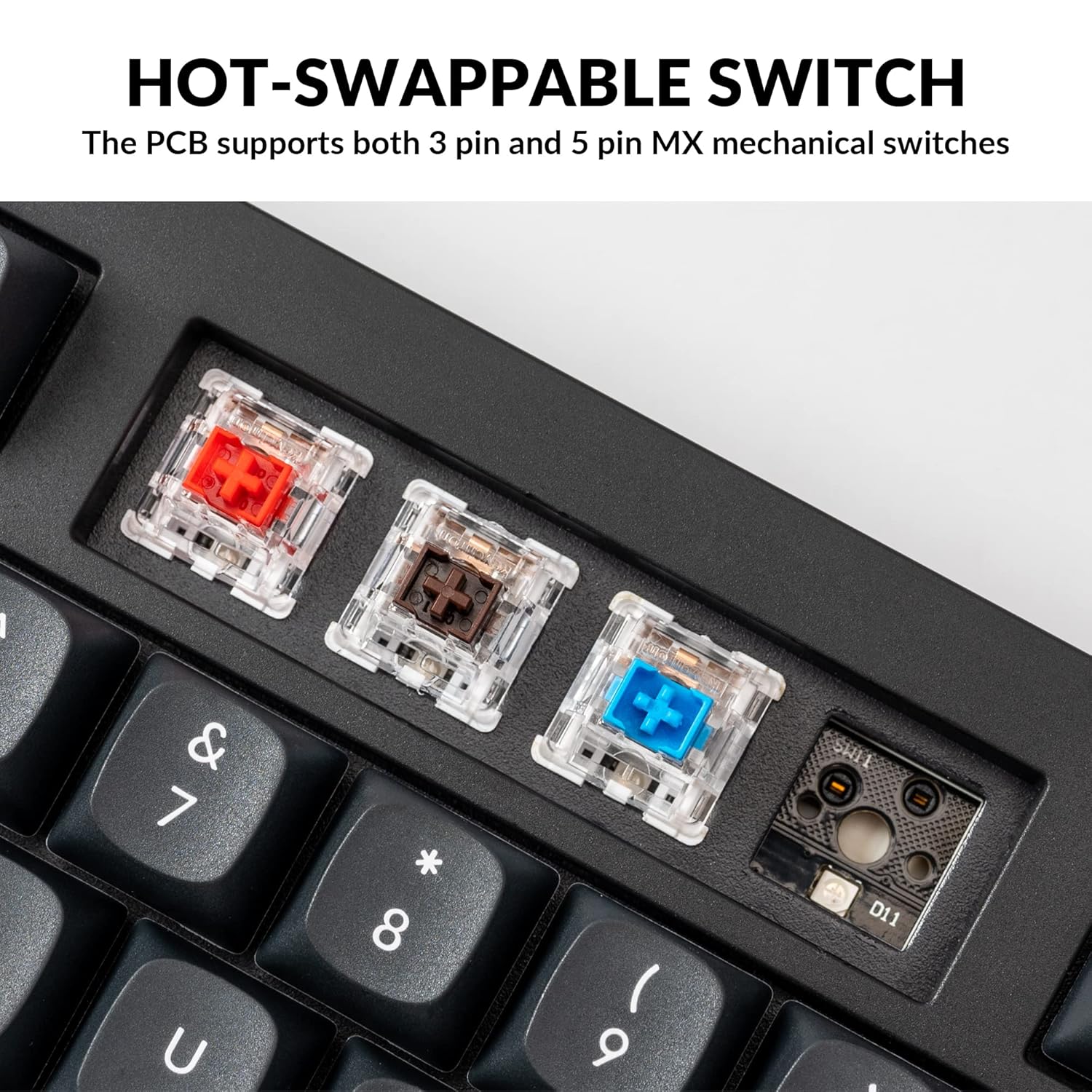
Công tắc có thể thay thế nóng
The Keychron V5 is equipped with hot-swappable sockets, allowing you to change mechanical switches without soldering. It supports most 3-pin and 5-pin MX mechanical switches (e.g., Cherry, Gateron, Kailh, Panda).
The keyboard comes with pre-lubed K Pro Red linear switches, offering a smooth and responsive typing experience with a lifespan of up to 50 million keystrokes.
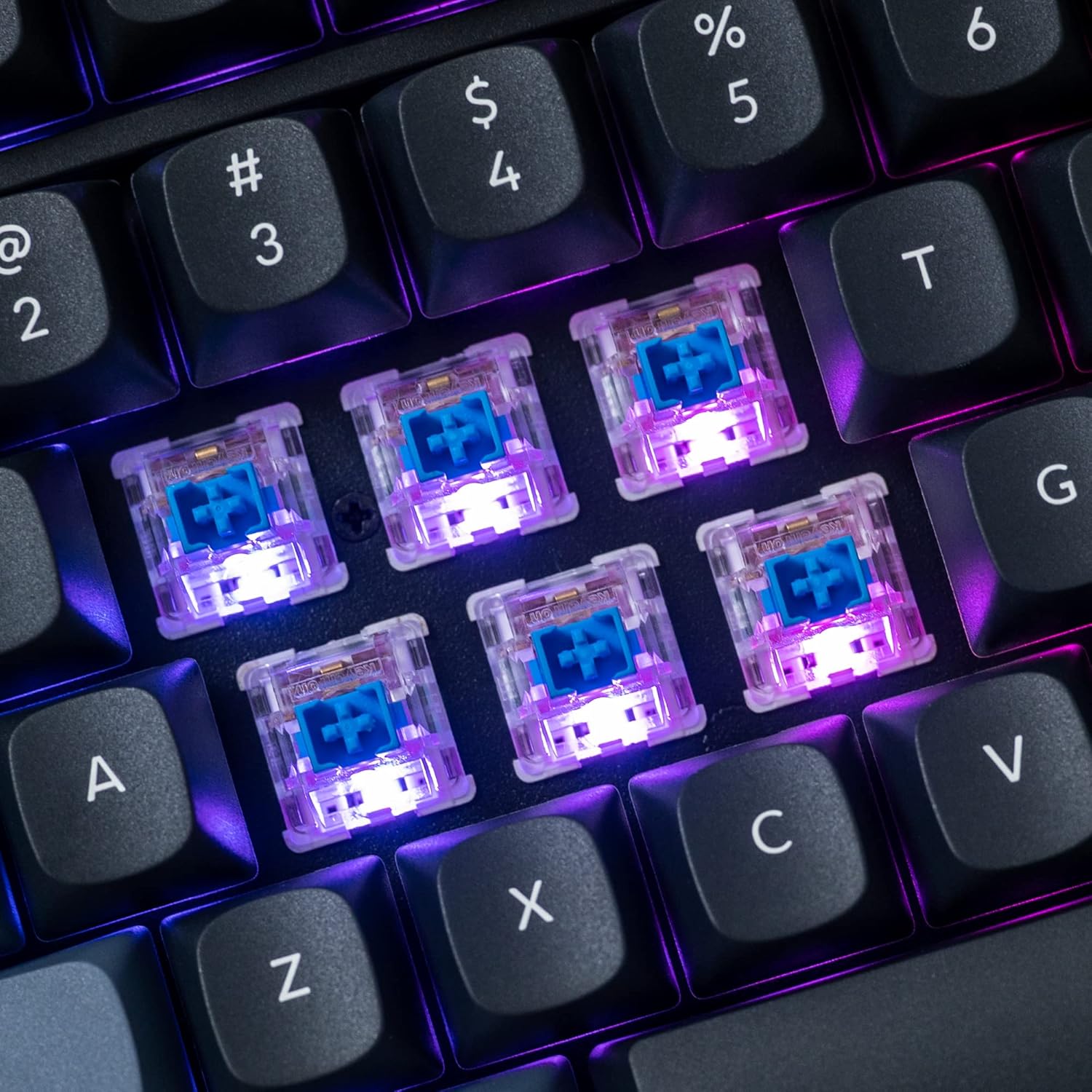
Hình ảnh: Một chi tiết view of the hot-swappable mechanical switches on the Keychron V5 keyboard, illuminated by RGB backlighting.
Đèn nền
The V5 features south-facing RGB backlighting, designed to better illuminate the keyboard from the typist's angle and prevent interference when using Cherry-profile keycaps. You can customize the backlight effects and colors using the VIA software.

Image: A close-up of the double-shot PBT keycaps on the Keychron V5 keyboard, showcasinkết cấu và truyền thuyết của chúng.
BẢO TRÌ
Vệ sinh
Để giữ gìn sự sạch sẽ và tuổi thọ của bàn phím:
- Phím bấm: Dùng dụng cụ tháo nắp phím để tháo nắp phím. Vệ sinh chúng bằng dung dịch xà phòng nhẹ và vải mềm, sau đó rửa sạch và lau khô kỹ trước khi lắp lại.
- Thân bàn phím: Lau sạch thân bàn phím bằng vải mềm,amp vải. Tránh sử dụng hóa chất mạnh hoặc vật liệu mài mòn.
- Bụi: Sử dụng khí nén để loại bỏ bụi và mảnh vụn giữa các phím và công tắc.
Chuyển đổi thay thế
Để thay thế công tắc:
- Sử dụng dụng cụ tháo nắp phím được cung cấp, cẩn thận tháo nắp phím ra khỏi công tắc mà bạn muốn thay thế.
- Insert the switch puller tool around the top and bottom clips of the switch.
- Nhẹ nhàng bóp các kẹp và kéo công tắc thẳng lên để tháo nó ra khỏi mạch in.
- Căn chỉnh các chân của công tắc mới sao cho khớp với các lỗ trên mạch in. Đảm bảo các chân thẳng hàng.
- Press the new switch firmly into place until it clicks. Ensure it is seated properly and not bent.
- Lắp lại nắp phím.
Thay thế keycap
Để thay thế các phím bấm:
- Use the keycap puller to gently remove the existing keycap by hooking it onto the keycap and pulling upwards.
- Align the new keycap with the cross-shaped stem of the switch.
- Press the new keycap firmly down until it is fully seated.
Xử lý sự cố
- Bàn phím không phản hồi:
Ensure the USB cable is securely connected to both the keyboard and the computer. Try a different USB port or cable. Verify the system toggle switch is set correctly for your operating system. - Các phím không đăng ký:
If specific keys are not working, the switch might be faulty or not fully seated. Try removing and re-inserting the switch. If the issue persists, replace the switch. - Các vấn đề về đèn nền:
Check VIA software settings to ensure backlighting is enabled and configured correctly. If only certain LEDs are not working, it might indicate a faulty LED or switch. - QMK/VIA Software Not Detecting Keyboard:
Ensure the keyboard is connected via USB. Close and reopen the VIA software. Make sure you have the correct firmware loaded if you have flashed custom firmware. - Keycaps Feel Loose:
Ensure keycaps are fully pressed onto the switch stems. If a keycap consistently feels loose, the switch stem might be damaged, or the keycap's cross-mount might be worn.
Thông số kỹ thuật
| Tính năng | Đặc điểm kỹ thuật |
|---|---|
| Thương hiệu | Đồng hồ bấm giờ |
| Người mẫu | V5 |
| Mô tả bàn phím | Cơ khí |
| Bố trí bàn phím | QWERTY, 96% Layout (97 Keys) |
| Công nghệ kết nối | Có dây (USB-C) |
| Thiết bị tương thích | PC (macOS, Windows, Linux) |
| Loại công tắc | Linear (K Pro Red) |
| Hot-swappable Support | Yes (3-pin and 5-pin MX mechanical switches) |
| Mũ chìa khóa | Double-shot PBT, OSA Profile |
| Đèn nền | RGB hướng Nam |
| Vật liệu bao vây | Polybutylene Terephthalate, Silicone |
| Các tính năng bổ sung | QMK/VIA Programmable, Programmable Knob, Screw-in Stabilizers |
Bảo hành và Hỗ trợ
Keychron products are typically covered by a limited warranty. For specific warranty terms, duration, and conditions, please refer to the warranty information provided with your product packaging or visit the official Keychron webđịa điểm.
Để được hỗ trợ kỹ thuật, trợ giúp khắc phục sự cố hoặc hỏi về linh kiện thay thế, vui lòng liên hệ với bộ phận chăm sóc khách hàng của Keychron thông qua trang web chính thức của họ. website's support portal. When contacting support, please have your product model (Keychron V5) and purchase details ready.