
Giới thiệu
This manual provides detailed instructions for the installation, operation, and maintenance of your Everycom EC-901 80mm Thermal POS Receipt Printer. Please read this manual thoroughly before using the printer to ensure proper functionality and to prevent damage.
Thông tin an toàn
- Ensure the printer is connected to a power source with the correct voltage.
- Không để máy in tiếp xúc với nước hoặc độ ẩm cao.
- Tránh đặt máy in dưới ánh nắng trực tiếp hoặc gần nguồn nhiệt.
- Use only specified thermal paper for optimal performance and to prevent damage to the print head.
- Không nên tự ý tháo rời hoặc sửa chữa máy in. Hãy liên hệ với nhân viên dịch vụ có chuyên môn.
Nội dung gói
Xác minh rằng tất cả các mục đều có trong gói hàng:
- Everycom EC-901 Thermal POS Receipt Printer
- Roll paper × 1 Roll (for initial testing)
- CD-ROM (containing Drivers, Utility Software, Manuals)
- Hướng dẫn giấy
- Paper Bearing
- Cáp USB
- Cáp chuyển đổi nguồn
Sản phẩm trênview
The Everycom EC-901 is a compact 80mm (3-inch) thermal POS receipt printer designed for efficient and reliable printing. It features a USB and LAN interface for versatile connectivity.

Hình 1: Mặt trước view of the Everycom EC-901 Thermal POS Receipt Printer.
Các tính năng chính:
- Tốc độ in nhanh: Up to 160mm per second for quick receipt output.
- Nạp giấy dễ dàng: Drop-in paper loading mechanism for quick and easy media changes.
- Thiết kế nhỏ gọn: Low space requirement with an integrated power supply.
- Variable Paper Width: Supports 80mm paper width.
- Kết nối: USB and LAN interface options.
- Độ phân giải cao: 203 x 203 DPI for clear print quality.
- Mức độ tiếng ồn thấp: Operates quietly, suitable for various work environments.

Figure 2: Top-open design for easy paper roll installation.
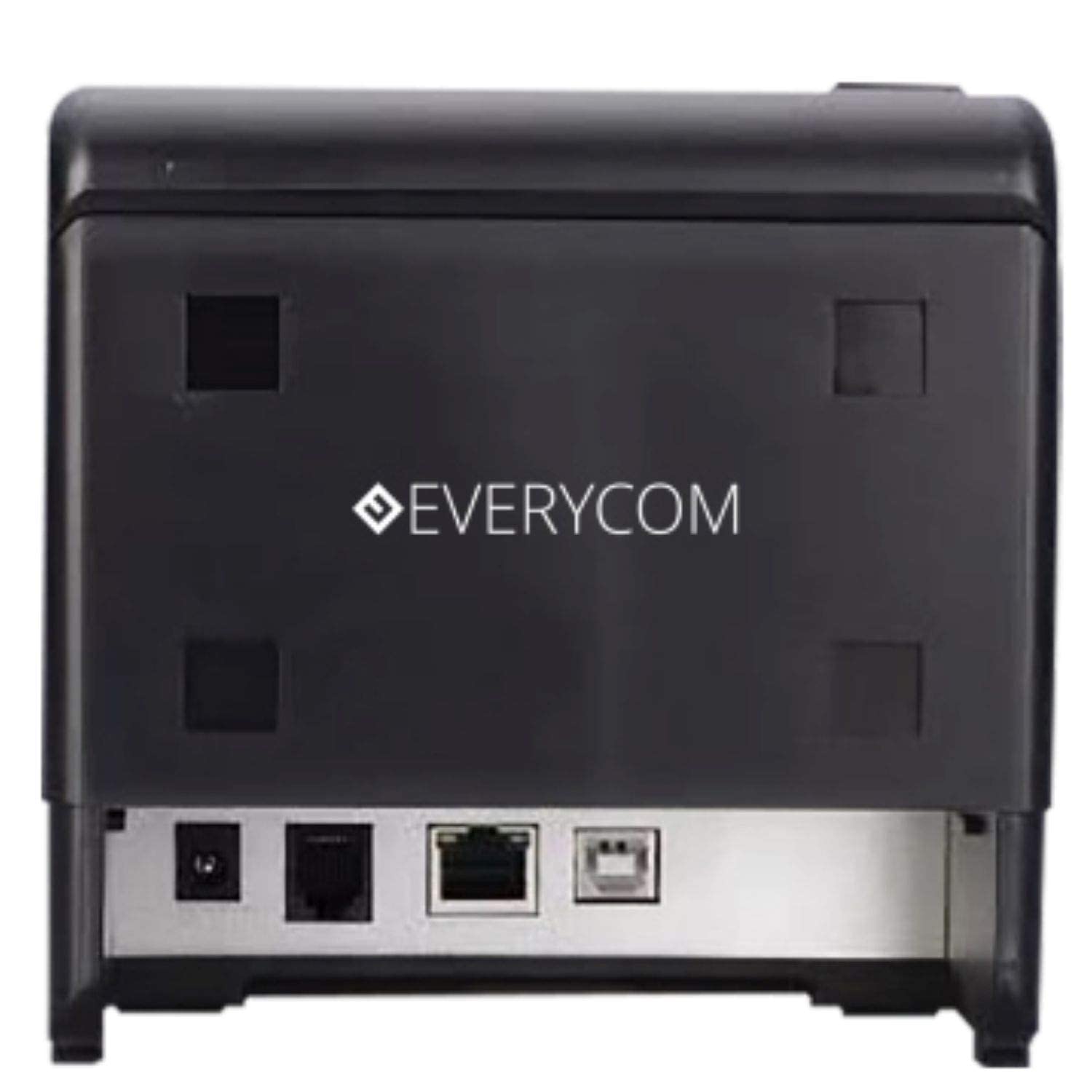
Hình 3: Phía sau view showing USB and LAN connectivity ports.

Figure 4: The EC-901 printer is designed for low noise operation.

Figure 5: The EC-901 printer features an easy-to-use design for paper installation.
Cài đặt
1. Kết nối máy in
- Connect the power adapter cable to the printer's power port and then plug it into a suitable electrical outlet.
- Đối với kết nối USB: Kết nối một đầu cáp USB vào cổng USB của máy in và đầu kia vào máy tính của bạn.
- For LAN connection: Connect an Ethernet cable to the printer's LAN port and the other end to your network router or switch.
- Turn on the printer using the power switch located on the front or side of the device.
2. Lắp đặt cuộn giấy
- Open the printer cover by pressing the release button or lifting the cover.
- Insert the thermal paper roll into the compartment with the paper feeding from the bottom and exiting towards the front.
- Kéo một lượng giấy nhỏ ra khỏi máy cắt.
- Đóng chặt nắp máy in cho đến khi nghe tiếng "tách" báo hiệu đã khớp.
3. Cài đặt trình điều khiển
Insert the provided CD-ROM into your computer's CD/DVD drive. Follow the on-screen instructions to install the printer drivers and utility software. Drivers are typically compatible with Windows operating systems, including Windows 10.
Hướng dẫn sử dụng
Đèn báo:
- QUYỀN LỰC: Cho biết máy in đang được bật nguồn.
- LỖI: Lights up or flashes to indicate an error (e.g., print head overheating, cover open).
- GIẤY: Indicates low paper or no paper.
In ấn cơ bản:
Once the printer is connected and drivers are installed, you can print receipts from your POS software or any application that supports printing. Ensure the Everycom EC-901 is selected as the default printer or the desired printer in your application's print settings.
BẢO TRÌ
Vệ sinh máy in:
- Tắt máy in và rút dây nguồn trước khi vệ sinh.
- Sử dụng vải mềm, không có xơ dampened with isopropyl alcohol to gently clean the thermal print head. Allow it to dry completely before use.
- Wipe the exterior of the printer with a soft, dry cloth. Do not use abrasive cleaners.
Replacing Paper:
When the PAPER indicator lights up or printing becomes faint, replace the paper roll following the steps outlined in the "Installing the Paper Roll" section.
Xử lý sự cố
| Vấn đề | Nguyên nhân có thể | Giải pháp |
|---|---|---|
| Máy in không bật được. | Power cable disconnected or power outlet issue. | Check power cable connections. Ensure the power outlet is functional. |
| Không in hoặc cho ra kết quả trắng. | No paper, paper loaded incorrectly, or print head issue. | Check paper roll and ensure it's loaded correctly. Clean the print head if necessary. Verify printer drivers are installed. |
| PAPER indicator is on. | Paper roll is empty or low. | Thay cuộn giấy. |
| ERROR indicator is on. | Printer cover open, print head overheating, or other internal error. | Ensure the printer cover is closed properly. Turn off the printer, wait a few minutes for it to cool down, then restart. If the issue persists, contact support. |
| Máy tính không nhận diện được máy in. | Driver not installed or USB/LAN cable issue. | Reinstall printer drivers. Check USB/LAN cable connections. Try a different port or cable. |
Thông số kỹ thuật
| Tính năng | Chi tiết |
|---|---|
| Tên mẫu | EC-901 |
| Công nghệ in ấn | Nhiệt |
| Phương tiện in ấn | Paper (plain thermal) |
| Kích thước phương tiện tối đa | 3 inch (80mm) |
| Tốc độ in tối đa | 160 mm/giây |
| Nghị quyết | 203 x 203 DPI |
| Công nghệ kết nối | USB, LAN Interface |
| Đầu ra máy in | Đơn sắc |
| Hệ điều hành | Windows 10 (and compatible with other Windows versions) |
| Kích thước sản phẩm (DxRxC) | 19.8 x 14.8 x 14.8cm |
| Trọng lượng sản phẩm | 1.8kg |
| Tính năng đặc biệt | Without Auto cutter |
Bảo hành và Hỗ trợ
For technical assistance, warranty claims, or any product-related inquiries, please contact Everycom customer support.
- Số điện thoại miễn phí: 1800 121 4480
- Giờ làm việc: Monday - Saturday, 10:00 AM - 6:30 PM (Except on Public Holidays)