
1. Giới thiệu
This manual provides detailed instructions for the installation, operation, maintenance, and troubleshooting of your Everycom EC-901 Thermal POS Receipt Printer. Please read this manual thoroughly before using the printer to ensure proper functionality and longevity.

Hình 1: Everycom EC-901 Thermal POS Receipt Printer. This image displays the compact design of the printer with a sample receipt emerging from the top.
Các tính năng chính:
- Tốc độ in nhanh: Up to 160mm per second for efficient receipt generation.
- Nạp giấy dễ dàng: Drop-in paper loading mechanism for quick and simple media changes.
- Thiết kế nhỏ gọn: Integrated power supply for a clean and space-saving workstation.
- Variable Paper Width: Supports both 58mm and 80mm thermal paper rolls.
- Built-In Buzzer: Provides audible notifications for various printer statuses.
- Máy cắt tự động: Automatically cuts receipts after printing for convenience.
- Kết nối: USB and LAN interfaces for versatile integration.
2. Thiết lập và Cài đặt
2.1 Mở hộp và kiểm tra nội dung
Carefully unpack the printer and verify that all components are present. The package should contain:
- Everycom EC-901 Thermal POS Receipt Printer
- Roll paper × 1 (for initial testing)
- CD-ROM (containing drivers, utility software, and digital manuals)
- Hướng dẫn giấy
- Paper Bearing
- Cáp USB
- Cáp chuyển đổi nguồn
2.2 Kết nối máy in
- Kết nối nguồn điện: Connect the power adapter cable to the printer's power port and then to a suitable power outlet.
- Kết nối dữ liệu:
- Giao diện USB: Connect the provided USB cable from the printer's USB port to an available USB port on your computer or POS system.
- Giao diện LAN: Để in qua mạng, hãy kết nối cáp Ethernet từ cổng LAN của máy in đến bộ định tuyến hoặc bộ chuyển mạch mạng của bạn.
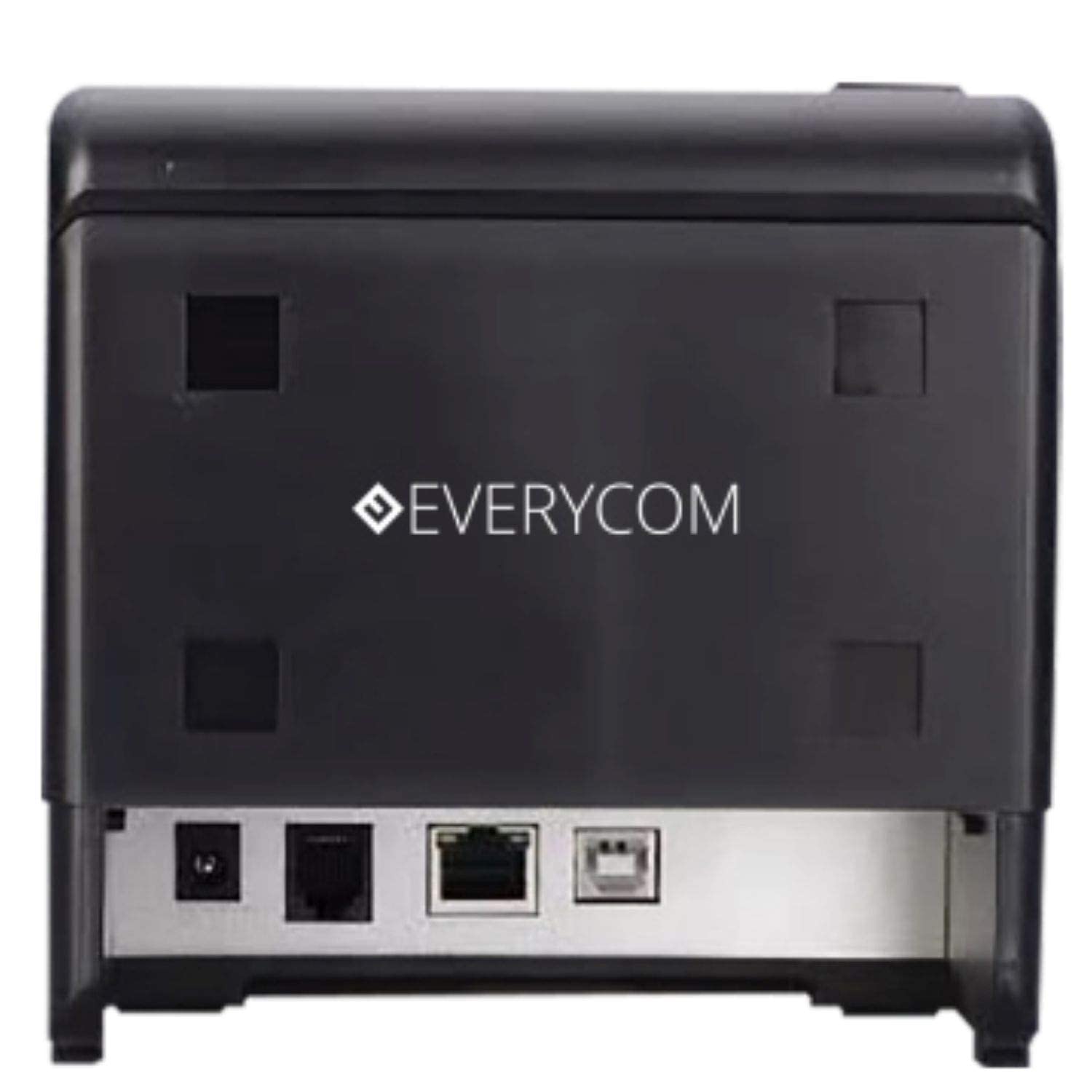
Hình 2: Ở phía sau view of the Everycom EC-901 printer. This image highlights the various connectivity ports including USB, LAN, and the power input.
2.3 Nạp giấy in nhiệt
The EC-901 printer features a convenient drop-in paper loading system.
- Hãy đảm bảo máy in đã tắt nguồn hoặc ở chế độ chờ.
- Press the cover open button (usually located on the side or front) to open the top cover of the printer.
- Insert the thermal paper roll into the paper compartment with the printing side facing the print head. Ensure the roll is seated correctly and feeds smoothly.
- Kéo một lượng giấy nhỏ ra khỏi máy cắt.
- Close the top cover firmly until it latches securely. The printer will automatically feed the paper to the correct position.

Hình 3: Everycom EC-901 printer with the top cover open. This image illustrates the internal compartment where the thermal paper roll is loaded.
2.4 Cài đặt trình điều khiển
Insert the provided CD-ROM into your computer's optical drive and follow the on-screen instructions to install the printer drivers and utility software. Alternatively, drivers can be downloaded from the Everycom official webđịa điểm.
3. Vận hành máy in
3.1 Bật / Tắt nguồn
To power on the printer, press the power switch located on the front or side of the unit. The power indicator light will illuminate. To power off, press the switch again.
3.2 In biên lai
Once the printer is connected and drivers are installed, you can print receipts from your POS software or application. The printer supports fast printing at up to 160mm per second.
3.3 Auto Cutter Function
The EC-901 is equipped with an auto cutter that automatically cuts the receipt paper after each print job, ensuring clean and professional-looking receipts.
3.4 Buzzer Notifications
The built-in buzzer provides audible alerts for various printer statuses, such as paper out, cover open, or error conditions. Refer to the utility software for configuring buzzer settings.
3.5 Hoạt động ít tiếng ồn
Thermal printers generally operate with reduced noise levels, making the EC-901 suitable for various work environments where quiet operation is desired. The printer uses heat for printing, eliminating the need for ink cartridges and contributing to lower operating noise.
4. Bảo trì
Regular maintenance ensures optimal performance and extends the lifespan of your Everycom EC-901 printer.
4.1 Vệ sinh đầu in
The thermal print head should be cleaned periodically to maintain print quality. Use a soft, lint-free cloth dampened with isopropyl alcohol. Gently wipe the print head surface. Ensure the printer is powered off and cooled down before cleaning.
4.2 Vệ sinh con lăn trục in
The platen roller can accumulate paper dust. Clean it with a soft cloth dampened with isopropyl alcohol. Rotate the roller manually to clean its entire surface.
4.3 Vệ sinh bên ngoài
Lau sạch bên ngoài máy in bằng vải mềm, khô. Tránh sử dụng hóa chất mạnh hoặc chất tẩy rửa có tính mài mòn.
KHAI THÁC. Xử lý sự cố
If you encounter issues with your printer, refer to the following common troubleshooting steps:
- Không có điện: Ensure the power cable is securely connected to both the printer and the power outlet. Check if the power switch is in the 'On' position.
- Không có bản in:
- Verify that the paper roll is loaded correctly and there is sufficient paper.
- Check the data cable connection (USB or LAN) to your computer/POS system.
- Ensure the printer drivers are correctly installed and the printer is selected as the default printer in your software.
- Check for any error indicator lights or buzzer sounds.
- Chất lượng in kém:
- Vệ sinh đầu in theo hướng dẫn trong phần Bảo trì.
- Hãy đảm bảo bạn đang sử dụng giấy in nhiệt chất lượng cao.
- Adjust print density settings through the printer driver if available.
- Kẹt giấy:
- Mở nắp trên và cẩn thận lấy giấy bị kẹt ra.
- Ensure the paper roll is installed correctly and not too tight or loose.
- Clean the paper path and platen roller.
For persistent issues, please contact Everycom customer support.
6. Thông số kỹ thuật
The following table details the technical specifications of the Everycom EC-901 Thermal POS Receipt Printer:
| Tính năng | Đặc điểm kỹ thuật |
|---|---|
| Người mẫu | EC-901 |
| Công nghệ in ấn | In dòng nhiệt |
| Tốc độ in | Lên tới 160 mm/giây |
| Độ phân giải in | 203 x 203 DPI |
| Chiều rộng giấy | 80mm (3 inches), supports 58mm |
| Giao diện | USB, mạng LAN |
| Máy cắt tự động | Đúng |
| Kích thước sản phẩm | 19.8D x 14.8W x 14.8H Centimet |
| Trọng lượng sản phẩm | 1.8 Kilôgam |
| Các thành phần bao gồm | Printer, 1 Roll Paper, CD-ROM, Paper Guide, Paper Bearing, USB Cable, Power Adapter Cable |
7. Bảo hành và Hỗ trợ
7.1 Thông tin bảo hành
The Everycom EC-901 Thermal POS Receipt Printer comes with a Bảo hành 1 năm from the date of purchase. Please retain your purchase receipt as proof of warranty. The warranty covers manufacturing defects under normal use conditions. It does not cover damage caused by misuse, accidents, unauthorized repairs, or consumables.
7.2 Hỗ trợ khách hàng
For technical assistance, warranty claims, or any product-related inquiries, please contact Everycom Customer Care:
- Số điện thoại miễn phí: 1800 121 4480
- Giờ làm việc: Monday - Saturday, 10:00 AM - 6:30 PM (Except on Public Holidays)

Hình 4: Everycom Customer Service details. This image provides the toll-free number and working hours for customer support.