
1. Giới thiệu
This manual provides essential information for setting up, operating, and maintaining your TECLAST X11 2-in-1 Laptop/Tablet. The TECLAST X11 is a versatile device designed to function as both a portable tablet and a compact laptop, running on Windows 10 Home. It features a 10.1-inch Full HD display, an Intel N4020 processor, 6GB RAM, and 128GB of internal storage.
2. Có gì trong hộp
- TECLAST X11 Tablet
- Bộ đổi nguồn
- Cáp USB
- Hướng dẫn sử dụng (tài liệu này)
Note: The keyboard and stylus pen are sold separately and are not included in the standard package.
3. Sản phẩm hếtview
3.1 Các tính năng chính
- Thiết kế 2 trong 1: Dễ dàng chuyển đổi giữa chế độ máy tính bảng và máy tính xách tay.
- Trưng bày: 10.1-inch IPS Full HD (1920x1200) touchscreen.
- Bộ xử lý: Intel Gemini Lake Reflash N4020 CPU (up to 2.8GHz).
- Bộ nhớ & Lưu trữ: 6GB RAM, 128GB eMMC ROM (expandable up to 256GB via TF card).
- Hệ điều hành: Hệ điều hành Windows 10 Home được cài đặt sẵn.
- Kết nối: Dual-band 2.4G/5G WiFi, Bluetooth 4.2.
- Máy ảnh: 5MP rear camera, 2MP front camera.
- Cổng: USB 3.0, Mini-HDMI, Headphone Jack, DC Port.
- Chân đế: Adjustable U-shaped kickstand (0° to 145°).
3.2 Bố cục thiết bị
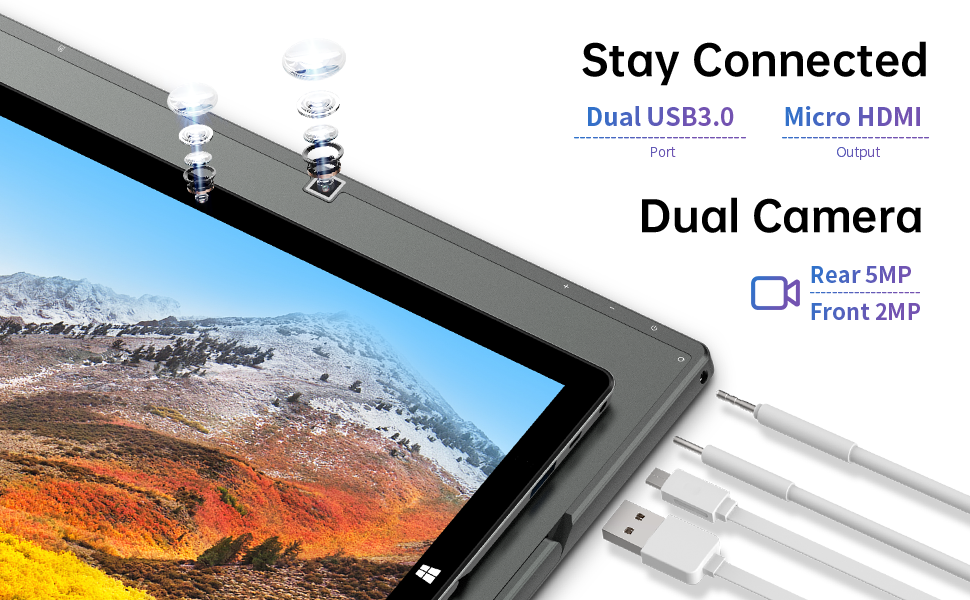
Hình ảnh: Bên view of the TECLAST X11 tablet highlighting the USB 3.0 port, Micro HDMI output, and front/rear cameras.

Hình ảnh: Chi tiết view of the TECLAST X11's side ports, including USB 3.0, Mini-HDMI, DC power input, and headphone jack.
4. Thiết lập
4.1 Sạc ban đầu
Before first use, fully charge your TECLAST X11 tablet. Connect the provided power adapter to the DC port on the device and plug it into a power outlet. The charging indicator will illuminate.
4.2 Bật / Tắt nguồn
- Để bật nguồn: Nhấn và giữ nút Nguồn cho đến khi màn hình sáng lên.
- Để Tắt Nguồn: Press and hold the Power button, then select "Shut down" from the on-screen options. Alternatively, go to Start Menu > Power > Shut down.
- Chế độ ngủ: Briefly press the Power button to put the device into sleep mode or wake it up.
4.3 Thiết lập Windows ban đầu
Upon first power-on, follow the on-screen instructions to complete the Windows 10 setup process. This includes selecting your region, language, connecting to a Wi-Fi network, and creating a user account.
5. Hướng dẫn vận hành
5.1 Chuyển đổi giữa các chế độ
The TECLAST X11 is designed for flexibility, allowing you to switch between tablet and laptop modes.
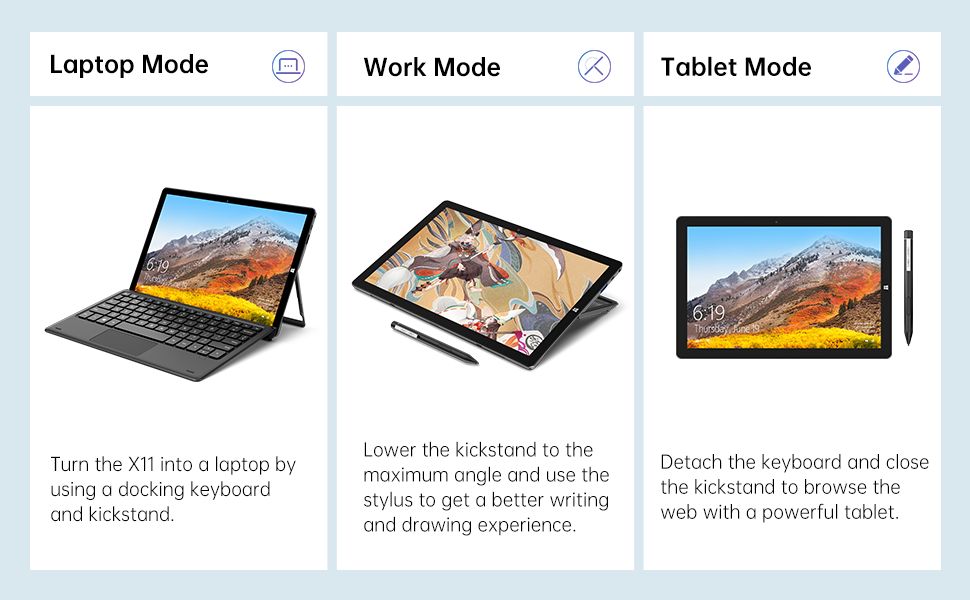
Image: The TECLAST X11 in laptop mode with the keyboard attached and kickstand deployed.
Chế độ máy tính xách tay: Attach the magnetic docking keyboard and deploy the integrated kickstand. The device will automatically detect the keyboard and switch to laptop interface.

Image: A user holding the TECLAST X11 in tablet mode, interacting with the touchscreen.
Chế độ máy tính bảng: Detach the keyboard. The device will automatically switch to tablet mode, optimizing the interface for touch input.

Hình ảnh: Phía sau view of the TECLAST X11 showing the adjustable kickstand extended.
Sử dụng chân đế: The integrated U-shaped kickstand can be adjusted from 0° to 145° for comfortable viewing or typing angles.
5.2 Sử dụng màn hình cảm ứng
The 10.1-inch IPS display supports 10-point multi-touch. Use standard touch gestures for navigation, zooming, and interaction with applications.
5.3 Kết nối bên ngoài
- USB 3.0: Connect external devices such as USB drives, mice, or printers.
- Mini-HDMI: Kết nối với màn hình ngoài hoặc TV để có màn hình lớn hơn.
- Bluetooth 4.2: Pair with Bluetooth-enabled accessories like headphones or speakers.
- Wi-Fi: Connect to wireless networks for internet access. Supports 2.4G and 5G bands.
5.4 Video trình diễn
Video: An official TECLAST video demonstrating the features and versatility of the X11 Windows tablet with its detachable keyboard and various usage scenarios.
6. Bảo trì
6.1 Vệ sinh thiết bị
- Hãy dùng khăn mềm, không xơ để lau màn hình và các bề mặt bên ngoài.
- Đối với các vết bẩn cứng đầu, hãy chà nhẹampLau vải bằng nước hoặc dung dịch lau màn hình an toàn.
- Tránh sử dụng hóa chất mạnh, vật liệu mài mòn hoặc độ ẩm quá cao.
6.2 Chăm sóc pin
- Để kéo dài tuổi thọ pin, hãy tránh nhiệt độ quá cao.
- Không để thiết bị ở trạng thái sạc đầy hoặc xả hết pin trong thời gian dài.
- Chỉ sử dụng bộ sạc chính hãng hoặc bộ sạc tương thích đã được chứng nhận.
6.3 Cập nhật phần mềm
Regularly check for and install Windows updates to ensure optimal performance, security, and access to the latest features. Go to Start Menu > Settings > Update & Security > Windows Update.
KHAI THÁC. Xử lý sự cố
| Vấn đề | Giải pháp khả thi |
|---|---|
| Thiết bị không bật nguồn | Ensure the device is charged. Connect the power adapter and try again. If unresponsive, press and hold the Power button for 10-15 seconds to perform a hard reset. |
| Sự cố kết nối Wi-Fi | Check if Wi-Fi is enabled in Windows settings. Restart your router and the tablet. Ensure you are within range of the Wi-Fi signal. |
| Bàn phím không phản hồi | Ensure the keyboard is securely attached to the magnetic docking port. Restart the tablet. Verify that the keyboard was purchased separately and is compatible. |
| Hiệu suất chậm | Close unnecessary applications. Check for Windows updates. Ensure sufficient free storage space. Run a disk cleanup. |
| Screen rotation not working | Check if auto-rotate is enabled in Windows Action Center (swipe in from the right edge of the screen or click the icon in the taskbar). |
8. Thông số kỹ thuật
| Tính năng | Chi tiết |
|---|---|
| Tên mẫu | X11 2-in-1 Tablet |
| Kích thước màn hình | 10.1 inch |
| Độ phân giải màn hình | 1920 x 1200 pixel (FHD IPS) |
| Bộ xử lý | Intel Gemini Lake Reflash N4020 (1.1GHz - 2.8GHz) |
| ĐẬP | Bộ nhớ DDR6 4GB |
| Ổ cứng | 128 GB eMMC (expandable up to 256GB via TF card) |
| Card đồ họa | Đồ họa tích hợp Intel UHD 600 |
| Hệ điều hành | Windows 10 Trang chủ |
| Loại không dây | Bluetooth 4.2, Dual-band WiFi (2.4G + 5G) |
| Ở phía sau Webđộ phân giải cam | 5MP |
| Đằng trước Webđộ phân giải cam | 2MP |
| Cổng | USB 3.0, Mini-HDMI, Headphone Jack, DC Port |
| Trọng lượng sản phẩm | 2.31 pound (khoảng 1.05 kg) |
| Pin | 1 pin Lithium Polymer (đi kèm) |
9. Bảo hành và Hỗ trợ
TECLAST provides a Dịch vụ bảo hành 12 tháng for the X11 2-in-1 Laptop/Tablet. If you encounter any issues or have questions regarding your device, please contact TECLAST customer support. Refer to the contact information provided with your product packaging or visit the official TECLAST webtrang web để biết chi tiết hỗ trợ.