
Giới thiệu
This user manual provides detailed instructions for the installation, operation, maintenance, and troubleshooting of your Xprinter XP-K200L 80mm Thermal Receipt Printer. Please read this manual thoroughly before using the printer to ensure proper function and to extend the product's lifespan. Keep this manual for future reference.
Thông tin an toàn
- Luôn sử dụng bộ chuyển đổi nguồn được cung cấp kèm theo máy in.
- Không để máy in tiếp xúc với nước hoặc hơi ẩm.
- Tránh đặt máy in dưới ánh nắng trực tiếp hoặc gần nguồn nhiệt.
- Đảm bảo thông gió thích hợp xung quanh máy in.
- Không nên tự ý tháo rời hoặc sửa chữa máy in. Hãy liên hệ với nhân viên dịch vụ có chuyên môn.
- Để xa tầm tay trẻ em.
Nội dung gói
Please check the package contents upon unpacking. If any items are missing or damaged, contact your vendor.
- Xprinter XP-K200L Thermal Receipt Printer
- Bộ đổi nguồn
- Dây nguồn
- Cáp USB
- Cuộn giấy in nhiệt (cuộn dùng thử)
- Cáp ngăn kéo đựng tiền
- Hướng dẫn sử dụng (tài liệu này)
Sản phẩm trênview
Familiarize yourself with the main components of your Xprinter XP-K200L thermal receipt printer.

Hình 1: Mặt bên view of the Xprinter XP-K200L thermal receipt printer. On the right, the power switch is visible, and on the left, a button to open the paper cover is present.
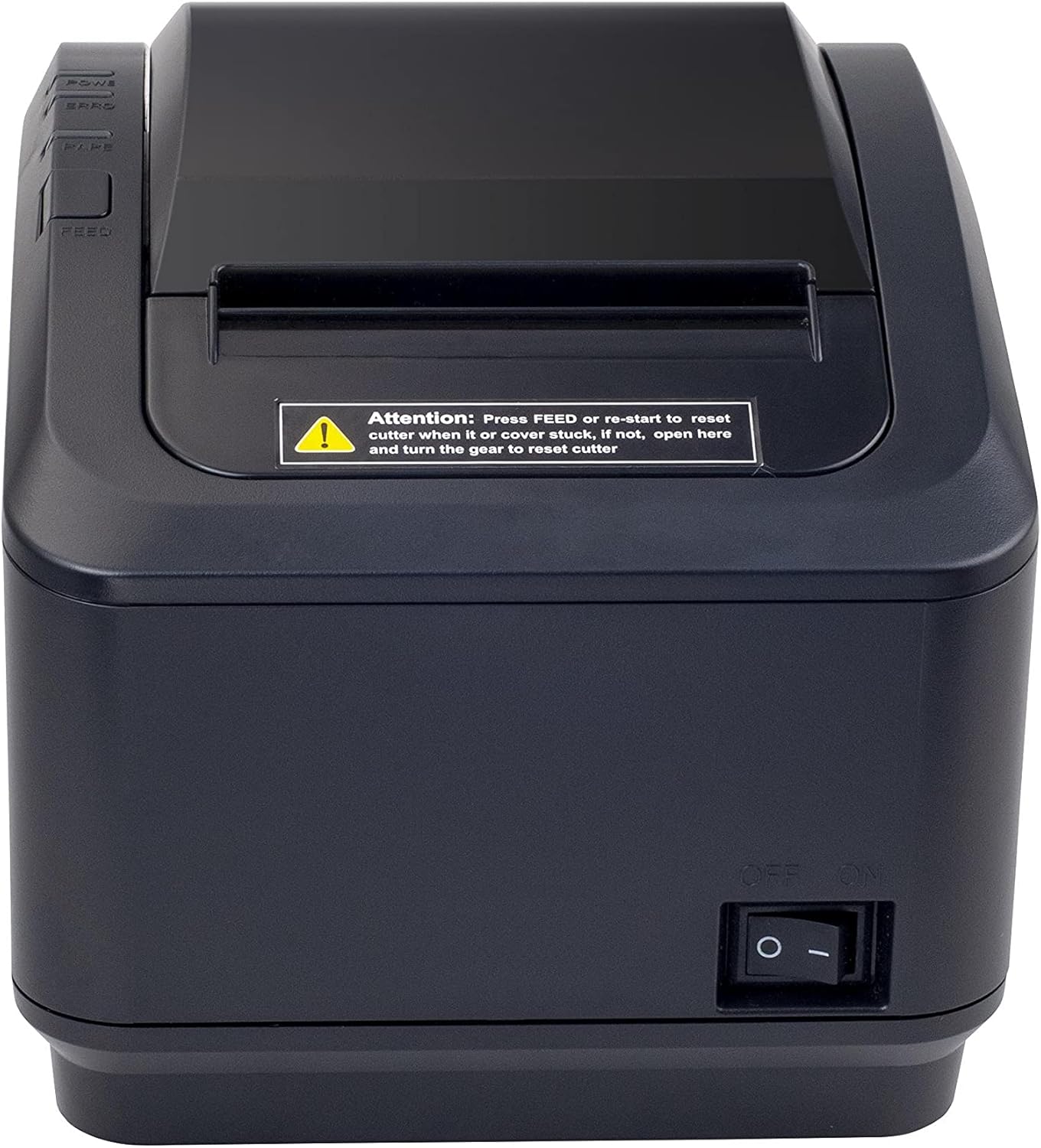
Figure 2: A front view of the Xprinter XP-K200L thermal receipt printer. The paper output slot is at the top, and below it are control buttons for functions like feed and error reset. A warning label is also visible.

Figure 3: This image displays the Xprinter XP-K200L thermal receipt printer with its top cover open, showing the internal compartment where the thermal paper roll is loaded. The print head mechanism is also visible.
Cài đặt
1. Kết nối nguồn điện
- Ensure the printer's power switch is in the TẮT chức vụ.
- Kết nối bộ chuyển đổi nguồn với cổng nguồn của máy in.
- Cắm dây nguồn vào ổ cắm điện phù hợp.
2. Nạp giấy in nhiệt
- Press the cover open button (refer to Figure 1) to open the top cover of the printer.
- Insert a new 80mm thermal paper roll into the compartment, ensuring the paper feeds from the bottom and the leading edge extends slightly out of the printer.
- Close the top cover firmly until it clicks into place. Ensure there is no slack in the paper roll.
3. Connecting to a Computer/Network
The XP-K200L printer supports both USB and LAN (Ethernet) connectivity.
Kết nối USB:
- Kết nối một đầu của cáp USB vào cổng USB của máy in.
- Kết nối đầu còn lại của cáp USB vào cổng USB có sẵn trên máy tính của bạn.
- Install the printer drivers. Drivers are typically provided on a CD or can be downloaded from the manufacturer's webtrang web. Làm theo hướng dẫn trên màn hình để cài đặt.
LAN (Ethernet) Connection:
- Connect one end of an Ethernet cable to the printer's LAN port.
- Kết nối đầu kia của cáp Ethernet với bộ định tuyến hoặc bộ chuyển mạch mạng của bạn.
- Configure the printer's network settings (e.g., IP address) if necessary. This usually involves printing a self-test page to get the current IP address and then accessing the printer's web interface or using a utility tool provided by the manufacturer.
- Install the printer drivers on your computer, selecting the network connection option during setup.
4. Kết nối ngăn kéo đựng tiền
- Connect the cash drawer cable to the dedicated cash drawer port on the printer.
- Ensure your POS software is configured to send commands to open the cash drawer via the printer.
Hướng dẫn sử dụng
Bật/Tắt nguồn
- To power on the printer, flip the power switch (refer to Figure 1) to the ON chức vụ.
- To power off the printer, flip the power switch to the TẮT chức vụ.
In cơ bản
Once the printer is connected and drivers are installed, you can print receipts from your POS software or any application that supports printing.
- Hãy đảm bảo máy in đã được bật nguồn và có giấy trong máy.
- From your application, select the print option.
- Choose the "Xprinter XP-K200L" from the list of available printers.
- Confirm print settings and click "Print".
Self-Test Page
To print a self-test page, which provides information about the printer's settings and status:
- Ensure the printer is powered off and the paper roll is loaded.
- Nhấn và giữ CHO ĂN cái nút.
- Trong khi giữ CHO ĂN button, turn the power switch to ON.
- Phát hành CHO ĂN button after the printer starts printing.
BẢO TRÌ
Vệ sinh máy in
- Đầu in: Sử dụng tăm bông nhẹ nhàngampened with isopropyl alcohol to gently wipe the thermal print head. Allow it to dry completely before use. Clean regularly to ensure print quality.
- Máy cắt: If the cutter becomes jammed or dirty, carefully clean it with a soft brush or cloth.
- Bên ngoài: Lau sạch bên ngoài máy in bằng vải mềm, khô. Không sử dụng chất tẩy rửa có tính ăn mòn hoặc dung môi.
Thay thế giấy in nhiệt
When the paper roll is depleted or near its end, replace it following the steps in the "Loading Thermal Paper" section under Setup.
Xử lý sự cố
| Vấn đề | Nguyên nhân có thể | Giải pháp |
|---|---|---|
| Máy in không bật được. | Power cord or adapter not connected properly; power outlet issue. | Kiểm tra tất cả các kết nối nguồn điện. Thử cắm vào ổ cắm điện khác. |
| No printing. | No paper; paper loaded incorrectly; printer offline; driver issue; incorrect connection. | Load paper correctly. Check printer status. Reinstall drivers. Verify USB/LAN connection. |
| Chất lượng in kém. | Dirty print head; low quality thermal paper. | Clean the print head (see Maintenance). Use recommended thermal paper. |
| Paper jam or cutter error. | Paper loaded incorrectly; debris in cutter mechanism. | As per printer label: Nhấn CHO ĂN or re-start to reset cutter. If the issue persists, open the top cover and carefully turn the gear to reset the cutter mechanism. Ensure paper is loaded correctly and remove any obstructions. |
| Ngăn kéo đựng tiền không mở được. | Cable not connected; POS software not configured. | Check cash drawer cable connection. Verify POS software settings for cash drawer trigger. |
Thông số kỹ thuật
| Tính năng | Chi tiết |
|---|---|
| Thương hiệu | Máy in Xprinter |
| Tên mẫu | XP-K200L |
| Công nghệ máy in | Nhiệt |
| Công nghệ kết nối | USB, LAN (Ethernet) |
| Tính năng đặc biệt | Mạng sẵn sàng |
| Màu sắc | Đen |
| Đầu ra máy in | Đơn sắc |
| Trọng lượng sản phẩm | 1.5kg |
| Kích thước sản phẩm (DxWxH) | 19.5cm x 14cm x 13.8cm |
| Compatible OS/Controller Type | Android (and typically Windows/Linux via drivers) |
| Phương tiện in ấn | Plain Thermal Paper |
| Màu In | Đen |
| Nghị quyết | 576 x 512 dots per inch (or dots per line) |
| Max Print Resolution B/W | 576dpi |
| Các chức năng bổ sung của máy in | Chỉ in |
| Phương pháp kiểm soát | Xa |
| Kích thước phương tiện tối đa | 80mm |
| Kích thước giấy | 79.5mm |
| Quyền lực | 60 watt |
| Các thành phần bao gồm | Power adapter, Cash drawer cable |
| Loạt | XP-K |
| Sử dụng cụ thể | Restaurants, bars, cinemas, garages, transportation, hospitals, clinics |
| Tổng số cổng USB | 1 |
Bảo hành và Hỗ trợ
For warranty information and technical support, please refer to the documentation provided with your purchase or contact your vendor directly. Keep your proof of purchase for warranty claims.
For driver downloads and further support resources, visit the official Xprinter webđịa điểm.