
1. Sản phẩm hếtview
The SIIG JU-DK0L11-S1 is a versatile USB 3.0 Dual Monitor Docking Station designed to expand your laptop or desktop's connectivity and display capabilities. It supports up to two 1080p@60Hz Full HD video displays via two HDMI ports, along with multiple USB ports, Gigabit Ethernet, and a 3.5mm audio jack. This docking station is compatible with both Windows and macOS operating systems, including Mac M1/M2/M3 Pro&Max.
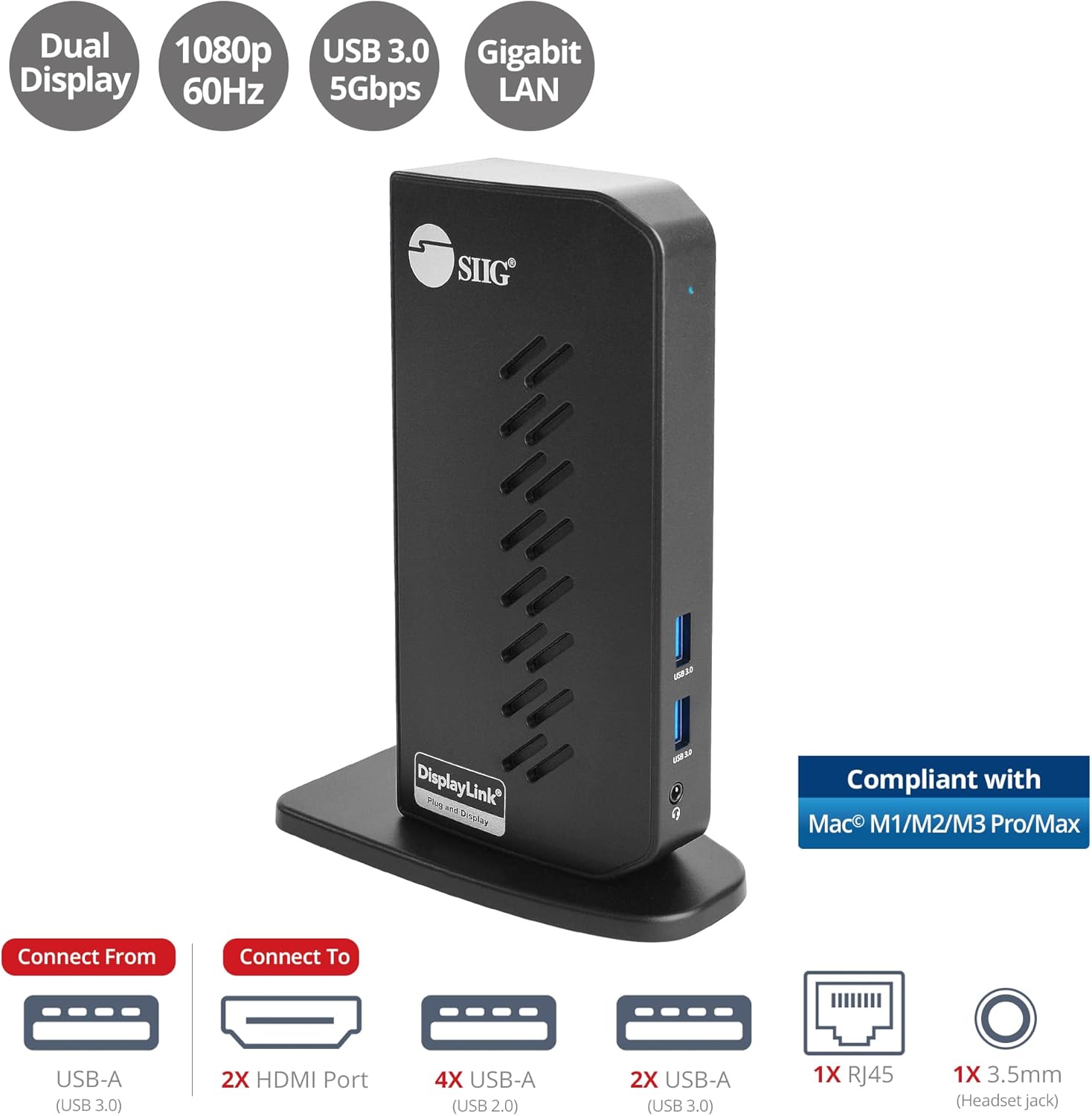
Image 1.1: The SIIG JU-DK0L11-S1 Dual Monitor Docking Station, showcasing its compact vertical design and various connectivity options.
2. Nội dung gói hàng
Xác minh rằng tất cả các mục đều có trong gói trước khi tiến hành cài đặt.
- SIIG JU-DK0L11-S1 Dual Head Full HD HDMI Video Docking Station
- Bộ đổi nguồn (12V / 2A)
- USB 3.0 Type-A to Type-B Cable
- Driver CD (Drivers can also be downloaded from the official SIIG webĐịa điểm)
- Hướng dẫn sử dụng

Image 2.1: All components included in the SIIG JU-DK0L11-S1 docking station package, including the docking station, power adapter, USB cable, driver CD, and user manual.
3. Bố cục phần cứng
Familiarize yourself with the ports and indicators on the docking station.
Bảng điều khiển phía trước
- Đèn LED nguồn: Cho biết trạng thái nguồn điện.
- 2 cổng USB 3.0: For connecting high-speed USB devices (5Gbps, 4.5W/900mA).
- Giắc cắm tai nghe 3.5 mm: For connecting headphones or stereo speakers with microphone input.
Bảng điều khiển phía sau
- 4 cổng USB 2.0: For connecting standard USB devices (480Mbps, 5V/900mA).
- Cổng Ethernet Gigabit RJ45: For wired network connection (10/100/1000Mbps).
- 2x HDMI Outputs: For connecting external displays (up to 1080p@60Hz).
- Cổng USB 3.0 Type-B: For connecting the docking station to your host computer.
- Jack nguồn: Dùng để kết nối bộ chuyển đổi nguồn 12V/2A.

Hình ảnh 3.1: Chi tiết view of the front and rear panels of the docking station, highlighting all available ports and their functions.
4. Hướng dẫn thiết lập
Thực hiện theo các bước sau để thiết lập trạm kết nối của bạn:
- Install DisplayLink Drivers: Before connecting the docking station, install the necessary DisplayLink drivers on your computer. You can use the included driver CD or download the latest drivers from the official DisplayLink webĐịa điểm (www.displaylink.com/downloads) or SIIG's support page.
- Kết nối nguồn: Plug the provided 12V/2A power adapter into the docking station's power jack and then into a wall outlet. The Power LED on the front panel should illuminate.
- Kết nối với máy tính chủ: Use the supplied USB 3.0 Type-A to Type-B cable to connect the docking station's USB 3.0 Type-B port to an available USB 3.0 Type-A port on your laptop or desktop computer.
- Kết nối màn hình: Connect your external monitors to the two HDMI output ports on the rear of the docking station using HDMI cables.
- Kết nối thiết bị ngoại vi: Connect your USB devices (keyboard, mouse, printer, flash drives, etc.) to the available USB 3.0 and USB 2.0 ports. Connect an Ethernet cable to the RJ45 port for a wired network connection. Plug your headset or speakers into the 3.5mm audio jack.
Video 4.1: An official video demonstrating the setup and connectivity of the SIIG JU-DK0L11-S1 Dual Head Full HD HDMI Docking Station, showing how to connect monitors and peripherals.
5. Hướng dẫn vận hành
Once the docking station is set up, you can configure your display settings and utilize the connected peripherals.
Chế độ hiển thị
The docking station supports three primary display modes:
- Chế độ Gương: Duplicates your primary display onto the external monitors.
- Chế độ mở rộng: Mở rộng màn hình máy tính của bạn ra nhiều màn hình, cho phép tăng không gian làm việc.
- Chế độ chính: Designates one of the connected displays as the main display.
You can configure these settings through your operating system's display settings (e.g., Windows Display Settings or macOS System Settings > Displays).

Image 5.1: A typical dual 1080p monitor setup utilizing the SIIG docking station, demonstrating an extended display configuration for enhanced productivity.
Kết nối USB
The docking station provides two USB 3.0 ports for high-speed data transfer (e.g., external hard drives, SSDs) and four USB 2.0 ports for standard peripherals (e.g., keyboard, mouse, printer). Simply plug your devices into the corresponding ports.
Gigabit Ethernet
For a stable and fast internet connection, connect an Ethernet cable from your router or modem to the RJ45 port on the docking station. This provides a more reliable connection than Wi-Fi, supporting 10/100/1000 BASE-T wired networks.

Hình ảnh 5.2: Cận cảnh view of the Gigabit RJ45 Ethernet port and USB ports, illustrating their use for network and high-speed data transmission.
Kết nối âm thanh
The 3.5mm headset jack allows you to connect headphones, speakers, or a microphone. Ensure your operating system's audio settings are configured to use the docking station's audio output/input.
6. Specifications (Model: JU-DK0L11-S1)
| Thương hiệu | SIIG |
| Số hiệu mẫu | JU-DK0L11-S1 |
| Giao diện phần cứng | 3.5mm Audio, Ethernet, HDMI, USB 1.1, USB 2.0, USB 3.0 |
| Thiết bị tương thích | Desktop or laptop computer with an available USB 3.0 Type-A port. Compatible with Windows® 11/10/8.1/8/7 and macOS® 11 / 10.15 to 10.10. |
| Tổng số cổng USB | 6 (2 cổng USB 3.0, 4 cổng USB 2.0) |
| Tổng số cổng HDMI | 2 |
| Max Resolution | 1080p@60Hz (per display) |
| Tốc độ Ethernet | Gigabit (10/100/1000Mbps) |
| Đầu vào Voltage | 100 Vôn (AC) |
| Kích thước sản phẩm (D x R x C) | 5.31" x 2.87" x 7.36" |
| Trọng lượng sản phẩm | 0.75 Bảng Anh |

Image 6.1: Physical dimensions of the SIIG JU-DK0L11-S1 docking station, illustrating its compact and space-saving design.
KHAI THÁC. Xử lý sự cố
- Không có đầu ra hiển thị:
- Ensure the docking station is powered on and the Power LED is lit.
- Verify that the USB 3.0 cable is securely connected between the docking station and your computer.
- Check that HDMI cables are firmly connected to both the docking station and your monitors.
- Confirm that DisplayLink drivers are correctly installed and up to date.
- Hãy thử khởi động lại máy tính của bạn.
- Thiết bị USB không được nhận dạng:
- Ensure the docking station is powered and connected to your computer.
- Hãy thử kết nối thiết bị USB vào một cổng khác trên đế cắm.
- Hãy kết nối thiết bị USB trực tiếp với máy tính để loại trừ các sự cố liên quan đến thiết bị.
- Không có kết nối mạng:
- Verify the Ethernet cable is securely connected to the RJ45 port on the docking station and your network source.
- Check your computer's network settings to ensure the Ethernet adapter is enabled.
- Confirm that your router/modem is functioning correctly.
- Vấn đề về âm thanh:
- Ensure your headset/speakers are properly plugged into the 3.5mm jack.
- Check your computer's sound settings to select the docking station as the default audio output/input device.
8. Bảo trì
To ensure the longevity and optimal performance of your SIIG docking station, follow these maintenance guidelines:
- Giữ thiết bị sạch sẽ bằng cách lau bằng vải mềm, khô. Tránh sử dụng chất tẩy rửa dạng lỏng hoặc bình xịt.
- Ensure proper ventilation around the docking station to prevent overheating. The vertical design with heat dissipation features aids in this.
- Tránh để thiết bị tiếp xúc với nhiệt độ quá cao, độ ẩm hoặc ánh nắng trực tiếp.
- Hãy thao tác nhẹ nhàng với dây cáp và đầu nối để tránh làm hỏng.
9. Bảo hành và Hỗ trợ
For warranty information and technical support, please refer to the documentation included with your product or visit the official SIIG website. SIIG is committed to providing reliable products and customer assistance.
For further assistance, you may contact SIIG customer support directly through their webtrang web hoặc thông tin liên hệ được cung cấp trên bao bì sản phẩm của bạn.