
1. Giới thiệu
This manual provides detailed instructions for the installation, operation, and maintenance of your Everycom EC801B 80mm Thermal Printer. Please read this manual thoroughly before using the printer to ensure proper function and longevity of the device. The EC801B is a high-speed thermal receipt printer equipped with an auto-cutter and versatile connectivity options including USB and LAN.
2. Thông tin an toàn
- DO NOT DISASSEMBLE THE PRINTER PERSONALLY. For any service-related queries, please contact Everycom support.
- The printer should be installed on a flat and solid surface to avoid vibration or impact damage.
- Ensure the power supply matches the printer's requirements to prevent electrical damage.
- Keep the printer away from water, dust, and direct sunlight.
3. Nội dung gói hàng
Vui lòng xác minh rằng tất cả các mục được liệt kê dưới đây đều có trong gói hàng của bạn:
- 1 x Everycom EC801B Thermal Receipt Printer
- 1 x Bộ đổi nguồn
- 1 x Cáp dữ liệu USB
- 1 x Paper Roll (Sample)
- 1 x Hướng dẫn sử dụng
- Trình điều khiển 1 x

Image: Contents of the Everycom EC801B printer package, including the printer unit, power adapter, USB cable, sample paper roll, user manual, and driver CD.
4. Sản phẩm hếtview
Familiarize yourself with the various parts of your Everycom EC801B thermal printer.
4.1 Mặt trước và mặt trên View

Hình ảnh: Mặt trước view of the Everycom EC801B thermal printer, showing the paper output slot and control panel.

Hình ảnh: Trên cùng view of the Everycom EC801B thermal printer, highlighting the control panel with POWER, ERROR, PAPER indicators, and the FEED button.
4.2 Bảng điều khiển
- Chỉ số sức mạnh: Đèn này sáng lên khi máy in được bật nguồn.
- Chỉ báo LỖI: Flashes or illuminates to indicate an error (e.g., paper out, cover open).
- Chỉ báo GIẤY: Illuminates when paper is present, flashes when paper is low.
- Nút FEED: Press to advance paper. Hold to print a self-test page.
4.3 Rear Panel (Connectivity Ports)

Hình ảnh: Phía sau view of the Everycom EC801B thermal printer, showing the power port, cash drawer port, Ethernet (LAN) port, and USB port.
- Cổng điện: Kết nối với bộ đổi nguồn.
- CASH Drawer Port: Connects to a compatible cash drawer.
- Cổng LAN (Ethernet): Connects to a network for network printing.
- Cổng USB: Connects to a computer via USB cable.
5. Thiết lập
5.1 Vị trí vật lý
Place the printer on a stable, flat surface. Ensure there is adequate space around the printer for ventilation and easy access to ports and paper loading.
5.2 kết nối cáp
- Kết nối nguồn điện: Connect the power adapter to the printer's POWER port and then plug the adapter into a power outlet.
- Kết nối dữ liệu (Chọn một):
- USB: Connect the USB data cable from the printer's USB port to an available USB port on your computer.
- LAN: Kết nối cáp Ethernet từ cổng LAN của máy in đến bộ định tuyến hoặc bộ chuyển mạch mạng của bạn.
- Cash Drawer (Optional): If using a cash drawer, connect its cable to the printer's CASH Drawer port.
5.3 Nạp giấy
- Open the printer cover by pushing the cover open lever (if present) or lifting the top cover.
- Insert the 80mm thermal paper roll into the compartment, ensuring the paper feeds from the bottom and the leading edge extends out of the printer.
- Close the printer cover firmly until it clicks into place. Ensure there is no slack in the paper.

Hình ảnh: Trên cùng view of the Everycom EC801B printer with the cover open, revealing the paper roll compartment.
5.4 Cài đặt trình điều khiển
For the printer to communicate with your computer, drivers must be installed.
- Insert the provided Driver CD into your computer's CD-ROM drive.
- Follow the on-screen instructions to install the printer drivers. If your computer does not have a CD drive, drivers can typically be downloaded from the Everycom official webđịa điểm.
- After installation, configure the printer settings through your operating system's printer management tools.
6. Hướng dẫn vận hành
6.1 Bật / Tắt nguồn
To power on the printer, ensure the power adapter is connected and press the power switch located on the side or rear of the printer. The POWER indicator light will illuminate. To power off, press the power switch again.
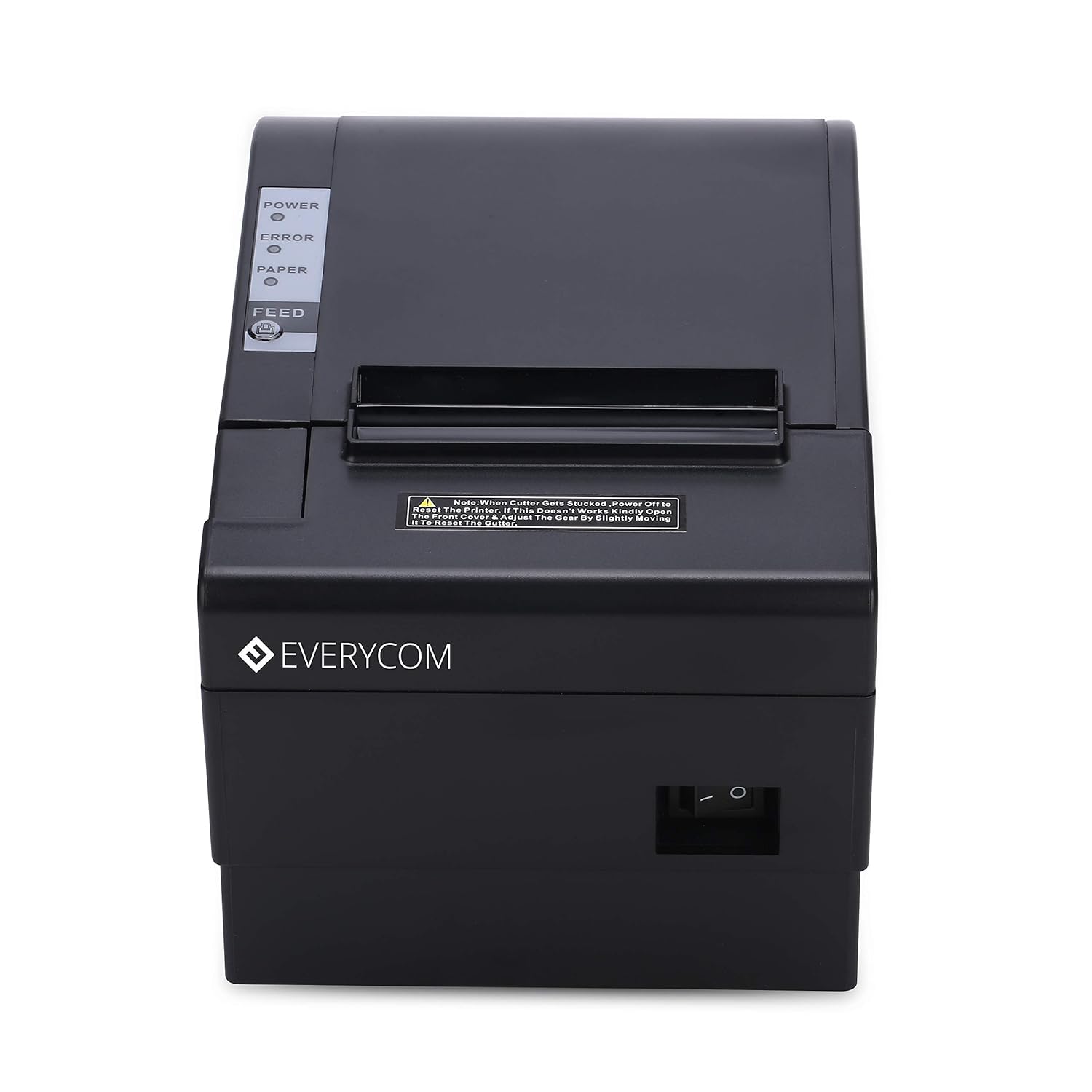
Hình ảnh: Mặt trước view of the Everycom EC801B printer, showing the location of the power switch on the side.
6.2 Printing a Self-Test Page
A self-test page can confirm basic printer functionality and print quality without requiring a computer connection.
- Ensure the printer is powered off and paper is loaded.
- Nhấn và giữ CHO ĂN cái nút.
- Trong khi giữ CHO ĂN Nhấn nút đó để bật máy in.
- Phát hành CHO ĂN button once the printer starts printing. A self-test page will print, showing printer information and a sampin.

Image: Everycom EC801B printer actively printing a self-test receipt with a QR code and text.
6.3 Basic Printing Operation
Once drivers are installed and the printer is connected, you can print from any application that supports printing. Select the Everycom EC801B from your list of available printers and initiate the print command.
6.4 Auto Cutter Function
The EC801B features an automatic cutter that will cut the receipt paper after each print job, or as configured in your printer settings/software.
7. Bảo trì
7.1 Vệ sinh máy in
Việc vệ sinh thường xuyên giúp duy trì chất lượng in và kéo dài tuổi thọ của máy in.
- Đầu in: Sử dụng tăm bông nhẹ nhàngampDùng cồn isopropyl lau nhẹ đầu in nhiệt. Để khô hoàn toàn trước khi sử dụng.
- Đường đi trên giấy: Use a soft, dry cloth to remove any paper dust or debris from the paper path.
- Bên ngoài: Lau sạch bên ngoài bằng một miếng vải mềm, damp vải. Không sử dụng hóa chất mạnh hoặc chất tẩy rửa mài mòn.
7.2 Thay thế cuộn giấy
When the PAPER indicator flashes or printing becomes faint, it's time to replace the paper roll. Follow the steps in Section 5.3 to load a new 80mm thermal paper roll.
KHAI THÁC. Xử lý sự cố
If you encounter issues with your printer, refer to the following common problems and solutions:
| Vấn đề | Nguyên nhân có thể | Giải pháp |
|---|---|---|
| Máy in không bật nguồn | No power, faulty adapter | Check power cable connection, ensure outlet is working, try another adapter if available. |
| No printing / Blank output | Paper loaded incorrectly, no paper, print head issue, driver issue | Reload paper correctly (thermal side facing print head), replace paper roll, clean print head, reinstall drivers. |
| ERROR indicator on/flashing | Paper out, cover open, print head overheat | Check paper, close cover firmly, allow printer to cool down. |
| Chất lượng in kém | Dirty print head, low quality paper, old paper roll | Clean print head, use high-quality thermal paper, replace old paper. |
| Máy tính không nhận dạng được máy in | Driver not installed, incorrect cable, port issue | Install/reinstall drivers, check USB/LAN cable connection, try a different port. |
If the problem persists after attempting these solutions, please contact Everycom customer support.
9. Thông số kỹ thuật
Key technical specifications for the Everycom EC801B Thermal Printer:
| Tính năng | Chi tiết |
|---|---|
| Người mẫu | EC801B |
| Công nghệ in ấn | In dòng nhiệt |
| Tốc độ in | 220 mm/giây |
| Chiều rộng giấy | 80mm |
| Kết nối | USB, LAN (Ethernet) |
| Máy cắt tự động | Đúng |
| Đầu ra máy in | Đơn sắc |
| Kích thước (DxRxC) | 18.6 x 14.5 x 13.3cm |
| Trọng lượng sản phẩm | 1.2kg |
| Nhà sản xuất | Everycom Electronics (Made in India) |
10. Bảo hành và Hỗ trợ
The Everycom EC801B Thermal Printer comes with a Bảo hành 1 năm Kể từ ngày mua. Bảo hành này bao gồm các lỗi sản xuất và sự cố xảy ra trong điều kiện sử dụng bình thường.
For technical assistance, troubleshooting, or warranty claims, please contact Everycom Customer Support:
- Số điện thoại miễn phí: 1800 121 4480
- Customer Support Working Hours: Monday - Saturday, 10:00 AM - 6:30 PM (Except on Public Holidays)

Image: Everycom customer service contact details, including the toll-free number and working hours.