
Giới thiệu
This manual provides comprehensive instructions for the setup, operation, and maintenance of your NETUM NT-R3 Mini 1D CCD Bluetooth Barcode Scanner. Please read this guide thoroughly to ensure proper use and to maximize the performance of your device.
Nội dung gói
Khi mở hộp, vui lòng kiểm tra xem tất cả các mục được liệt kê dưới đây có đầy đủ và trong tình trạng tốt không:
- 1 x NETUM Mini Bluetooth Barcode Scanner (NT-R3)
- 1 x Cáp sạc USB
- 1 x Hướng dẫn bắt đầu nhanh
- 1 x 2.4 GHz Adapter
Sản phẩm trênview
The NETUM NT-R3 is a compact and versatile 1D CCD barcode scanner designed for portability and ease of use. Its ring-style design allows for comfortable wear, enhancing productivity in various environments.

Image: The NETUM NT-R3 Mini Barcode Scanner, a small black electronic device with a screen and button, designed to be worn on a finger with an adjustable ring structure.
Các tính năng chính:
- Ring Design: Hợp kim magie casing and trigger for durability and ease of use.
- Xoay 180°: Unique rotatable design for scanning from various angles.
- CCD Scanning: Reads 1D barcodes directly from LCD screens of computers or mobile devices, including poorly printed or damaged barcodes.
- Kết nối không dây: Supports Bluetooth (SPP, HID) and 2.4 GHz wireless connections.
- Khả năng tương thích rộng: Compatible with Windows XP/7/8/8.1/10, Google Android, iOS, and Mac OS X.
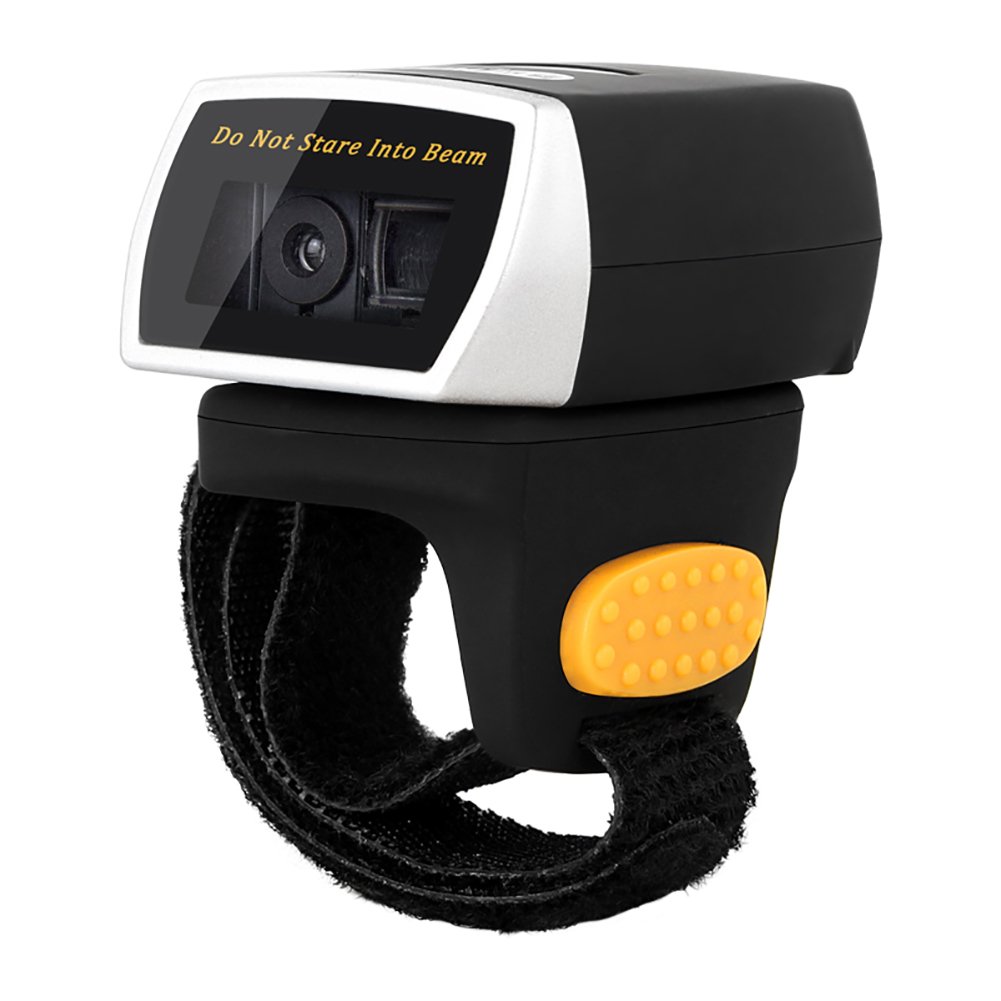
Image: The NETUM NT-R3 Mini Barcode Scanner demonstrating its 180-degree rotation design, allowing for flexible scanning angles.

Image: The NETUM NT-R3 Mini Barcode Scanner held in a hand, illustrating its compact dimensions (50mm x 44mm x 38mm) and light weight (50g), emphasizing its strong compatibility with various devices.
Thiết lập và kết nối
1. Sạc máy quét
Before initial use, fully charge the scanner using the provided USB charging cable. Connect the small end of the USB cable to the scanner's charging port and the other end to a USB power source (e.g., computer, USB wall adapter). The charging indicator light will show the charging status.
2. Bật / Tắt nguồn
To power on the scanner, press and hold the trigger button for a few seconds until you hear a beep and see the indicator light. To power off, press and hold the trigger button again until the indicator light turns off.
3. Tùy chọn kết nối
The NT-R3 scanner offers two primary connectivity methods:
Bluetooth Connection (HID Mode - Keyboard Emulation)
- Đảm bảo máy quét đã được bật.
- Scan the "Bluetooth HID Mode" barcode (refer to the Quick Start Guide for specific barcodes).
- Trên thiết bị chủ của bạn (điện thoại thông minh, máy tính bảng, máy tính), hãy bật Bluetooth và tìm kiếm các thiết bị khả dụng.
- Select "NETUM Barcode Scanner" or a similar name from the list of devices.
- The scanner will beep to confirm successful pairing.
In HID mode, scanned barcodes are input directly as keyboard entries into any active text field.
Bluetooth Connection (SPP Mode - Serial Port Profile)
SPP mode is typically used for applications that require direct data communication with the scanner. This mode requires specific software on the host device to interpret the data. Refer to your application's documentation for SPP setup.
- Đảm bảo máy quét đã được bật.
- Scan the "Bluetooth SPP Mode" barcode (refer to the Quick Start Guide).
- Follow the instructions provided by your specific application for connecting to an SPP device.
Kết nối không dây 2.4 GHz
- Plug the provided 2.4 GHz adapter into a USB port on your computer.
- Đảm bảo máy quét đã được bật.
- Scan the "2.4G Wireless Mode" barcode (refer to the Quick Start Guide).
- The scanner will automatically connect to the adapter. A successful connection is indicated by a specific beep or light pattern (refer to the Quick Start Guide for details).
The 2.4 GHz connection offers a wireless range of up to 10 meters (30 feet).
Chế độ hoạt động
The NETUM NT-R3 scanner supports two data upload modes:
1. Chế độ tải lên tức thì
In this mode, scanned barcodes are immediately transmitted to your connected device. This is suitable for real-time data entry.
2. Chế độ lưu trữ
The scanner can store up to 2000 barcodes in its built-in flash memory. This mode is useful when working out of range of your host device. Barcodes can be uploaded later when a connection is established.
Image: A visual representation of the two upload modes. Instant Upload Mode shows barcodes being sent directly to a device. Storage Mode shows barcodes being stored internally and then uploaded later.
To switch between modes, scan the corresponding configuration barcodes found in the Quick Start Guide.
Quét mã vạch
Để quét mã vạch:
- Giữ máy quét sao cho cửa sổ quét hướng về phía mã vạch.
- Press the trigger button. A red scanning line will appear.
- Align the red scanning line across the entire barcode.
- Once successfully scanned, the scanner will emit a beep, and the indicator light will flash.
The NT-R3 is capable of reading 1D barcodes from various surfaces, including:
- Nhãn in
- LCD screens (computers, smartphones, tablets)
- Poorly printed or damaged barcodes
BẢO TRÌ
Chăm sóc pin
- Để kéo dài tuổi thọ pin, tránh xả pin hoàn toàn thường xuyên.
- Hãy sạc máy quét thường xuyên, ngay cả khi không sử dụng liên tục.
- Bảo quản máy quét ở nơi khô ráo, thoáng mát khi không sử dụng trong thời gian dài.
Vệ sinh
- Hãy dùng một miếng vải mềm, khô, không xơ để lau sạch bề ngoài của máy quét.
- Đối với cửa sổ quét, hãy sử dụng khăn lau ống kính hoặc một miếng vải mềm lau nhẹ nhàng.amprửa sạch bằng nước hoặc chất tẩy rửa nhẹ, không gây mài mòn.
- Không sử dụng hóa chất mạnh, dung môi hoặc vật liệu mài mòn, vì chúng có thể làm hỏng thiết bị.
Xử lý sự cố
| Vấn đề | Nguyên nhân có thể | Giải pháp |
|---|---|---|
| Máy quét không bật được. | Pin yếu. | Sạc máy quét ít nhất 2 giờ. |
| Máy quét không kết nối qua Bluetooth. | Incorrect mode selected; device not discoverable; out of range. | Ensure "Bluetooth HID Mode" or "SPP Mode" is scanned. Make sure Bluetooth is enabled on the host device and the scanner is within 10 meters. Try re-pairing. |
| Scanner does not connect via 2.4 GHz adapter. | Adapter not properly inserted; incorrect mode selected. | Ensure the 2.4 GHz adapter is securely plugged in. Scan the "2.4G Wireless Mode" barcode. |
| Máy quét không đọc được mã vạch. | Barcode is unreadable; scanner not aligned; scanner in storage mode. | Ensure the barcode is clear and well-lit. Align the red line across the entire barcode. If in storage mode, switch to instant upload mode or upload stored data. |
| Dữ liệu được quét hiển thị không chính xác. | Keyboard layout mismatch (for HID mode). | Scan the appropriate keyboard layout barcode (e.g., US, UK, French) from the Quick Start Guide. |
Thông số kỹ thuật
| Tính năng | Chi tiết |
|---|---|
| Số hiệu mẫu | NT-R3 |
| Công nghệ quét | CCD 1 chiều |
| Kết nối | Bluetooth (SPP, HID), 2.4 GHz Wireless, USB |
| Hệ điều hành tương thích | Windows XP/7/8/8.1/10, Google Android, iOS, Mac OS X |
| Tốc độ quét | 260 giâyampít hơn mỗi giây |
| Dung lượng lưu trữ | Lưu trữ tối đa 2000 mã vạch (ở chế độ lưu trữ) |
| Loại pin | 1 Lithium metal battery (included) |
| Nguồn điện | Chạy bằng pin |
| Hoạt động Voltage | 5 vôn |
| Nhiệt độ lưu trữ tối đa | 45 độ C |
| Chứng nhận | CE, ISO, RoHS |
| Nhà sản xuất | Guangzhou Netum Electronic Technology Co.,Ltd. |
| Nước xuất xứ | Trung Quốc |
Bảo hành và Hỗ trợ
Chính sách trả hàng
Sản phẩm này đủ điều kiện được hoàn tiền hoặc đổi trả trong vòng 30 ngày kể từ ngày mua, theo chính sách đổi trả của người bán.
Thông tin Nhà sản xuất
Manufacturer: Guangzhou Netum Electronic Technology Co.,Ltd.
For further assistance or technical support, please refer to the contact information provided in your Quick Start Guide or visit the official NETUM webđịa điểm.
Lưu ý: Hiện tại chưa có thông tin về tình trạng sẵn có của phụ tùng thay thế và các bản cập nhật phần mềm được đảm bảo.