
1. Giới thiệu
This manual provides detailed instructions for the setup, operation, and maintenance of your ELECROW 7 Inch 1024x600 IPS Capacitive Touchscreen Monitor. This display is designed for broad compatibility with devices such as Raspberry Pi (5/4/3B+/3B/2B+), BB Black, Banana Pi, Jetson Nano, and Windows 11/10/8/7 systems.
Các tính năng chính:
- Hình ảnh HD: 7-inch IPS screen with 1024x600 resolution and 170° wide viewing angle for consistent colors and clear viewđang.
- Cảm ứng điện dung: Supports up to 5-point touch functionality without requiring driver installation for most compatible systems.
- Cắm và chạy: Simple connectivity via HD (HDMI) and Micro USB ports for immediate use.
- Ứng dụng đa năng: Suitable for use as a Raspberry Pi display, mini PC monitor, gaming console screen, or a computer temperature monitor.
2. Có gì trong hộp
Vui lòng xác minh rằng tất cả các thành phần đều có sẵn trước khi tiến hành cài đặt.
- 7 Inch Capacitive Display x 1
- HD Cable x 1
- Cáp USB x 1
- Micro HD Adapter x 1
- Copper Screws Pack (4pcs) x 1
- DVD x 1 (Contains drivers and documentation)
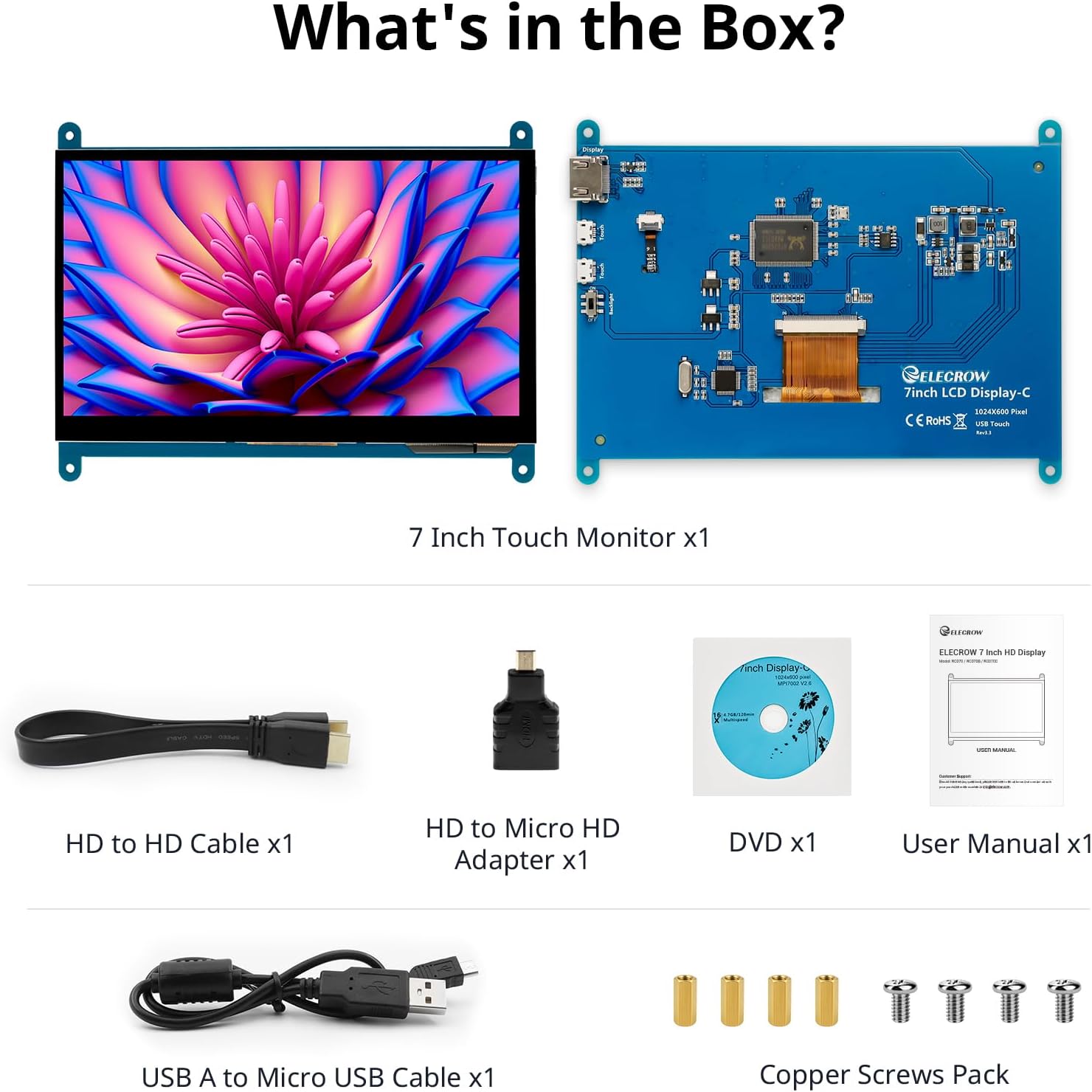
Hình ảnh: Tất cả các thành phần có trong bao bì sản phẩm.
3. Thiết lập và kết nối
Follow these steps to connect your ELECROW 7 Inch Touchscreen Monitor to your device.
3.1 Phần cứng trênview

Hình ảnh: Phía sau view of the monitor highlighting the Standard HD Port, Micro USB Port for touch and power, and Backlight switch.
- Standard HD Port: For video data transfer.
- Cổng Micro USB: For touch functionality and power supply.
- Công tắc đèn nền: To turn the display backlight on or off.
3.2 Kết nối với Raspberry Pi
To connect the monitor to a Raspberry Pi, you will need both the HD cable for video and the USB cable for touch and power.
- Connect one end of the HD cable to the Standard HD Port on the monitor and the other end to the HDMI port on your Raspberry Pi. Use the Micro HD adapter if necessary for your Raspberry Pi model.
- Connect the Micro USB cable to the Micro USB Port on the monitor. Connect the other end of the USB cable to a USB port on your Raspberry Pi for power and touch data.
- Ensure the backlight switch on the monitor is in the 'On' position.
- Power on your Raspberry Pi. The display should automatically detect and show the output.
For touch functionality with Raspberry Pi, power can be supplied via the Raspberry Pi's USB port. If using an external power source for the Raspberry Pi, ensure it is sufficient. For optimal performance, especially with older Raspberry Pi models, an external power supply for the monitor might be beneficial if the Pi cannot provide enough current.
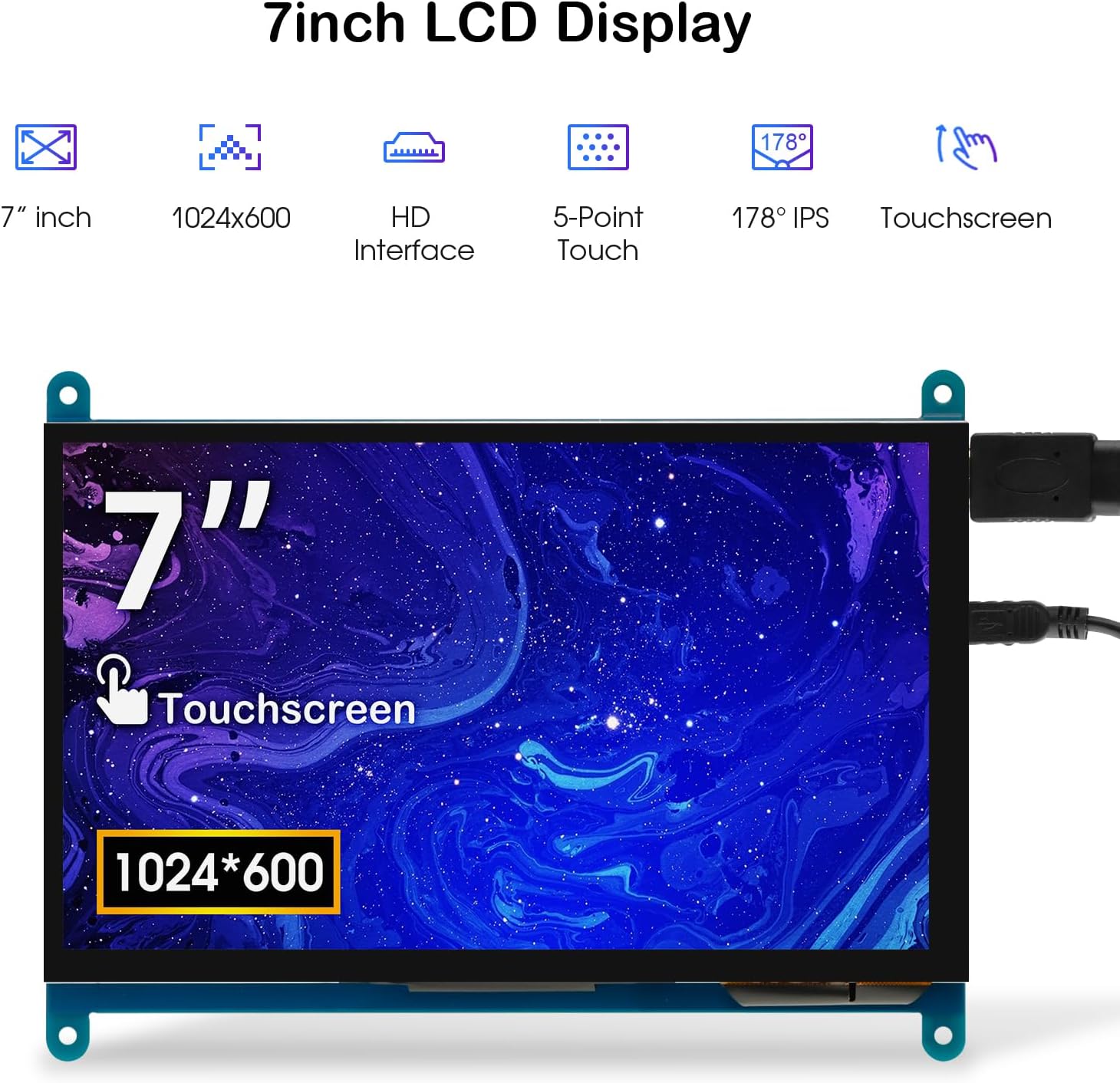
Image: The 7-inch touchscreen connected to a Raspberry Pi board, displaying a graphical user interface.
3.3 Connecting to Windows PC/Laptop
For Windows systems, the monitor functions as a plug-and-play display and touchscreen.
- Connect the HD cable from the monitor's Standard HD Port to an HDMI port on your PC or laptop.
- Connect the Micro USB cable from the monitor's Micro USB Port to a USB-A port on your PC or laptop. This provides power and enables touch functionality.
- Ensure the backlight switch is 'On'.
- Your Windows system should automatically detect the display and touchscreen. No additional drivers are typically required for Windows 7/8/10/11 for basic display and 5-point touch.

Image: The 7-inch touchscreen connected to a laptop, demonstrating seamless connectivity with various operating systems including Windows.
4. Hướng dẫn vận hành
4.1 Chức năng cảm ứng
The monitor supports 5-point capacitive touch, allowing for various gestures.
- Vỗ nhẹ: Single touch for selection or activation.
- Nhấn: Sustained touch for context menus or drag operations.
- Phóng to / thu nhỏ: Pinch gestures with two fingers.
- Mouse Click: A single tap typically registers as a left-click.
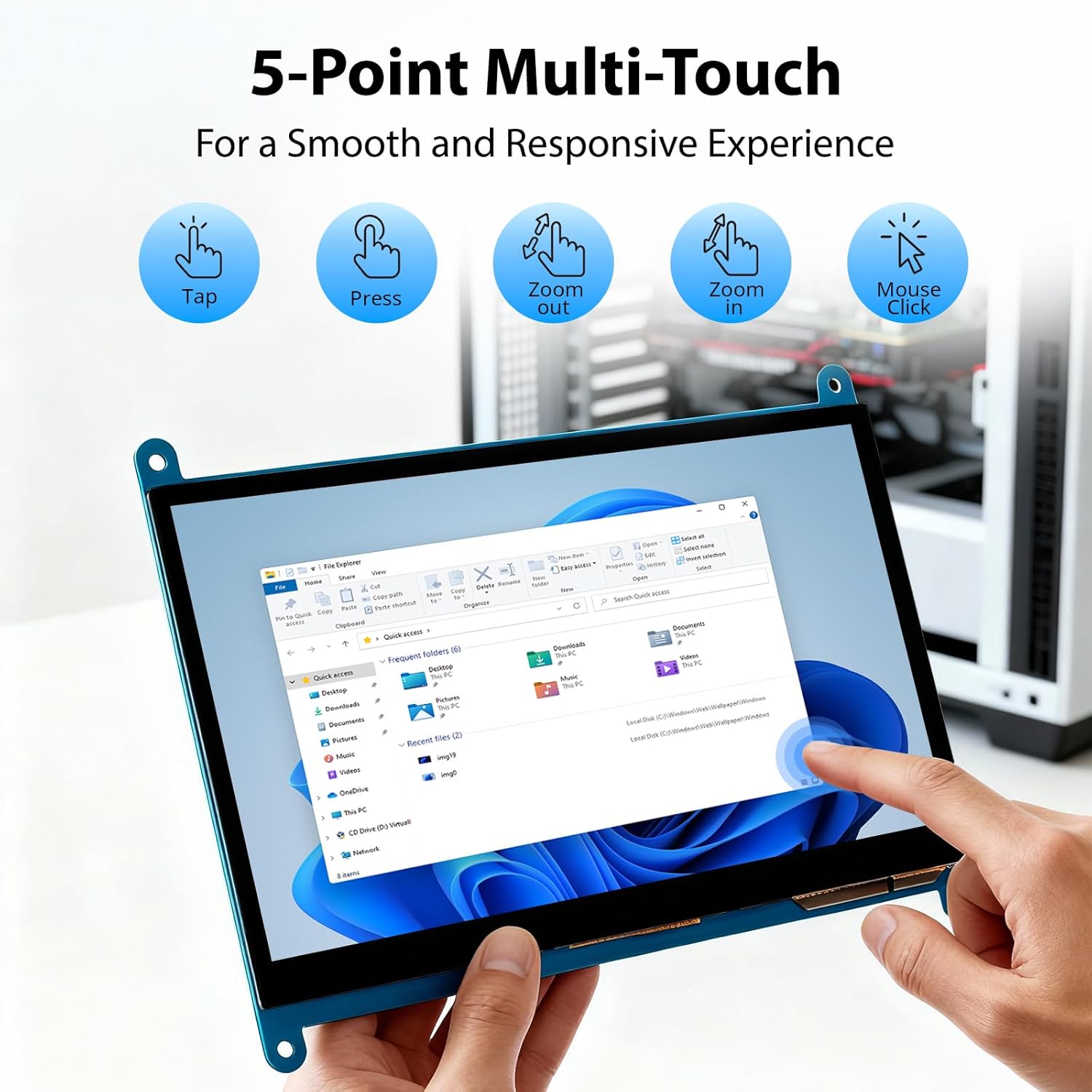
Image: Visual guide to the 5-point multi-touch capabilities of the screen, showing common gestures.
4.2 Chế độ hiển thị
When connected to a computer, the monitor can operate in several display modes:
- Chế độ trùng lặp: Màn hình phụ hiển thị nội dung giống hệt màn hình chính của bạn.
- Chế độ mở rộng: The monitor acts as an extension of your primary display, providing additional screen space.
- Chế độ màn hình thứ hai: The monitor functions as the sole display, with the primary display turned off.
These modes can typically be configured through your operating system's display settings.

Image: Illustrations demonstrating the three display modes: Duplicate, Extend, and Second Screen, showing how the monitor can be used with a laptop.
Kiểm soát đèn nền 4.3
The monitor features a physical switch to control the backlight. This allows you to turn the display illumination on or off without disconnecting power. Note that there is no granular brightness control; it is an on/off function only.
Video: This video demonstrates the backlight control switch on the ELECROW 7 Inch Touchscreen, showing how to turn the display illumination on and off.
5. Bảo trì
Bảo trì đúng cách sẽ đảm bảo độ bền và hiệu suất tối ưu cho màn hình của bạn.
- Làm sạch màn hình: Sử dụng một miếng vải mềm, không xơ vải lau nhẹampened with water or a screen-cleaning solution. Avoid harsh chemicals or abrasive materials that could damage the screen surface.
- Quan tâm chung: Keep the monitor in a clean, dry environment. Avoid exposing it to extreme temperatures, direct sunlight, or high humidity.
- Xử lý: Handle the monitor by its edges. Avoid applying excessive pressure to the screen.
KHAI THÁC. Xử lý sự cố
Nếu bạn gặp sự cố với màn hình, hãy tham khảo các vấn đề và giải pháp thường gặp sau đây.
| Vấn đề | Nguyên nhân có thể | Giải pháp |
|---|---|---|
| Màn hình đen/Không hiển thị |
|
|
| Màn hình cảm ứng không phản hồi |
|
|
| Display resolution incorrect |
|
|
| Không có điều khiển độ sáng | The monitor only has an on/off switch for the backlight, not adjustable brightness. | This is expected behavior. The monitor does not support adjustable brightness. |
7. Thông số kỹ thuật
Detailed technical specifications for the ELECROW 7 Inch Touchscreen Monitor.
| Tính năng | Chi tiết |
|---|---|
| Thương hiệu | TỰ ĐỘNG |
| Tên mẫu | RC070 |
| Kích thước màn hình | 7 inch |
| Độ phân giải màn hình tối đa | 1024 x600 |
| Độ phân giải gốc | 1024x600 |
| Kiểu hiển thị | Màn hình tinh thể lỏng |
| Công nghệ hiển thị | IPS |
| Tỷ lệ khung hình | 1.71:1 |
| Tốc độ làm mới | 60Hz |
| Thời gian phản hồi | 8 mili giây |
| Tỷ lệ tương phản | 800:1 |
| Độ sáng | 300lm |
| Viewgóc ing | 170 Độ |
| Mô tả bề mặt màn hình | Bóng loáng |
| Công nghệ kết nối | HDMI |
| Kết nối phần cứng | HDMI, USB |
| Tổng số cổng HDMI | 1 |
| Tổng số cổng USB | 2 (Micro USB for power/touch, USB-A for power/touch) |
| Tiêu thụ điện năng | 12.5 Watt |
| Tậptage | 5 vôn |
| Kích thước sản phẩm (D x R x C) | 0.3"D x 6.1"W x 4.8"H |
| Trọng lượng sản phẩm | 7.36 ounce |
| Thiết bị tương thích | Raspberry Pi, BB Black, Banana Pi, Jetson Nano, Computers, Laptops, Gaming Consoles |
8. Bảo hành và Hỗ trợ
Your ELECROW 7 Inch Touchscreen Monitor comes with a manufacturer's warranty.
- Loại bảo hành: Bảo hành của nhà sản xuất 1 năm
- Mô tả bảo hành: Nhà sản xuất 1 năm
For technical support or warranty claims, please contact ELECROW customer service through their official webTrang web hoặc nền tảng nơi sản phẩm được mua.