
Giới thiệu
The ADATA S102PRO is a high-performance USB 3.0 flash drive designed for fast and reliable data storage and transfer. Its durable design and high-speed interface make it ideal for everyday use, allowing you to carry important files, documents, photos, and videos with ease.
Cài đặt
Follow these steps to begin using your ADATA S102PRO USB Flash Drive:
- Xác định cổng USB: Locate an available USB port on your computer. For optimal performance, use a USB 3.0 port (often colored blue internally). The ADATA S102PRO is backward compatible with USB 2.0 ports, but data transfer speeds will be limited to USB 2.0 rates.
- Tháo nắp: Carefully remove the protective cap from the USB flash drive to expose the USB connector.
- Chèn ổ đĩa: Insert the USB connector firmly into the USB port on your computer. Ensure it is inserted correctly; do not force it.
- Nhận dạng hệ thống: Your operating system (Windows, macOS, Linux) should automatically detect and install the necessary drivers. A notification may appear indicating that the device is ready for use. The drive will typically appear as a removable disk or volume in your file nhà thám hiểm.
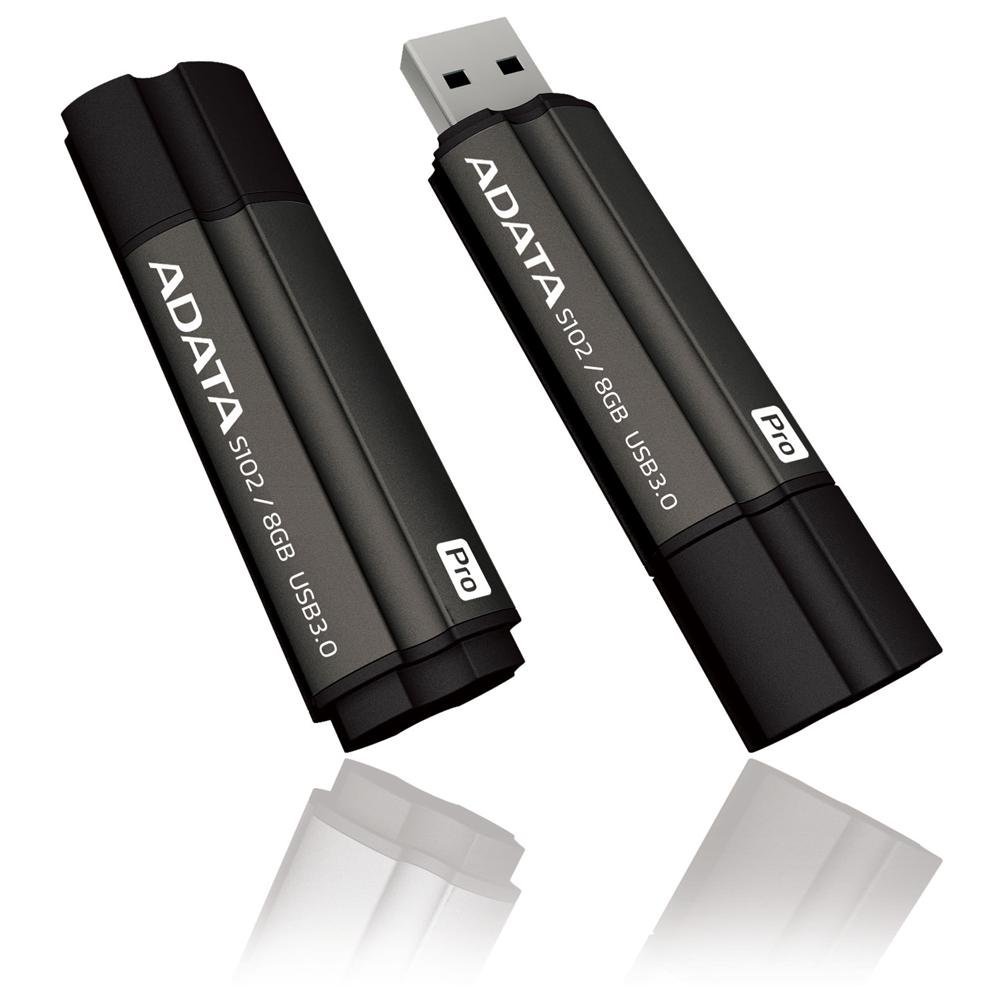
Image: The ADATA S102PRO USB Flash Drive shown with its protective cap on and with the cap removed, revealing the USB 3.0 connector. This illustrates the physical appearance and how to prepare the drive for insertion.
Hoạt động
Once the ADATA S102PRO is recognized by your computer, you can begin transferring files:
- Truy cập ổ đĩa:
- Cửa sổ: Open "This PC" or "My Computer" and locate the drive listed under "Devices and drives" (e.g., "Removable Disk" or a drive letter like E:).
- hệ điều hành Mac: The drive icon will appear on your desktop or in the Finder sidebar under "Locations."
- Chuyển giao Files:
- Để sao chép files ĐẾN the flash drive, drag and drop them from your computer's folders into the flash drive's window.
- Để sao chép files từ the flash drive, drag and drop them from the flash drive's window to a folder on your computer.
- You can also use the standard copy (Ctrl+C / Command+C) and paste (Ctrl+V / Command+V) functions.
- Tháo ổ đĩa một cách an toàn: It is crucial to safely eject the flash drive before physically removing it to prevent data corruption.
- Cửa sổ: Click the "Safely Remove Hardware and Eject Media" icon in the system tray (bottom-right corner), then select your flash drive and click "Eject." Wait for the "Safe to Remove Hardware" message.
- hệ điều hành Mac: Drag the drive icon from the desktop to the Trash, or click the Eject button next to the drive name in the Finder sidebar. Wait for the icon to disappear before removing the drive.
BẢO TRÌ
Proper care will help ensure the longevity and reliability of your ADATA S102PRO USB Flash Drive:
- Bảo vệ đầu nối: Luôn đậy nắp bảo vệ trên đầu nối USB khi không sử dụng ổ đĩa để tránh bụi bẩn và hư hỏng vật lý.
- Tránh những điều kiện khắc nghiệt: Do not expose the drive to extreme temperatures, direct sunlight, high humidity, or strong magnetic fields.
- Xử lý cẩn thận: Avoid dropping the drive or subjecting it to strong impacts.
- Do Not Remove During Transfer: Never unplug the drive while data is being read from or written to it. Always follow the safe removal procedure.
- Sao lưu thường xuyên: While flash drives are reliable, it is always recommended to back up critical data to another storage device or cloud service.
Xử lý sự cố
If you encounter issues with your ADATA S102PRO, try the following solutions:
- Ổ đĩa không được nhận dạng:
- Đảm bảo ổ đĩa được cắm hoàn toàn vào cổng USB.
- Hãy thử một cổng USB khác trên máy tính của bạn.
- Kiểm tra ổ đĩa trên một máy tính khác để loại trừ sự cố liên quan đến máy tính.
- Kiểm tra Trình quản lý thiết bị (Windows) hoặc Thông tin hệ thống (macOS) của máy tính để xem ổ đĩa có được liệt kê hay không, ngay cả khi nó không xuất hiện trong File Người khám phá/Tìm kiếm.
- Tốc độ truyền chậm:
- Ensure you are connected to a USB 3.0 port for optimal performance. USB 2.0 ports will limit speeds.
- Chuyển nhiều nhỏ fileViệc này có thể chậm hơn so với việc chuyển một vài tệp lớn. files.
- Hãy đóng các ứng dụng khác có thể đang sử dụng tài nguyên hệ thống hoặc thực hiện các thao tác trên ổ đĩa.
- Không thể viết Files để lái xe:
- Kiểm tra xem ổ đĩa có đầy không. Xóa các tệp không cần thiết files or transfer them to another location.
- Đảm bảo file system (e.g., FAT32, NTFS, exFAT) is compatible with your operating system and allows writing. If formatted as NTFS on macOS, you may only have read access without third-party software.
- Check for any software-based write protection or permissions issues on your computer.
Thông số kỹ thuật
| Thương hiệu | DỮ LIỆU |
| Tên mẫu | S102PRO |
| Số hiệu mẫu | AT806-4G-CPK |
| Dung lượng lưu trữ bộ nhớ | 4GB |
| Giao diện phần cứng | USB 3.0 (Tương thích ngược với USB 2.0) |
| Nhà sản xuất | A-DATA TECHNOLOGY (USA) CO. L |
| Mã số UPC | 842243005080 |
| ASIN | B004AVOGW8 |
Bảo hành và Hỗ trợ
For detailed warranty information, product registration, and technical support, please visit the official ADATA webTrên trang web đó, bạn thường có thể tìm thấy các nguồn hỗ trợ, câu hỏi thường gặp và thông tin liên hệ của bộ phận chăm sóc khách hàng.
Trang web chính thức của ADATA Webđịa điểm: www.adata.com