
1. Thiết lập
1.1 Tháo dỡ và kiểm tra ban đầu
Carefully remove your ASUS K52F-A2B laptop from its packaging. Inspect the laptop and all accessories for any signs of damage. The package should contain the laptop, AC adapter, power cord, and documentation.
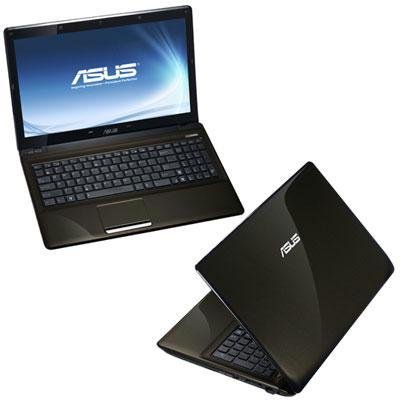
Image 1.1: The ASUS K52F-A2B laptop. This image shows the closed laptop from an angle, highlighting its dark brown finish and sleek design.
1.2 Kết nối bộ đổi nguồn AC
Before initial use, connect the AC adapter to the laptop and a power outlet. This ensures the battery is charged and provides stable power for setup.
- Plug the AC adapter into the power connector on the side of your laptop.
- Cắm dây nguồn vào bộ chuyển đổi AC.
- Cắm đầu kia của dây nguồn vào ổ cắm điện được nối đất.
1.3 Bật nguồn ban đầu
Once the AC adapter is connected, open the laptop lid and press the power button. The laptop will begin its initial boot sequence. Follow the on-screen instructions to complete the operating system setup (Windows 7 Professional 64-bit).
2. Operating Your ASUS K52F-A2B Laptop
2.1 Bật/Tắt nguồn và Chế độ ngủ
- Bật nguồn: Nhấn nút nguồn nằm phía trên bàn phím.
- Tắt nguồn: Click the Start button, then select 'Shut down'.
- Chế độ ngủ: Close the laptop lid or select 'Sleep' from the Start menu. Press the power button or any key to wake the laptop.
2.2 Sử dụng Bàn phím và Bàn di chuột
The ASUS K52F-A2B features a full-sized keyboard and a multi-touch touchpad.
- Bàn phím: Bàn phím có bố cục QWERTY tiêu chuẩn với các phím chức năng (Fn) để điều chỉnh độ sáng, âm lượng và các chức năng khác của hệ thống.
- Bàn di chuột: Supports multi-touch gestures for scrolling, zooming, and navigation. Refer to the operating system's help for detailed gesture information.
2.3 Kết nối các thiết bị bên ngoài
Your laptop provides various ports for connecting external devices:
- Cổng USB: For connecting USB devices such as mice, keyboards, and external storage.
- Cảng HDMI: Connects to external displays or TVs for high-definition video and audio output.
- Cổng VGA: Connects to older external monitors or projectors.
- Giắc cắm âm thanh: Dành cho tai nghe và micro.
- Cổng mạng: Đối với kết nối mạng có dây.
2.4 Using the Optical Disk Drive
The laptop includes a Super Multi Optical Disk Drive for reading and writing CDs and DVDs.
- Nhấn nút đẩy đĩa trên ổ đĩa để mở khay.
- Đặt đĩa CD hoặc DVD lên khay với mặt có nhãn hướng lên trên.
- Gently push the tray back into the laptop until it clicks shut.
3. Bảo trì
3.1 Vệ sinh máy tính xách tay của bạn
Regular cleaning helps maintain the laptop's appearance and functionality.
- Màn hình: Dùng vải mềm, không có xơ vải nhẹ nhàng dampLàm sạch bằng nước hoặc dung dịch vệ sinh màn hình. Không xịt trực tiếp chất lỏng lên màn hình.
- Bàn phím và Casing: Use a soft, dry cloth. For stubborn dirt, a cloth lightly dampened with mild soap and water can be used. Ensure the laptop is powered off and unplugged before cleaning.
- Lỗ thông hơi: Use compressed air to clear dust from the cooling vents to prevent overheating.
3.2 Chăm sóc pin
Để tối đa hóa tuổi thọ và hiệu suất của pin:
- Tránh xả hết pin thường xuyên.
- Khi không sử dụng trong thời gian dài, hãy bảo quản máy tính xách tay ở nơi khô ráo, thoáng mát.
- Nếu cất giữ trong thời gian dài, hãy sạc pin đến khoảng 50% trước khi cất giữ.
3.3 Cập nhật phần mềm
Thường xuyên cập nhật hệ điều hành và trình điều khiển để đảm bảo hiệu suất và bảo mật tối ưu. Kiểm tra trang hỗ trợ của ASUS. website for the latest drivers for your K52F-A2B model.
KHAI THÁC. Xử lý sự cố
This section addresses common issues you might encounter with your ASUS K52F-A2B laptop.
4.1 Các vấn đề về nguồn điện
- Máy tính xách tay không bật nguồn: Ensure the AC adapter is securely connected to both the laptop and a working power outlet. Check if the power outlet is functional. If the battery is completely drained, allow it to charge for a few minutes before attempting to power on.
- Laptop shuts down unexpectedly: This could indicate overheating. Ensure cooling vents are clear and the laptop is on a hard, flat surface.
4.2 Vấn đề hiển thị
- Không hiển thị trên màn hình: Connect an external monitor to the VGA or HDMI port to check if the issue is with the laptop's internal display. Press Fn+F8 to toggle display output modes.
- Màn hình mờ: Adjust screen brightness using the Fn+F5 (dim) and Fn+F6 (bright) function keys.
4.3 Các vấn đề về kết nối
- Wi-Fi không kết nối: Ensure Wi-Fi is enabled (often via a function key, e.g., Fn+F2). Check network settings in Windows.
- Thiết bị USB không được nhận dạng: Hãy thử kết nối thiết bị với một cổng USB khác. Đảm bảo rằng trình điều khiển thiết bị đã được cài đặt.
4.4 Operating System Recovery
The ASUS K52F-A2B comes with Windows 7 Professional. For system recovery or reinstallation, it is recommended to use the recovery partition or create recovery media as instructed by ASUS. Note that official support for downgrading to Windows XP Pro may be limited, and recovery media for Windows 7 Pro might need to be created by the user.
5. Thông số kỹ thuật
| Tính năng | Đặc điểm kỹ thuật |
|---|---|
| Số hiệu mẫu | K52F-A2B |
| Bộ xử lý | Intel Core i3-350M (2.26 GHz) |
| Hệ điều hành | Windows 7 chuyên nghiệp 64-bit |
| Trưng bày | 15.6-inch HD (1366x768) LED |
| Đồ họa | Intel GMA HD (Integrated) |
| Bộ nhớ RAM | 3 GB DDR3 1066MHz (Max 8GB) |
| Kho | 320 GB Hard Drive (5400 RPM) |
| Ổ đĩa quang | DVD SuperMulti |
| Kết nối không dây | 802.11bgn |
| Cổng | HDMI, VGA, USB, Audio Jacks |
| Webcam | 0.3MP |
| Cân nặng | 5.8 Bảng Anh |
6. Bảo hành và Hỗ trợ
6.1 Thông tin bảo hành
Your ASUS K52F-A2B laptop comes with the following warranty coverage:
- Bảo hành toàn cầu 2 năm
- 1-Year Accidental Damage Warranty
- 30-Day Zero Bright Dot Guarantee
- 2-way FREE shipping for repairs
6.2 Hỗ trợ kỹ thuật
Để được hỗ trợ kỹ thuật, tải xuống trình điều khiển hoặc biết thêm thông tin, vui lòng truy cập trang hỗ trợ chính thức của ASUS. website. 24/7 technical support is available as part of your warranty.
For the most up-to-date support contact information, please refer to the documentation included with your product or visit www.asus.com/support.